Home > Help > Creating Digital rights packages
Digital rights
The legal component when using assets is essential for us. The Digital rights process ensures that assets are only processed within the framework of the applicable usage rights. Here you find what you need to know about appearance and creation of Digital rights packages in our Digital rights module.
Copyrights
The legal componentwhen using assets is of course essential for us.
We must ensure at all times that assets are only processed further within the scope of the applicable usage rights. Therefore, certain data such as author, source, licenses, restrictions on use, contact person, etc. are mandatory when editing metadata.

Important information for our european sites
Please read this information if product shoots are created at your site.
In cases that deviate from standard processes, e.g. product shoots in a shop (e.g. CEWE Fotolab) and/or product shoots with the participation of CEWE employees, it is important that a legal check is carried out in the respective country. It must be ensured that the photographs taken are covered by the existing employment contracts of the employees taking photographs or is being photographed and that CEWE holds the necessary rights for commercial use of the images. If this is not the case, additional agreements may have to be made with the employees concerned.
Legal issues and employment contract clauses relating to European locations must be examined and clarified in accordance with the respective national law. Legal Counsel of CEWE Stiftung & Co. KGaA in Oldenburg cannot provide any assistance for these specific enquiries. It is recommended to consult a local legal expert to fully clarify the situation and ensure that all legal requirements for such product shoots are met.
Part 1 - Digital rights package
What is a Digital rights package, what's in it and what is the set up
Intro
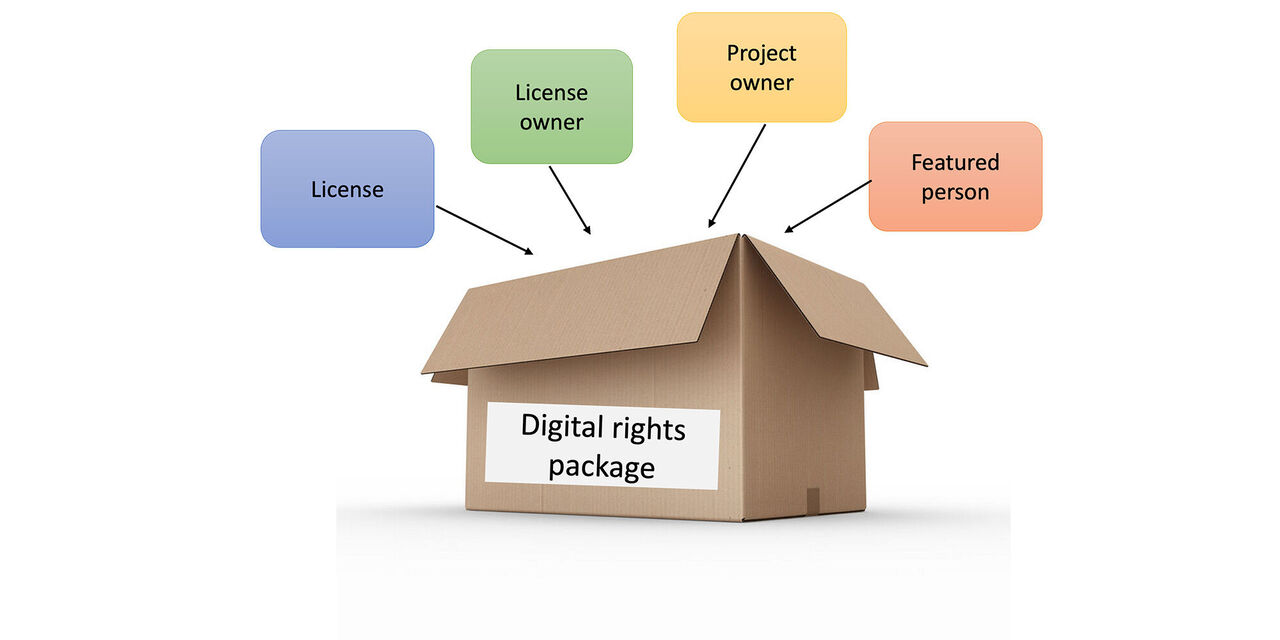
In a digital rights package we collect the usage rights and licenses that will then be linked to the respective assets and made retrievable. The content of the package are information on licenses, license owner, project owner and featured persons. In the future the system will ask for the relevant information during uploads. This ensures that only assets with all relevant licenses can be uploaded.
Digital rights module
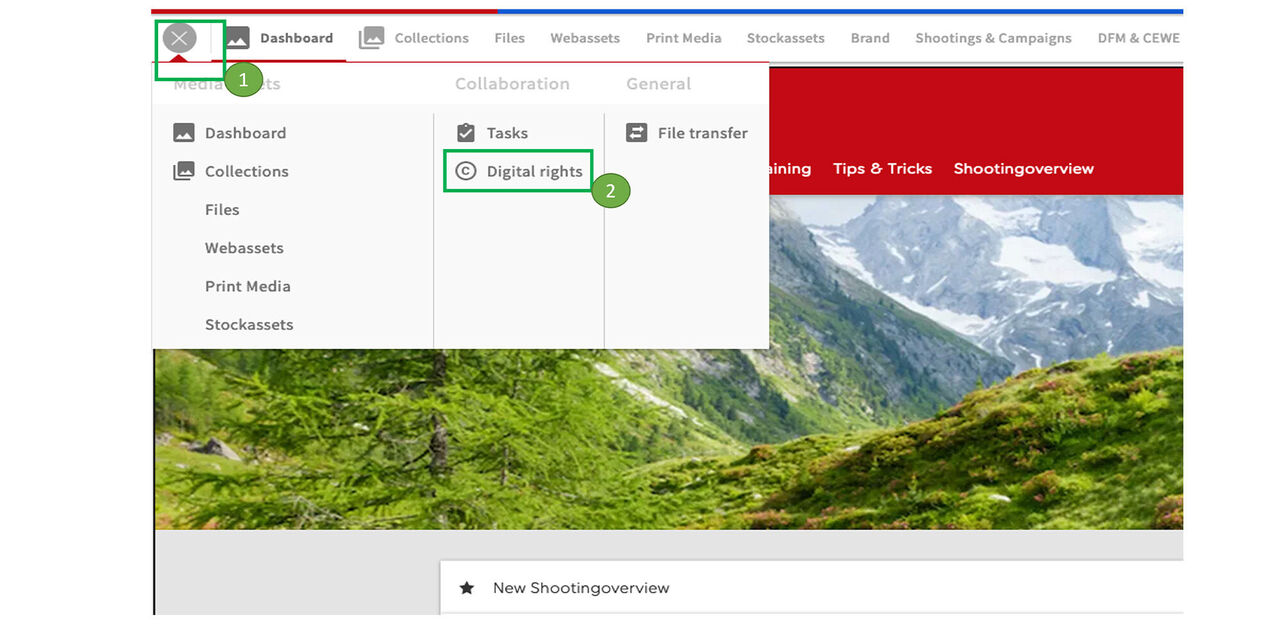
Go to the mega menue in CEWE MediaAssets to open the digital rights section.
Overview
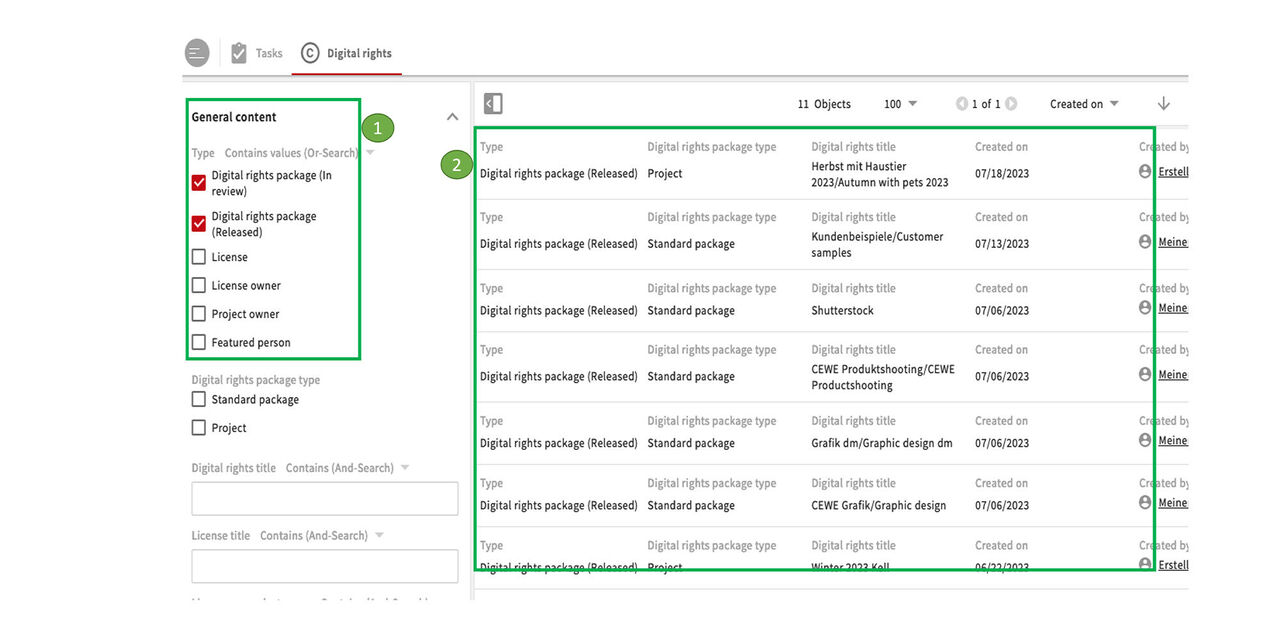
- Here you find various filters:
- General content - License details - Usage rights details - License owner details - Featured person details
- A list of available elements appears on the right side of the display
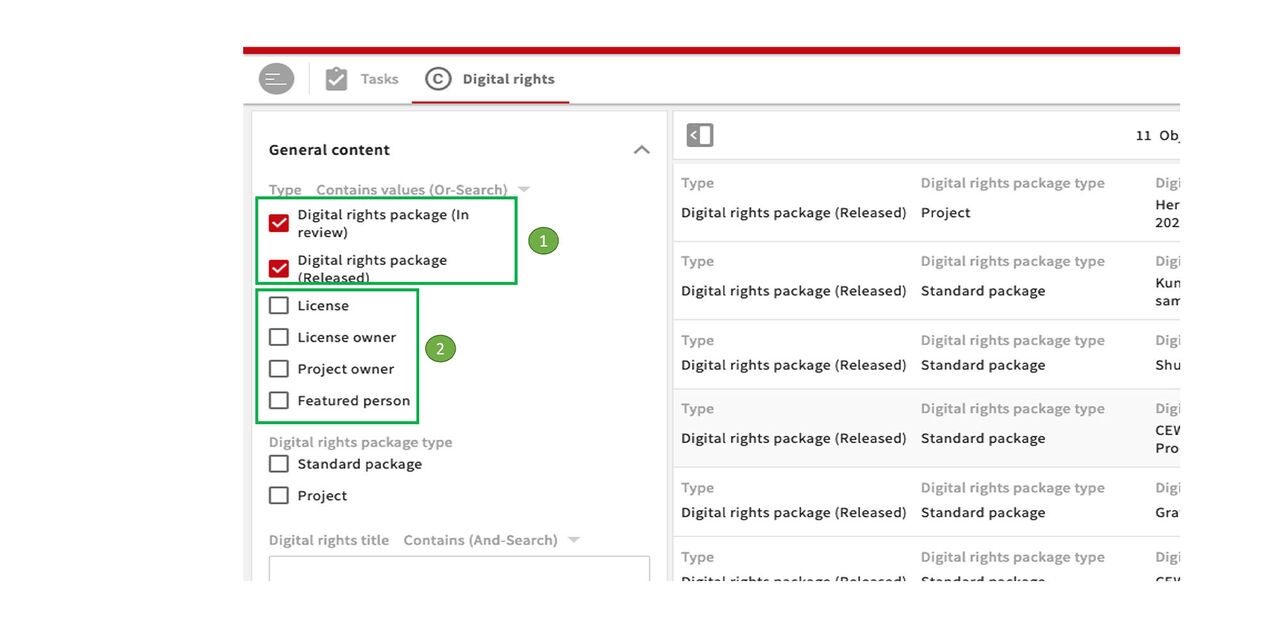
General content
Open the tab "General content" to find main modules:
1. Packages: - Digital rights packages, released or in review
2. The content of the package:
- License (e.g.stock asset license, graphics license, etc.)
- License owner (e.g.photographer, model, agency, etc.
- Project owner (project owner in CEWE)
- Featured person (e.g. customer families, models, etc.)
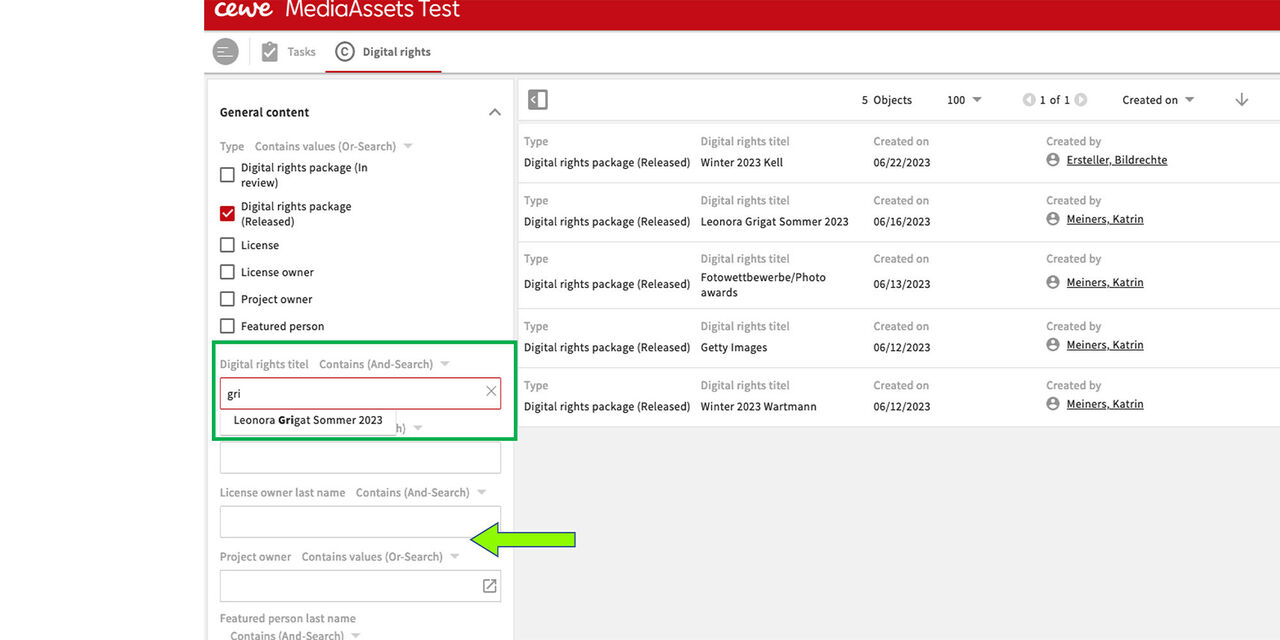
Search a certain package
Click on Digital rights package (released) you can see all available results appear consecutively.
You can search for certain packages by using the below filters, e.g Digital rights title. While typing into the box existing title options will pop up.
Further free format fields below refer to the other filter options at the top.
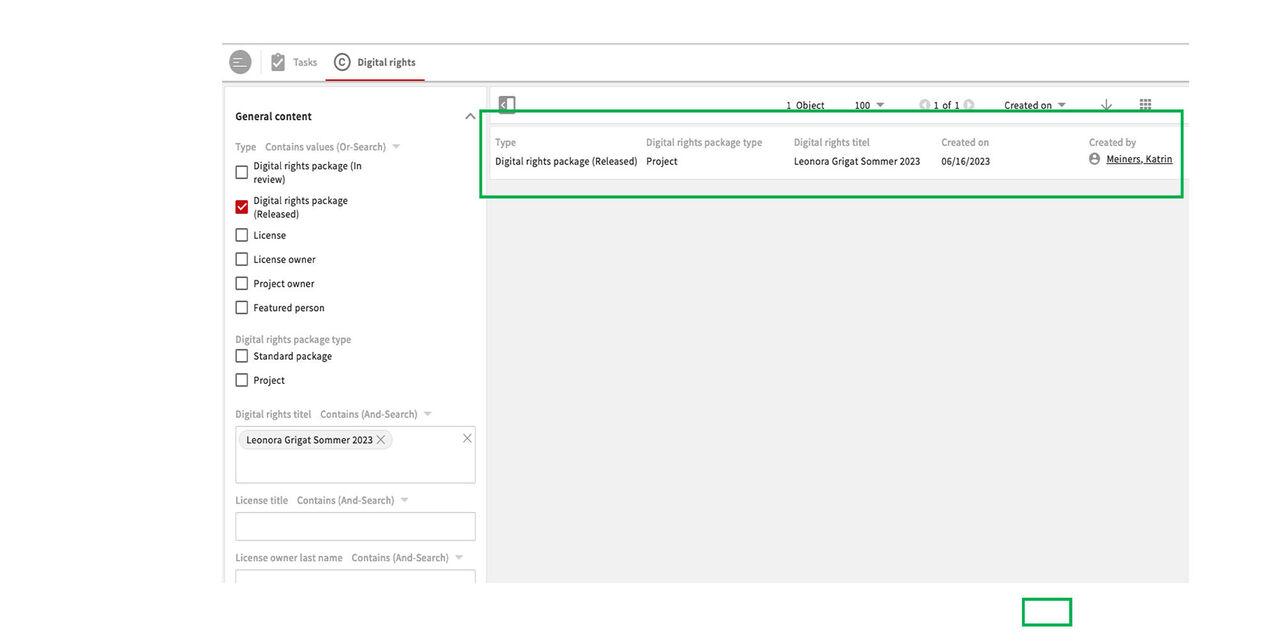
Display chosen package
The chosen package can now be opened with a double click.
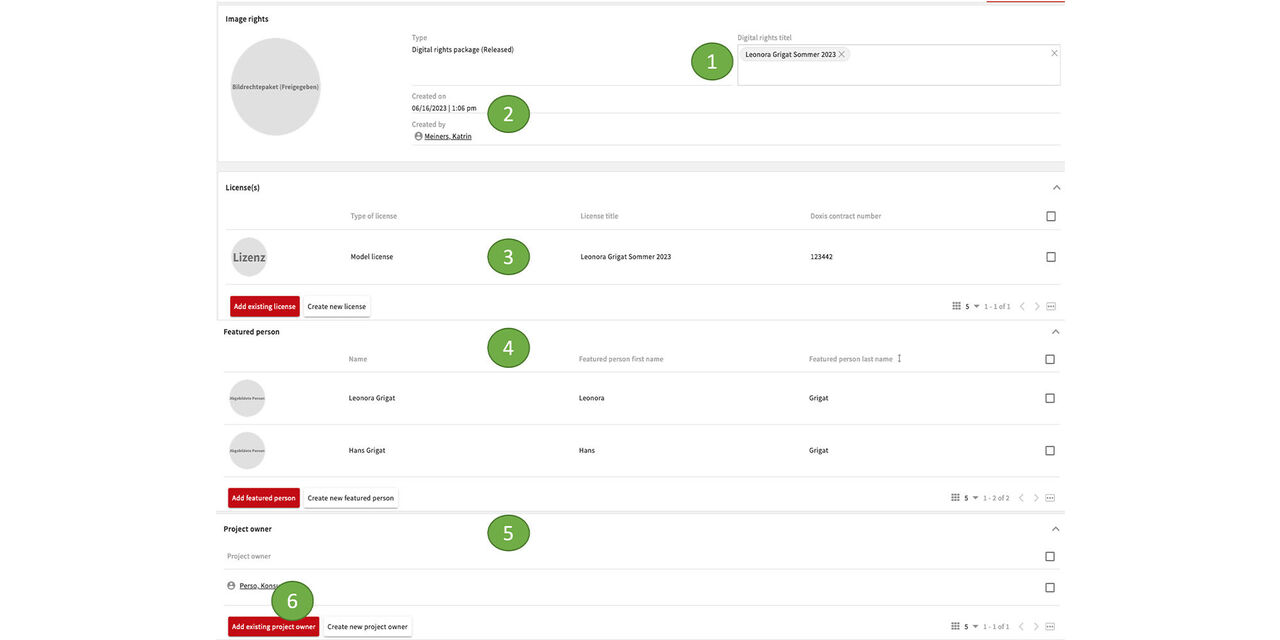
Content of the package
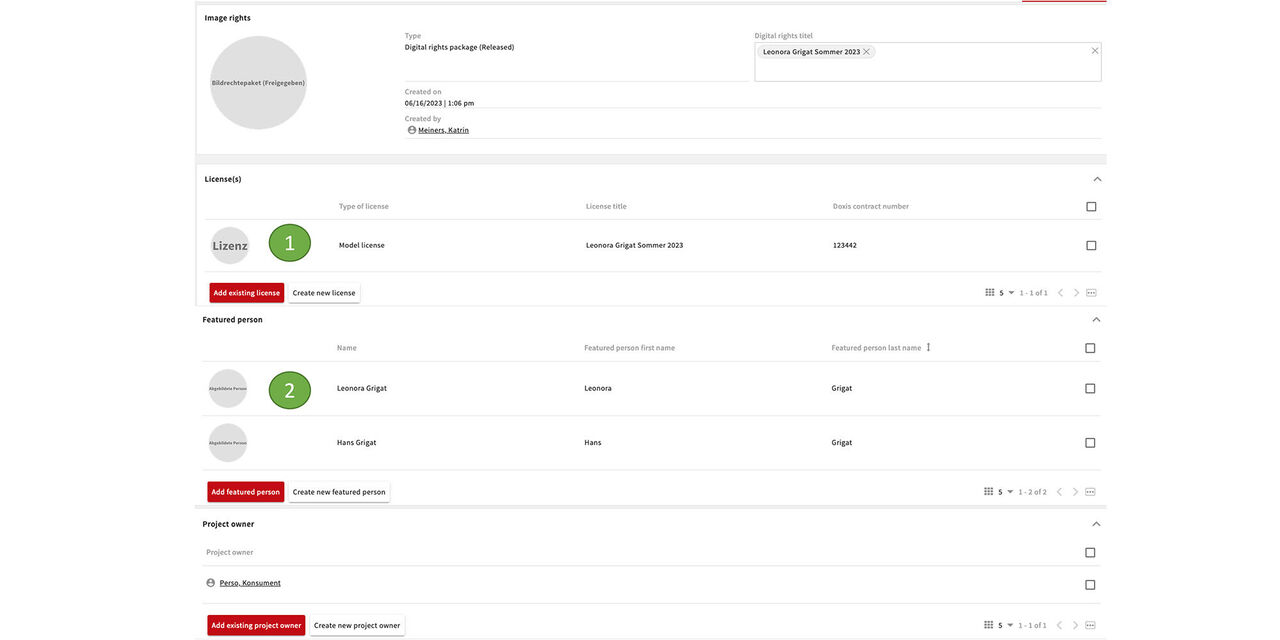
The package in this ecxample includes the following details:
- Digital rights title
- Creator / Date created
- Model license including Doxis contract number (contract storage system)
- Featured persons: Hans Grigat, Leonora Grigat
- Project owner (Responsible person in CEWE)
- In each section you can add an existing element (red button) or create a new one
See details
Within the Digital rights package you can click on the individual elements to see more details.
- e.g. model license for this project
- if you click on a featured person you would see all packages they are included in
So, we are able to see the linking in all directions!
More about the details in Part 2
Part 2 - Creating packages
Intro
We already have various standard packages in the system that are used repeatedly. ( see parts 1 and 2).
For new projects, a corresponding Digital rights package needs to be created by the project owner. In CEWE MediaAssets, the responsible person receives the role of "Digital rights creator".
This instruction shows you how to create such a package.
Here you also find a short tutorial.
Digital rights module
To create a package we start from the mega menue and go to "Digital rights".
New package
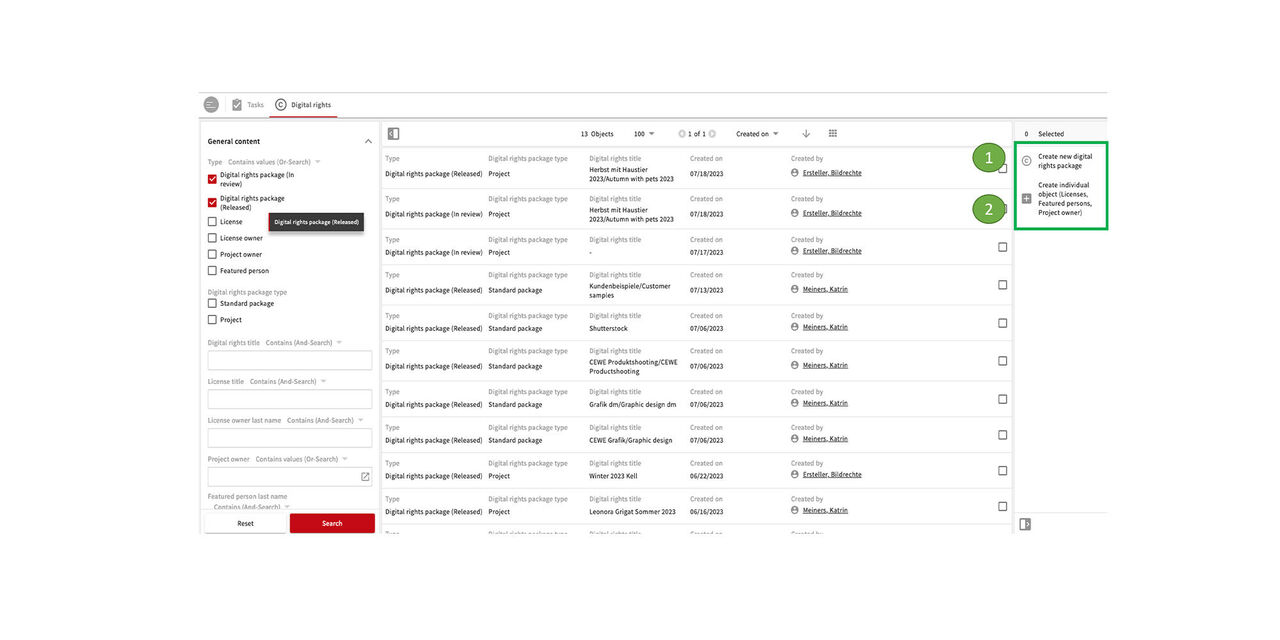
On the top right corner you can choose:
Create new digital rights package - that's what we do now
Create individual object (Licenses, Featured persons, Project owner) is another option that you could use when an object needed for a package is missing. However, they can also be created later from within the package.
Digital rights title
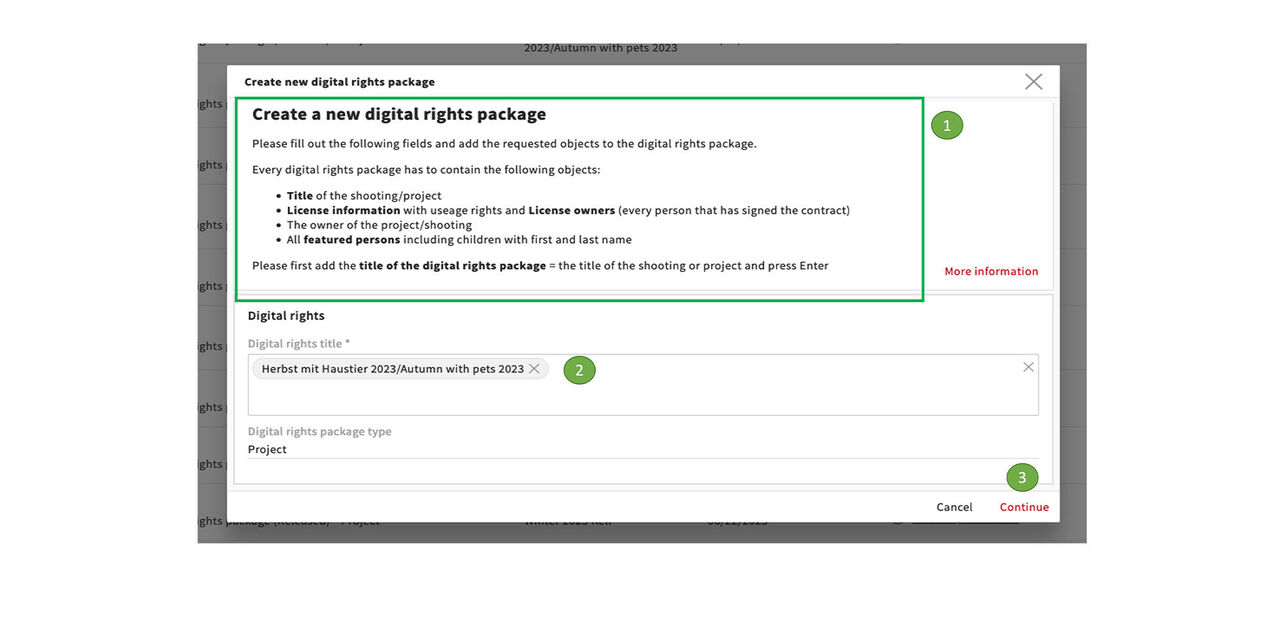
In this pop-up you get a useful explanation about what a package must contain and what steps need to be taken. Similar instructions will come up in further steps of the process
- Every digital rights package has to contain the following objects - read through the pop-up
- Add the title and press Enter
- Continue
Note: the link "more information" will guide you to our help pages
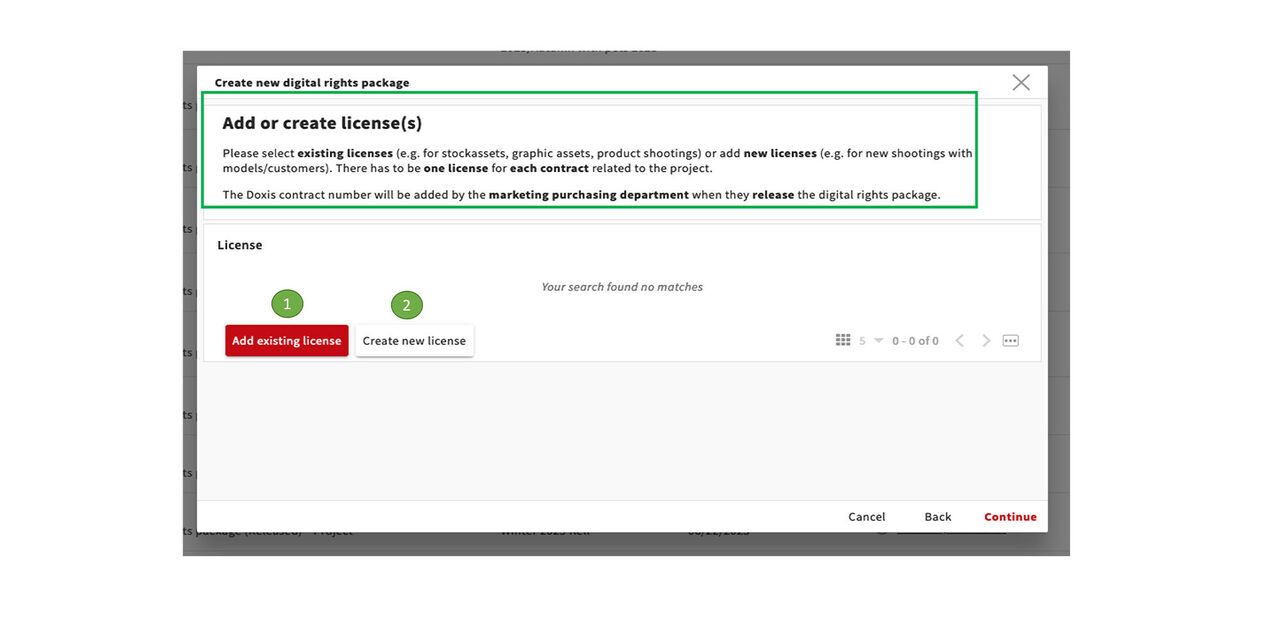
Add License
Now you can
- add an existing license or
- create a new license
New licenses have to be created e.g. for a new people shooting since even with well-known models, families or photographers CEWE signs new contracts for each new shooting.
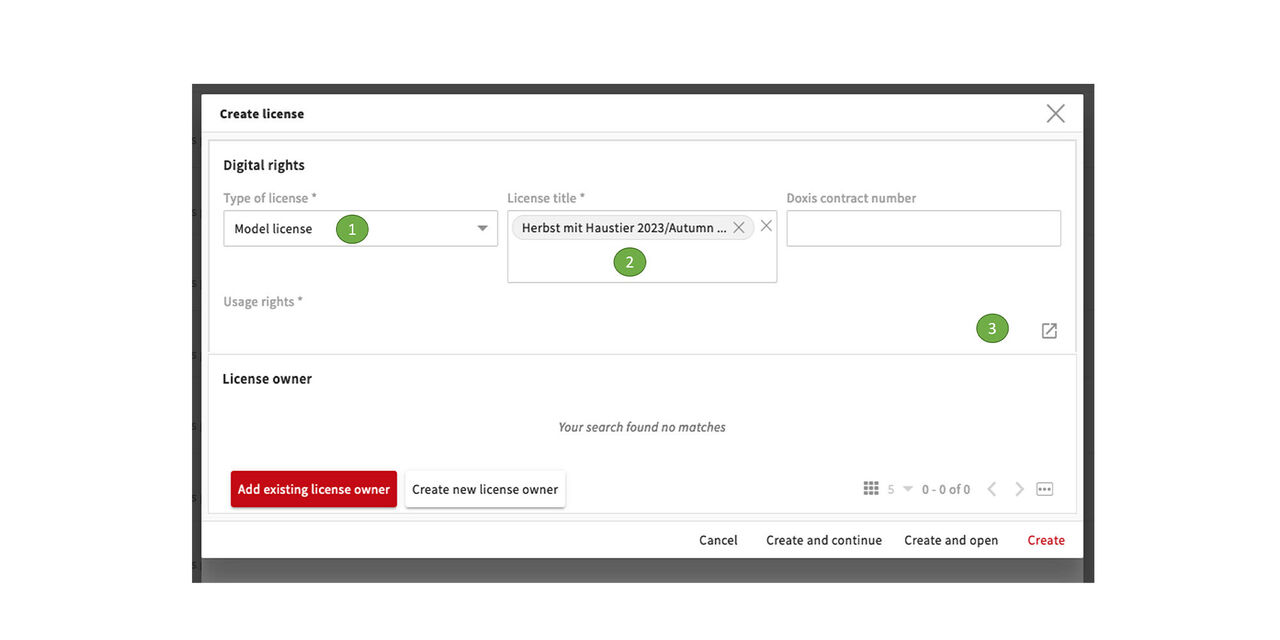
License type
In the next step we select the license type for one of the required licenses from the drop down and enter the usage rights.
- We need a model license
- The title normally corresponds to the shooting title
- We open the icon for the usage rights
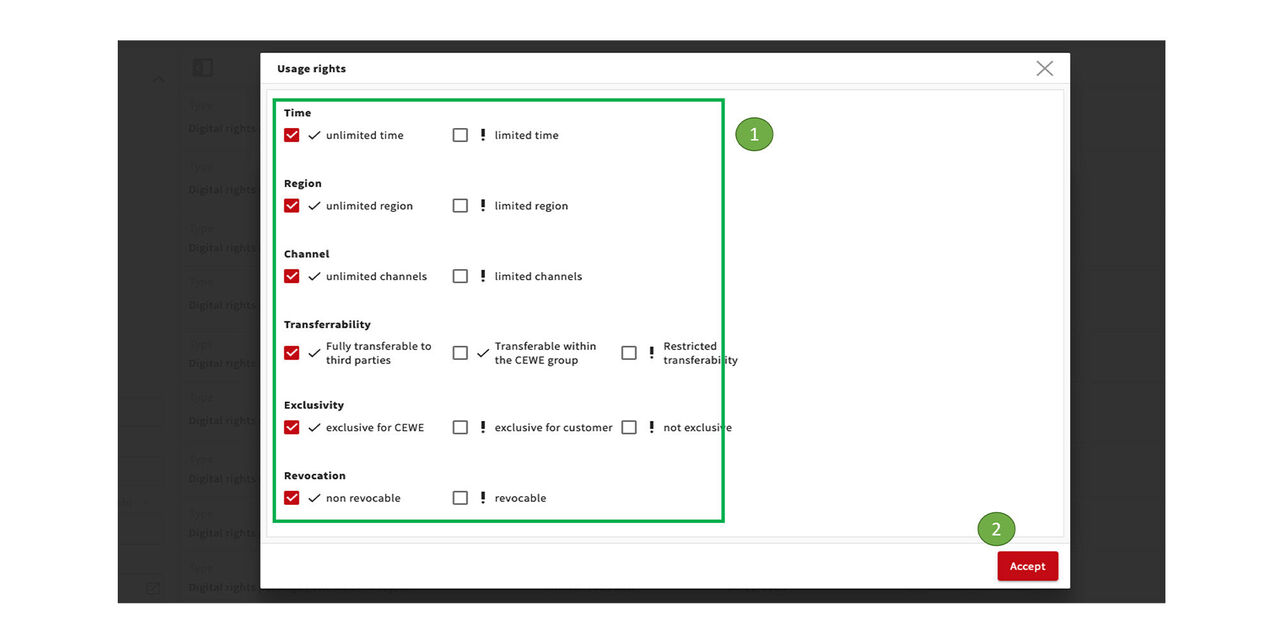
Usage rights
From the pop-up we now select all the appropriate rights. Under each heading (except copyright notice) one value has to be selected. (Please note that on this screenshot you do not see all available rights.)
Then accept the selection.
Please note:
Should a restriction occur, an additional area opens in which the corresponding details must be entered.
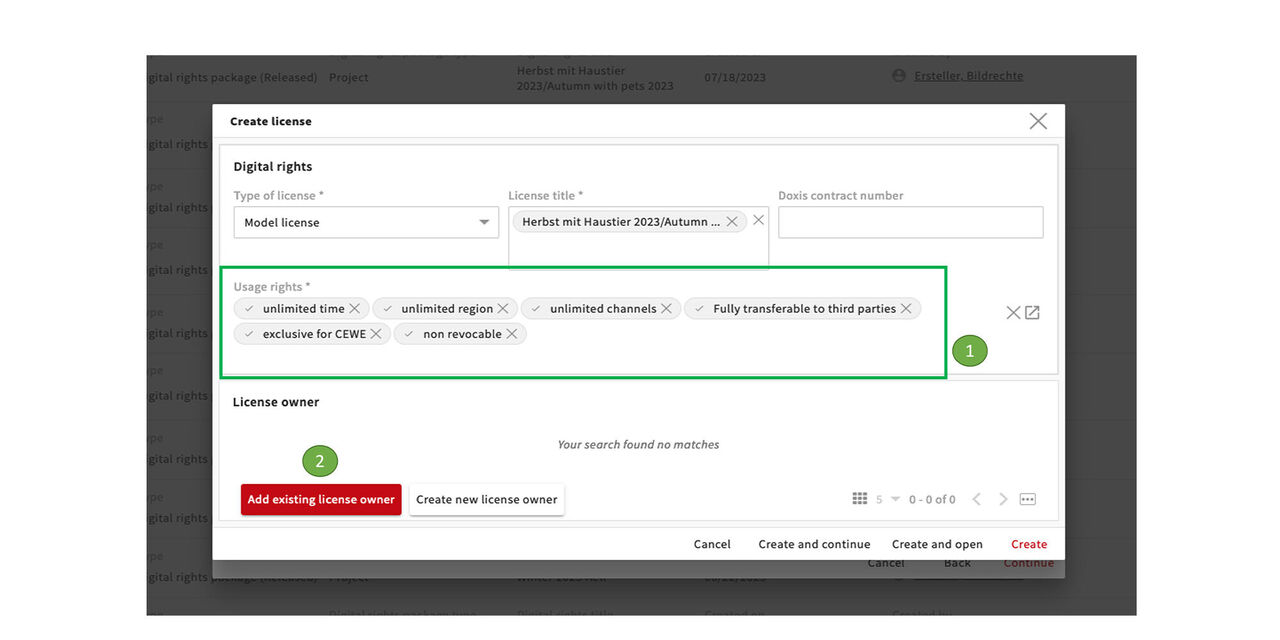
The usage rights are now listed.
Now the license owner can be entered. In this example, we have a shooting with customers/models known to CEWE. We therefore select from existing license owner.
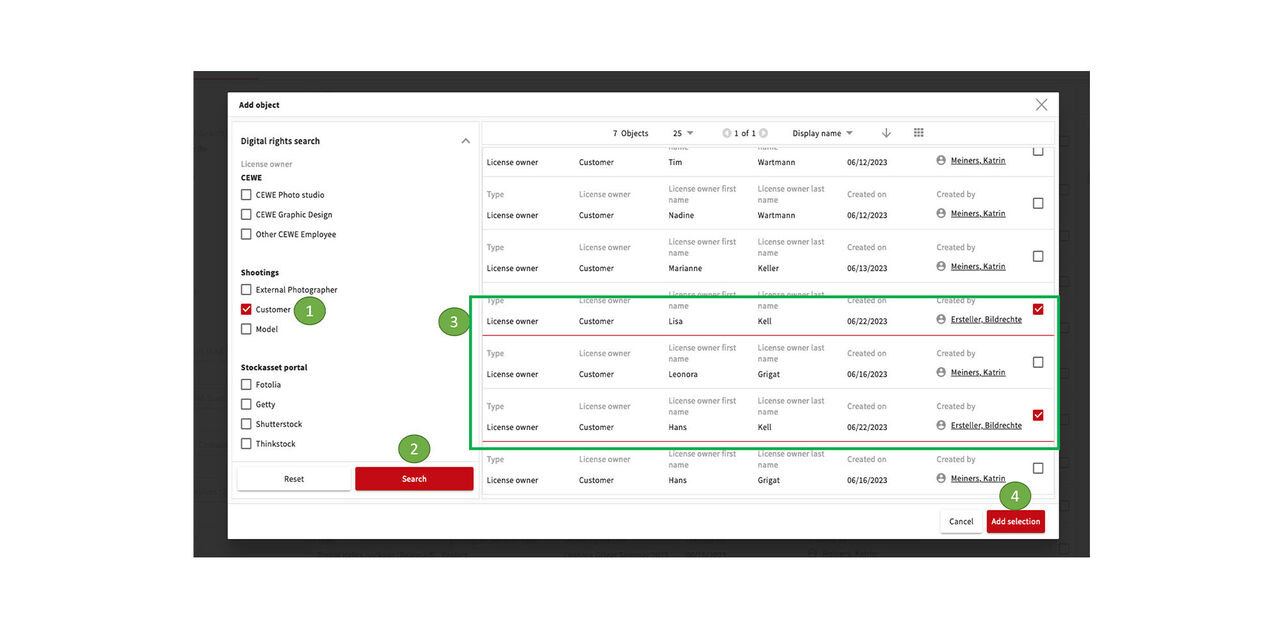
License owner
- In this case, we select Shootings/ Customer in the Digital rights search on the left.
- We click on search and on the right we get an available list of names.
- The license owner you are looking for can now be selected here.
- Then go to Add selection.
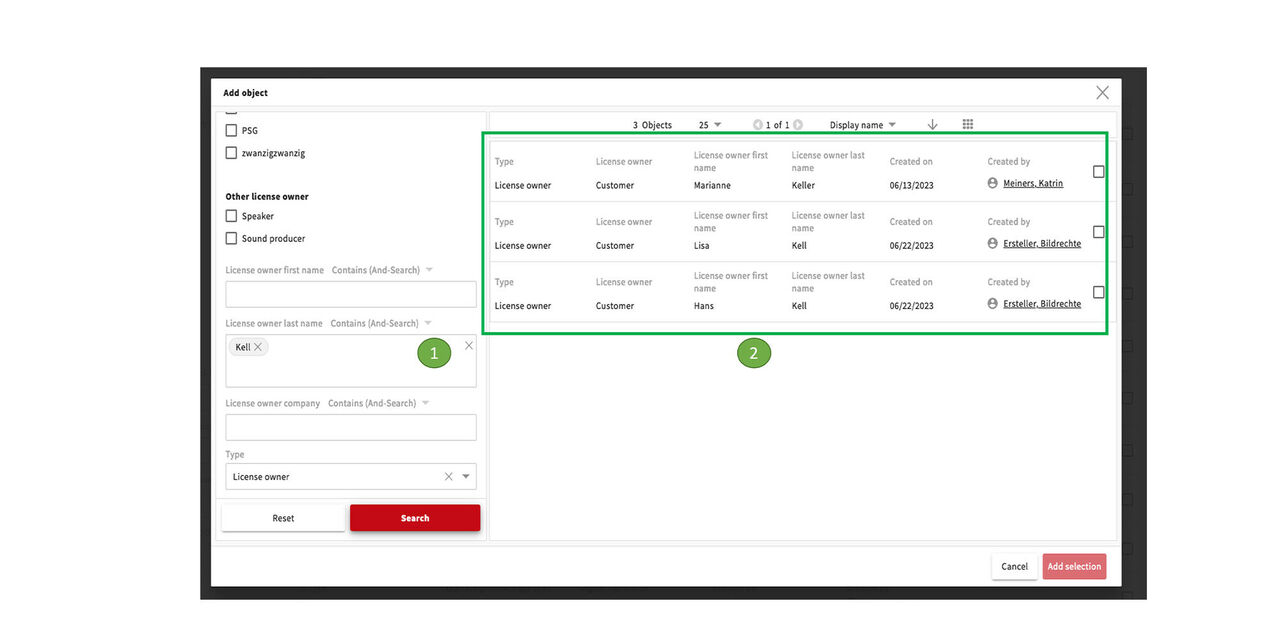
License owner
- Alternatively, you can search by name below.
- All relevant license owner names will appear.
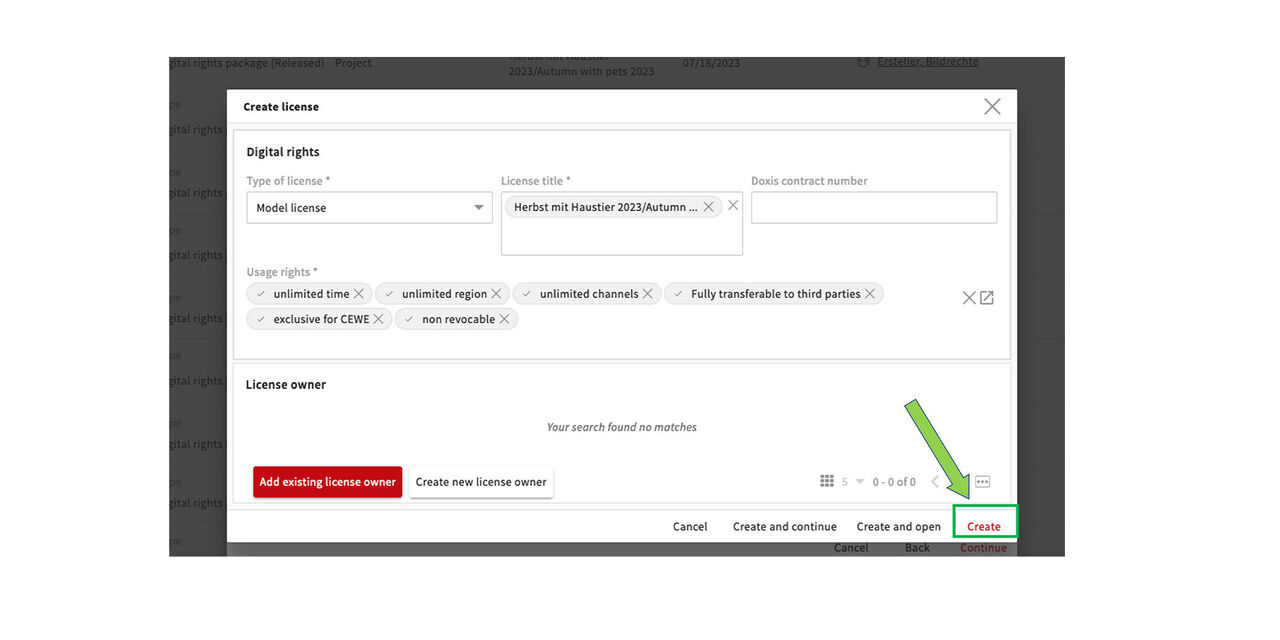
Once the selection has been added we click on Create
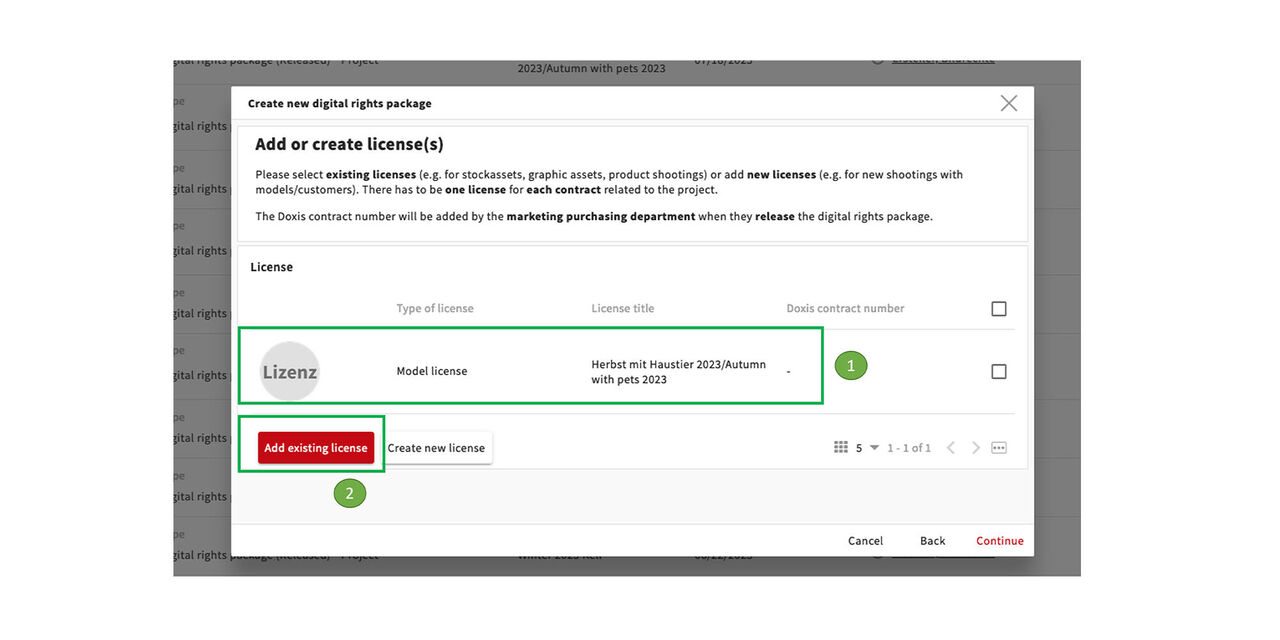
Add existing license
Our model license is now complete.
Next, the photographer's license should be added. Since the shooting is done by the CEWE photo studio, no new license needs to be created. We take the already existing license.
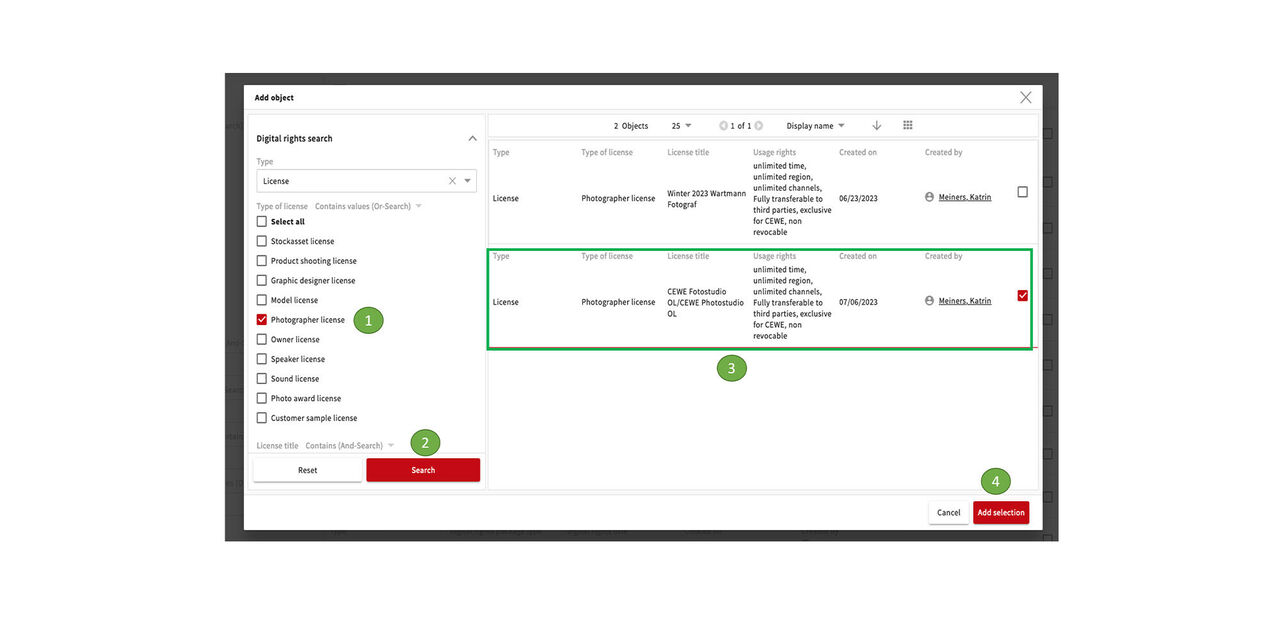
In the menu on the left we select Photographer License
Search
We select the CEWE Photostudio OL/ CEWE Photostudio OL license on the right
Then add selection
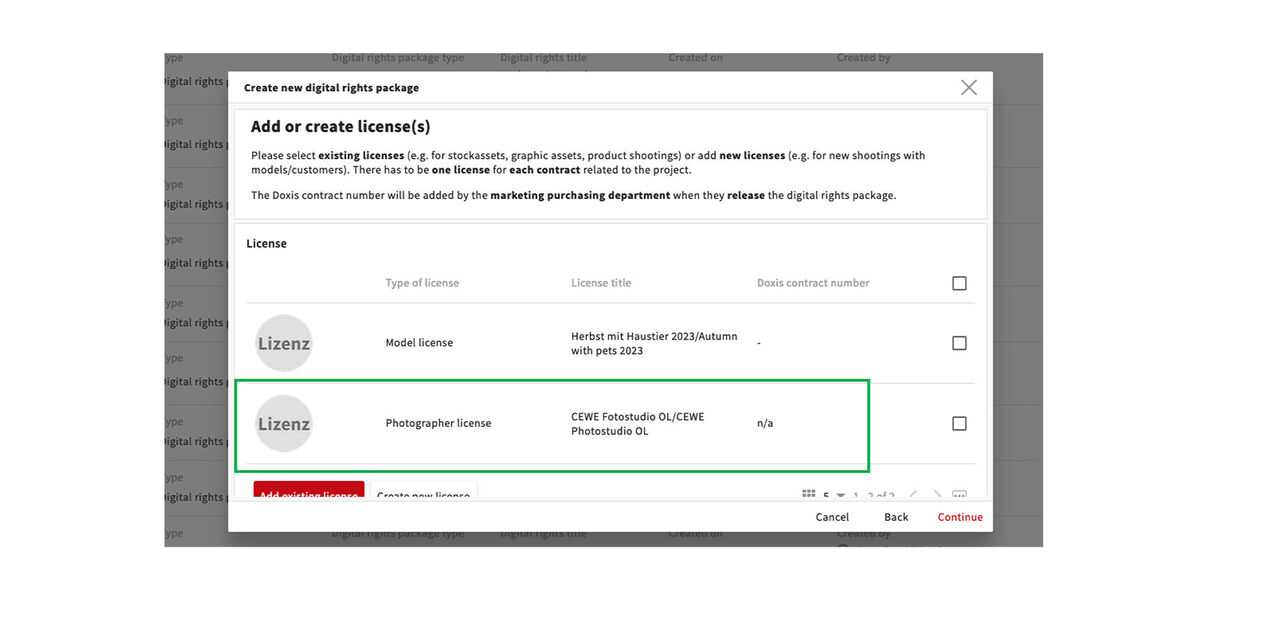
The Photopgrahper license is now also part of the Digital rights package.
Move to the next step.
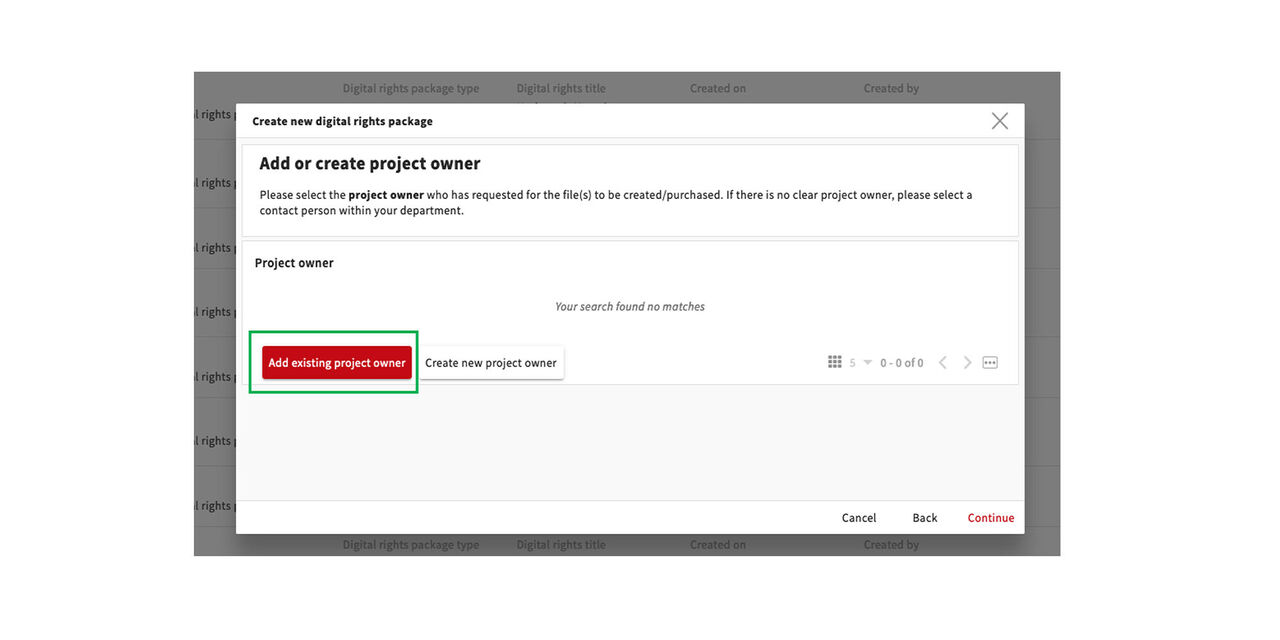
Project owner
We now add the project owner, usually an existing project owner who is already named in the system. If not available yet, we can create a project owner. The system would guide us to the system user list, so we can choose someone from there.
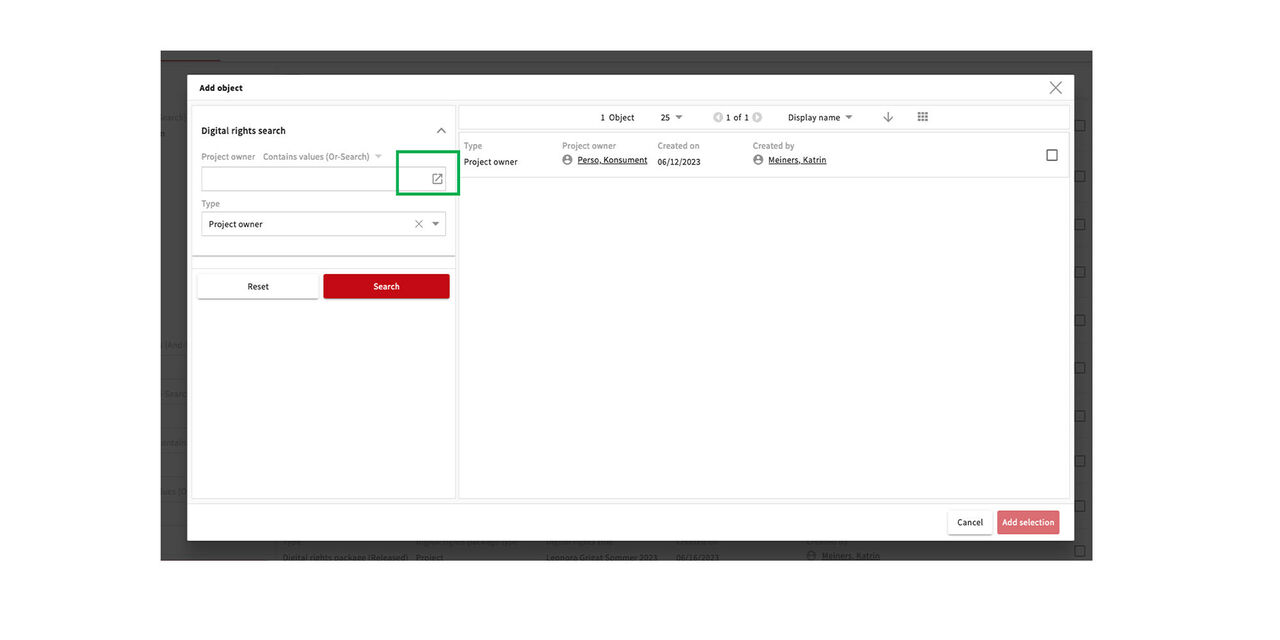
We can enter the name via the search field or open the list of names via the icon and select it from there.
Then add selection.
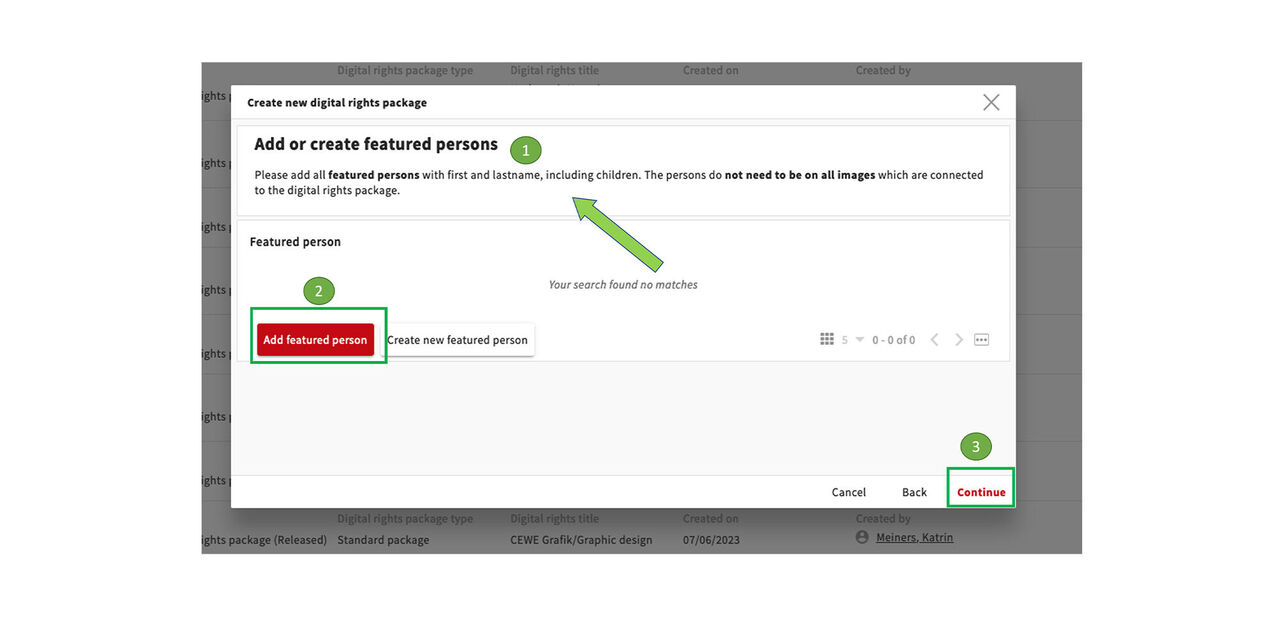
Featured persons
With adding the featured persons, our package is almost complete:
- Here is a brief description of it
- Click Add featured persons
- Click Next
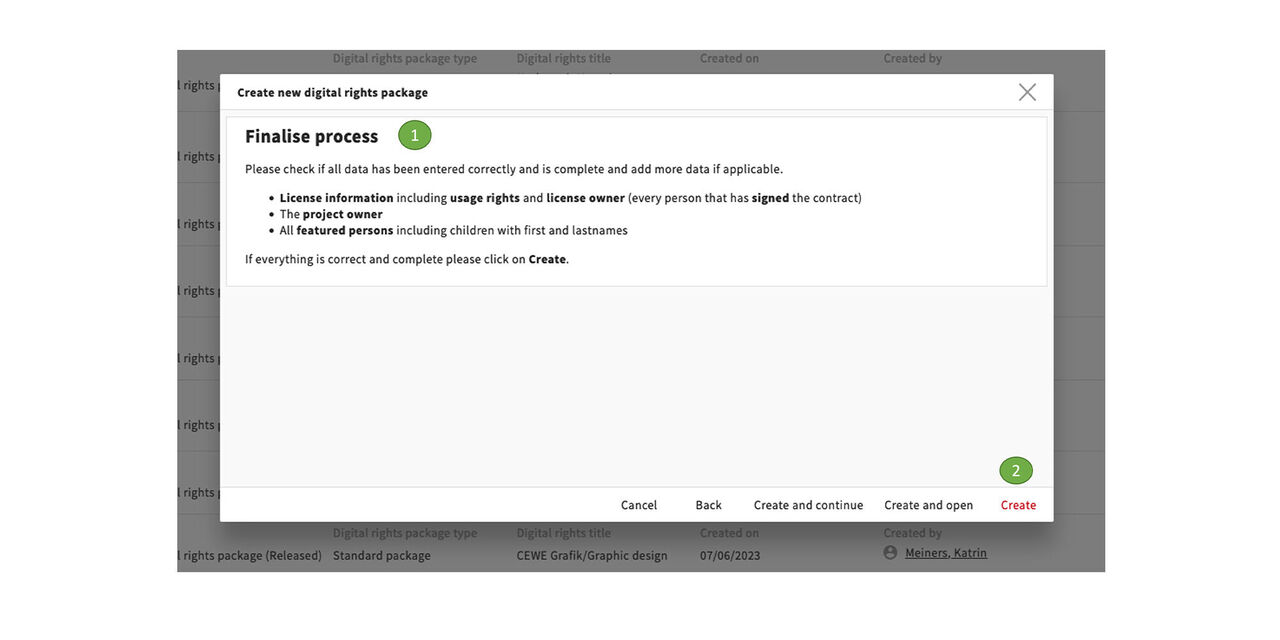
Complete process
- Here's a short summary to check if we've thought of everything.
- Then click Create.
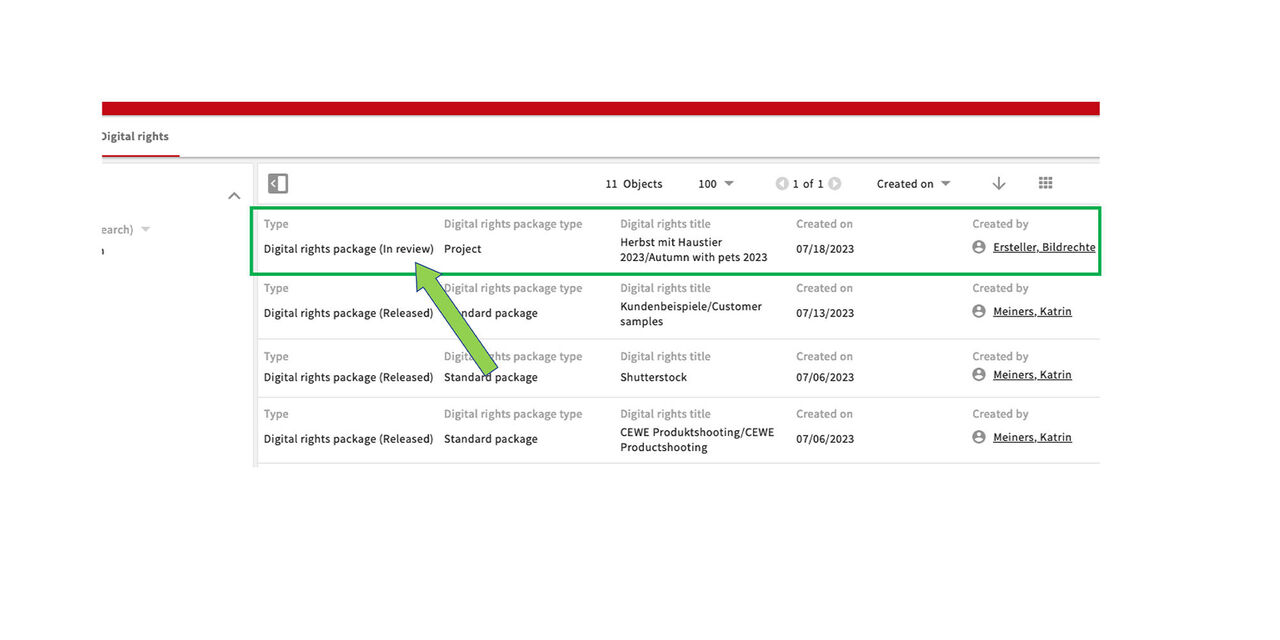
DONE!
The package is created. It still has the status in review. Our work is finished here for now..
The system now automatically sends a task to Marketing Purchasing and there the following steps will be taken:
- Checking of the data
- Addition of the Doxis contract numbers
- Release of the package
- Indication that task has been completed.
Then the assets can be uploaded with the new package.
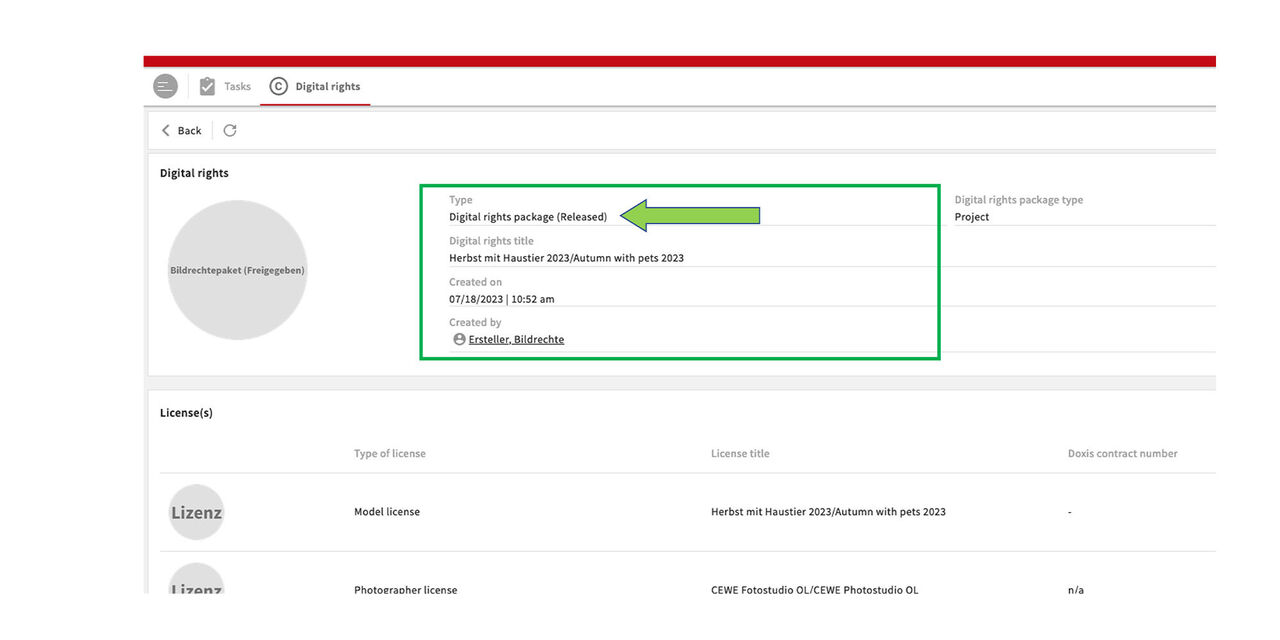
Release
Once the task is completed, the package will appear as Digital rights package (released) in the system and can be found with the search for Digital rights.
Assets can now be linked to it and uploaded.
Part 3 - Finding packages
In case you want to find certain packages and details regarding licenses, license owner, usage rights, and featured persons - this is how to search for it.

Intro
Now we look into the details about licenses.
What does a licenses within the Digital rights packages look like?
What types of licenses do exist?
Which one is needed?
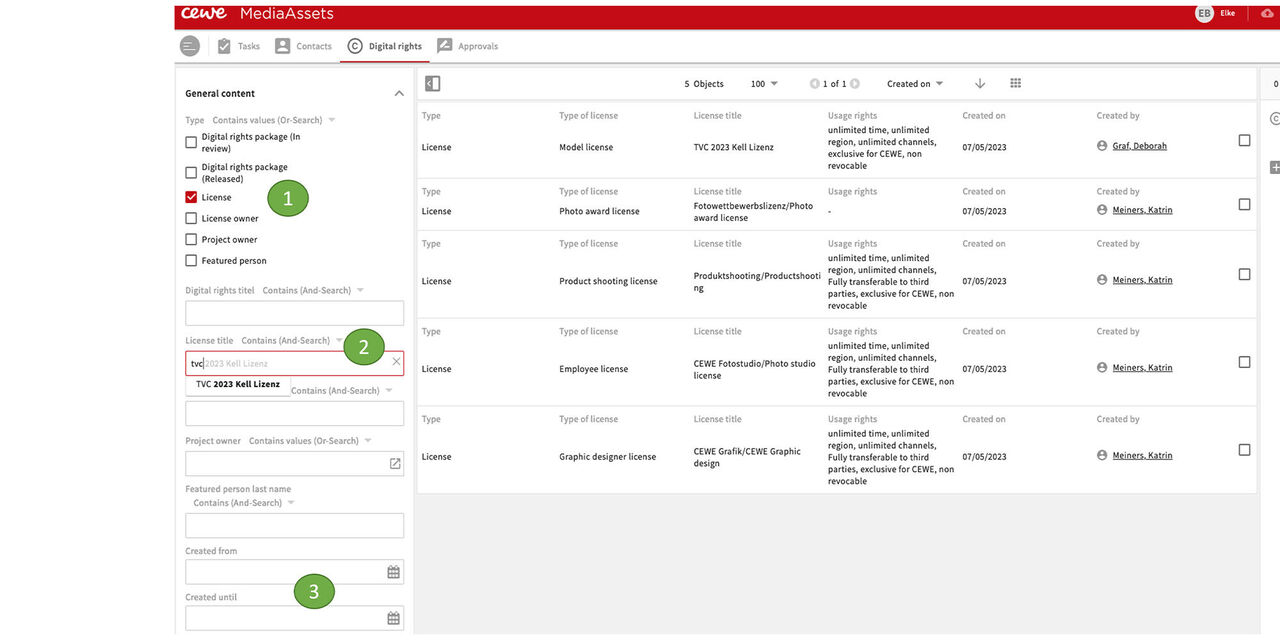
Look for a license
Under General Content we select License (to see only licenses take away the ticks from the other boxes in general content)
Similar to the list of packages, we now get the list of existing licenses
We can use different filters to search, e.g. the license title or a name that appears in it.....
Filters such as creation date or creator are also available below
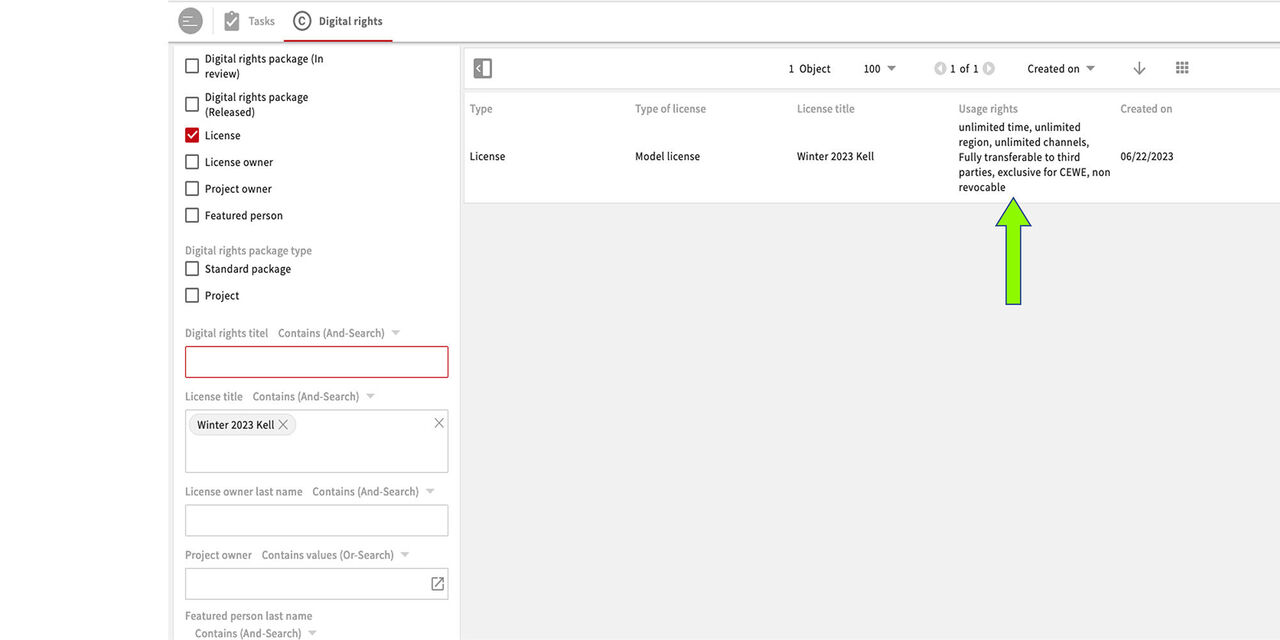
Select a license
We selected the "Winter Kell 2023" license by pressing Enter and see the usage rights at a glance.
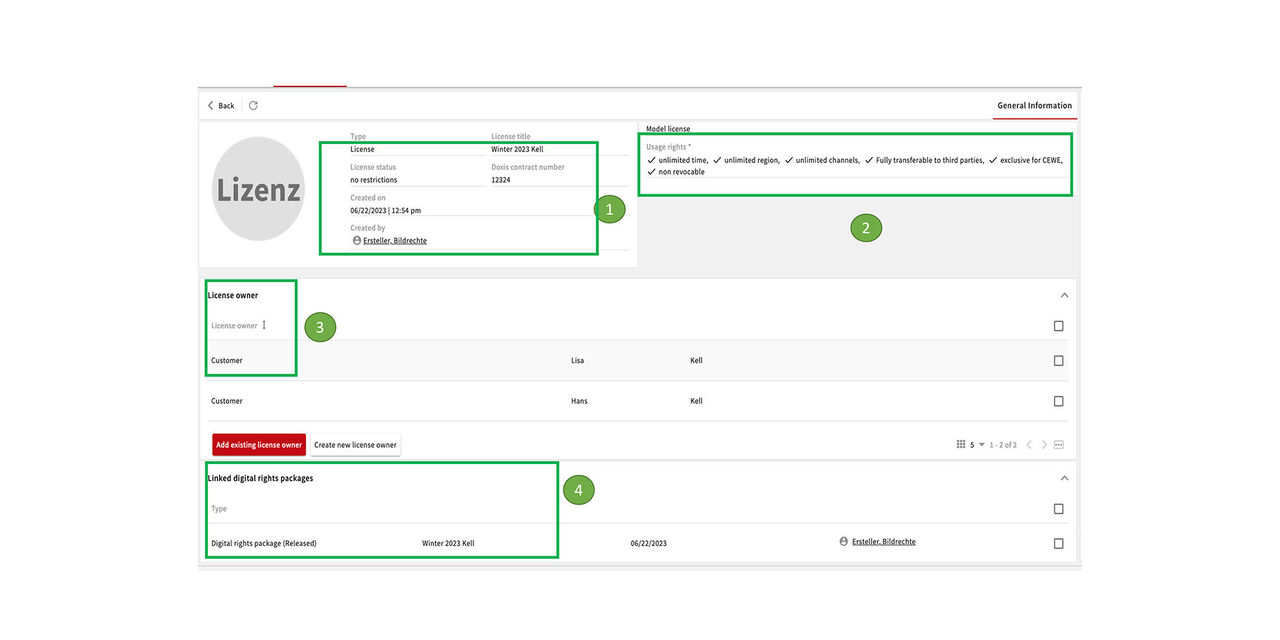
Display license
Open the license to see more details:
- Title, status, Doxisnumber a.s.o.
- Usage rights listed
- License owner type: "Customer" in this case
- Linked Digital rights package(s)
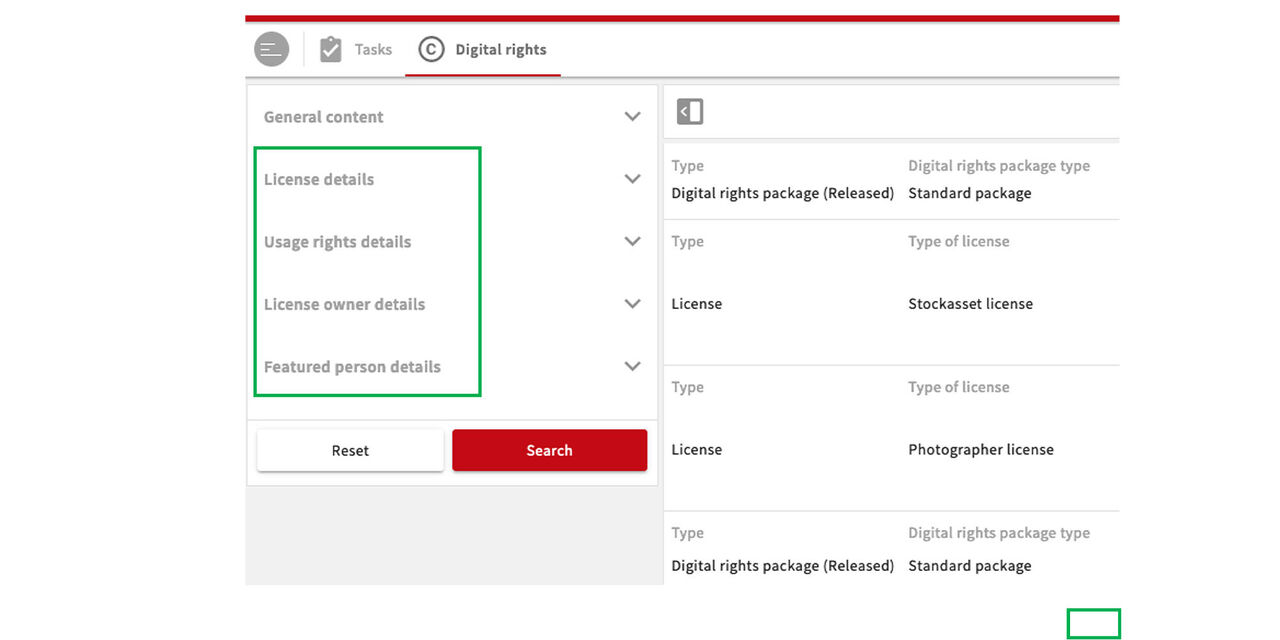
More details
More details and filters like
- License details
- Usage Rights Details
- License owner Details
- Featured person details
can be found via the additional menu items.
By the way, these are also visible if you just scroll down from the "General Content" section.
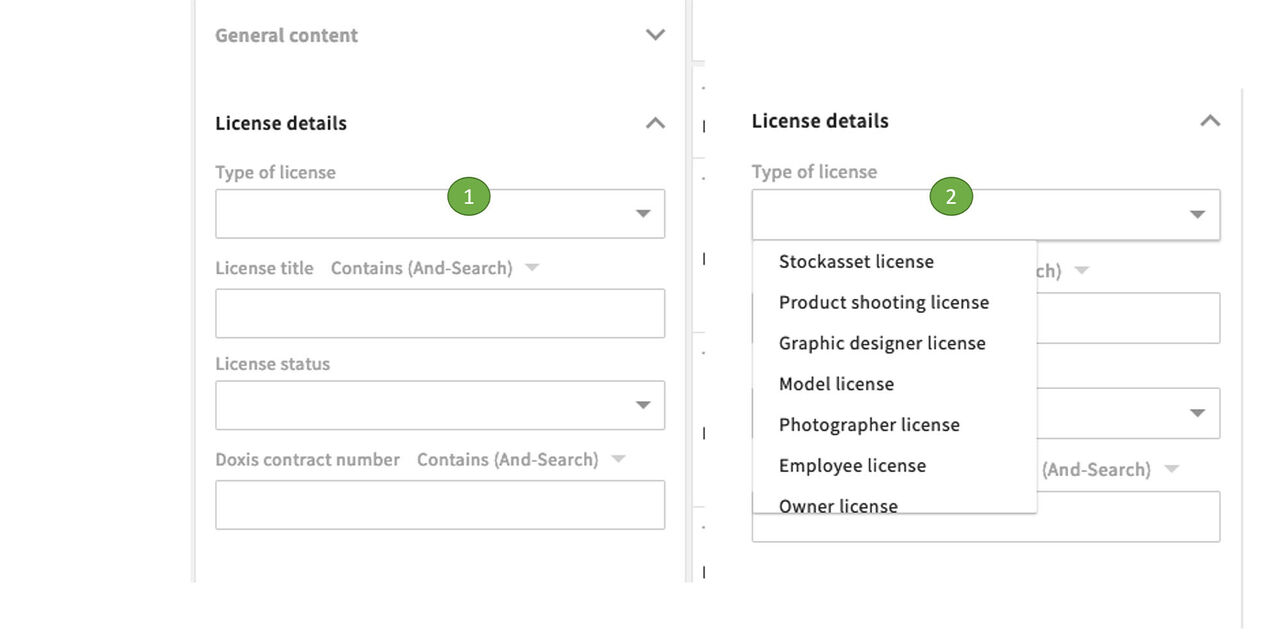
License Details
In addition to the title. Doxisnumber and status, we can see or filter the different license types here:
- Stock asset license
- Product shooting license
- Graphics license
- Model license
- Photographer license
- Owner license
- Speaker license
- Sound license
- Photo Award license
- Customer sample license
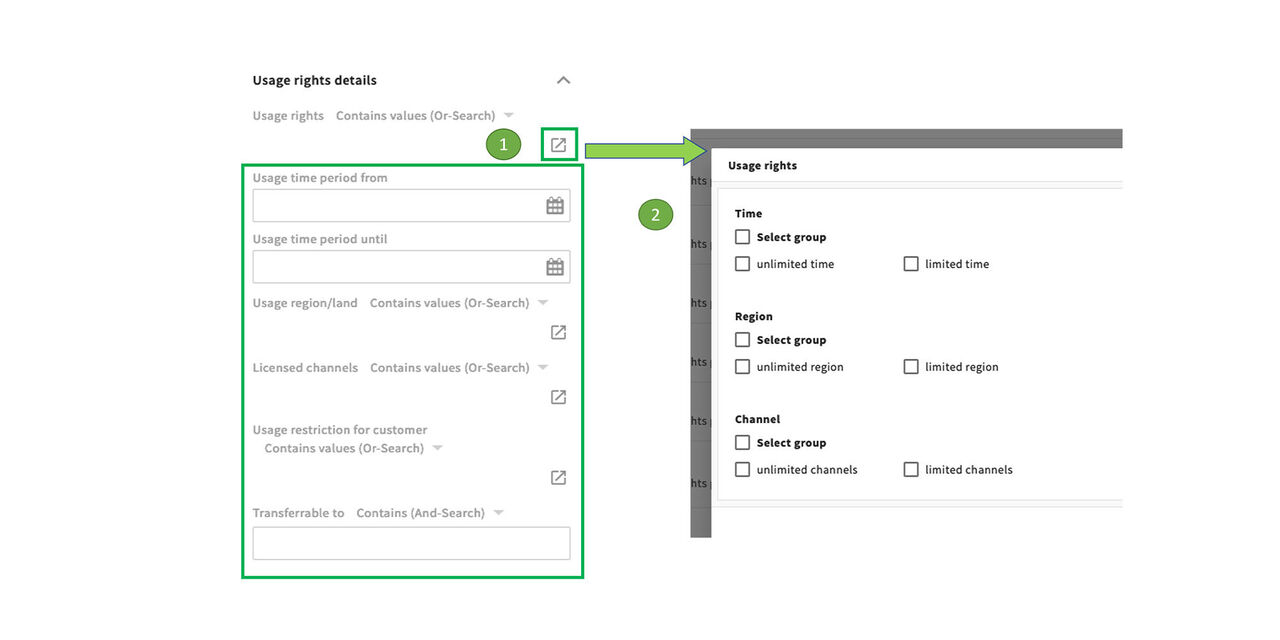
Usage Rights Details
- The various categories of usage rights can be called up via a selection field
- Time
- Region
- Channel
- Transferrability
- and more .....
- Other filters such as period of use, etc. are available in addition
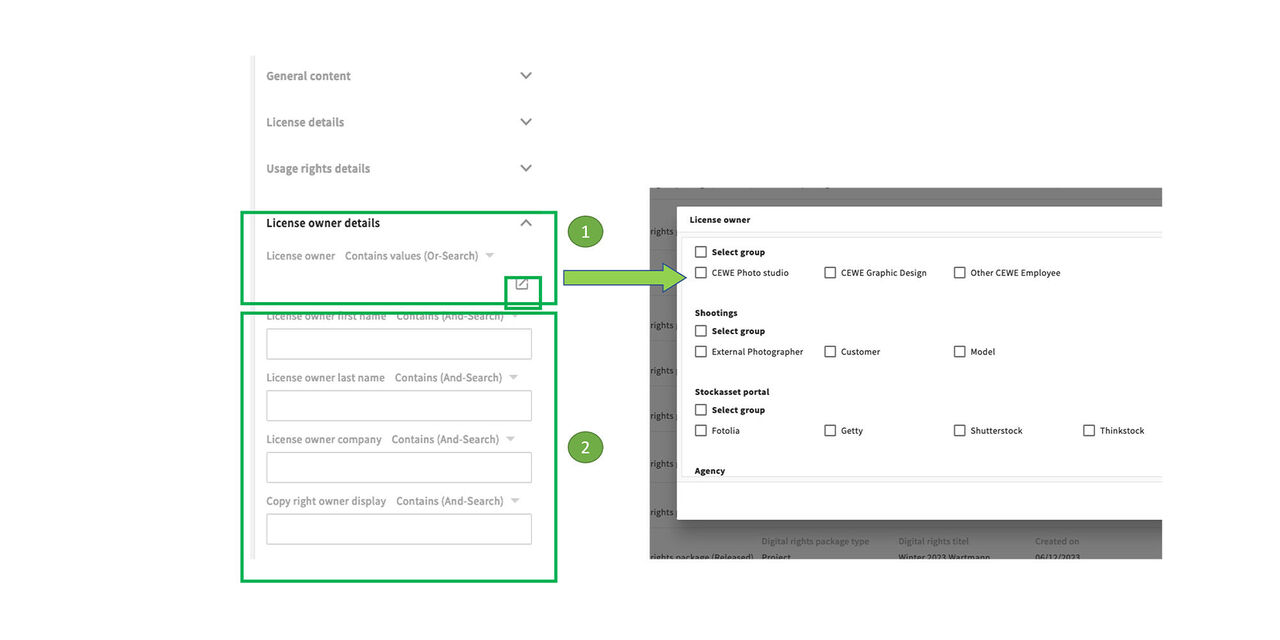
License owner details
- In the license owner details we find the different types, e.g.
- Models
- Customers
- Photographers
- Stock image portal
- CEWE photo studio
- and more
- Individual persons or companies can be found with the filters name and company.