
CEWE Image-ID Tool
Learn how to find and reuse images from the CEWE website here.
With the Image-ID Tool, you can easily find any image from the CEWE website in Media Asset and reuse it for your landing page.
Read on to learn how to set up and use the tool to find the right file. Then, you can create your own collection or copy the asset ID directly.
Import bookmarks
Add the Image-ID Tool to your web browser.
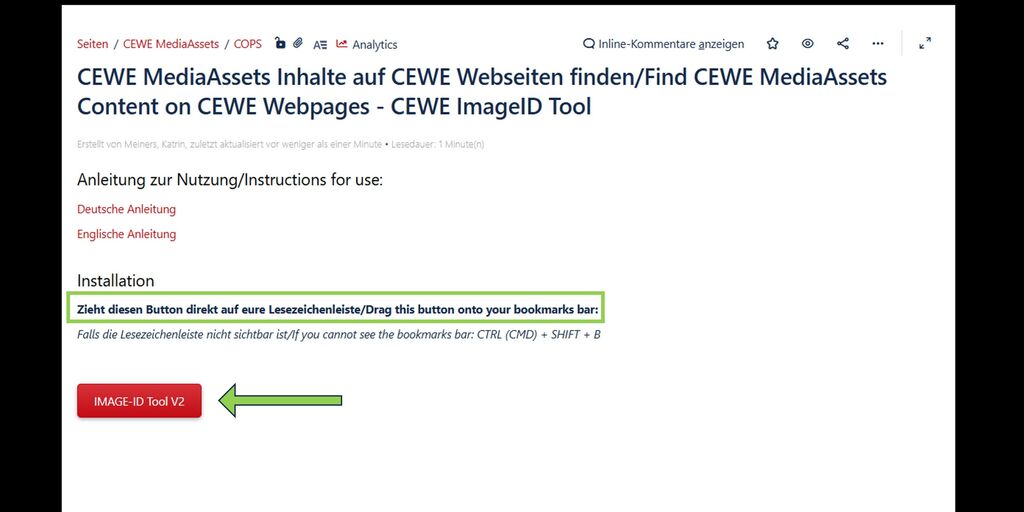
To save the bookmark in your browser, use the following link to access the Confluence page:
Image-ID Tool V2
Drag the button to your bookmarks bar as described on the page to add it. Now you can start using it.
Image search
Use the Image-ID Tool to find images in Media Asset.
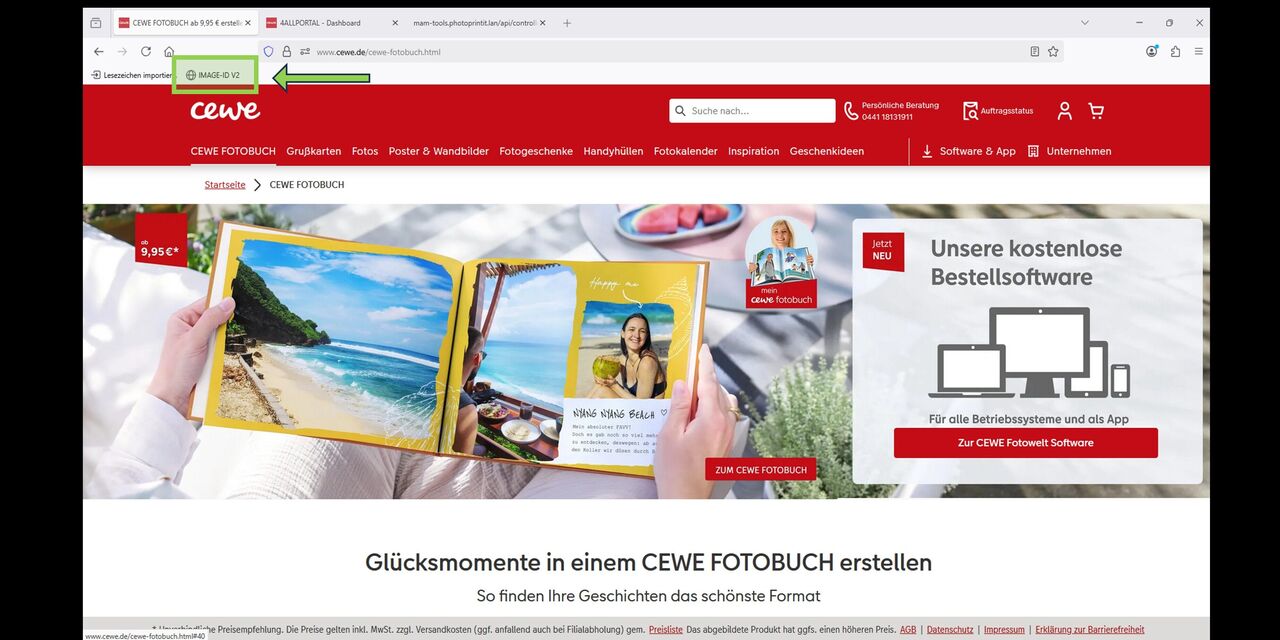
Step 1
Open the desired page on the cewe.de website and click on your bookmark “IMAGE-ID Tool V2”. The tool will now search for the asset ID of all image files used.
Note: We recommend using the Firefox browser, as the tool runs most reliably and quickly in this browser.
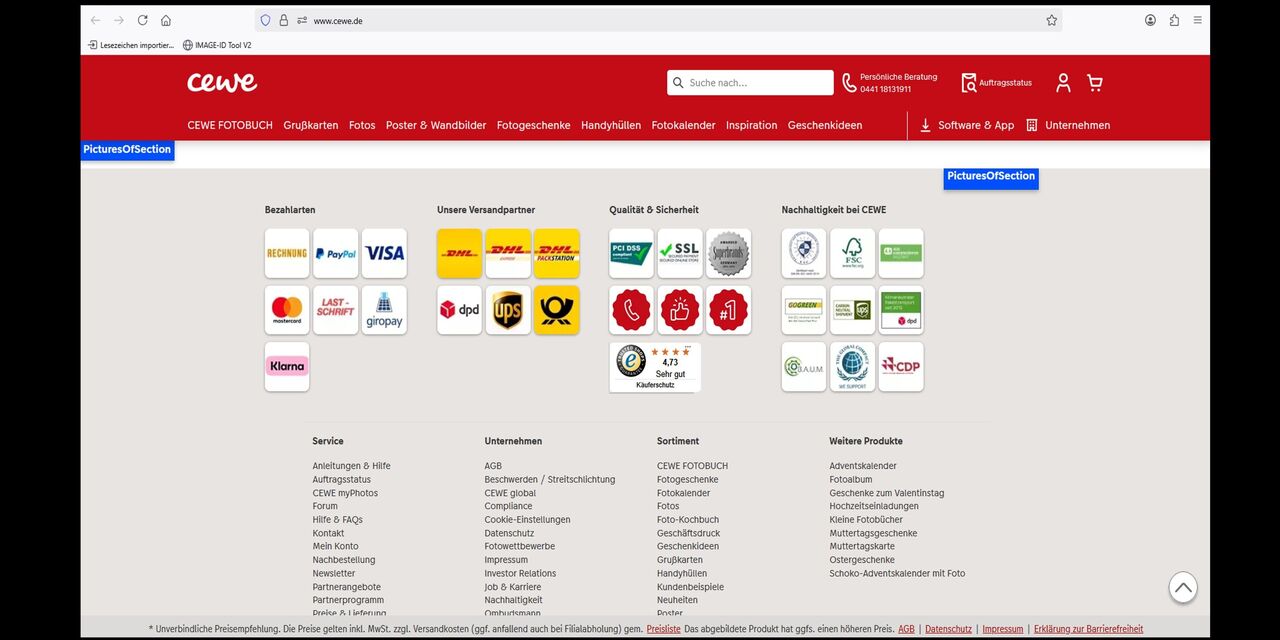
Step 2
The image ID checks the image files on the website by scrolling through the corresponding page. This may take a moment.
If there is a delay, simply press the space bar to continue.
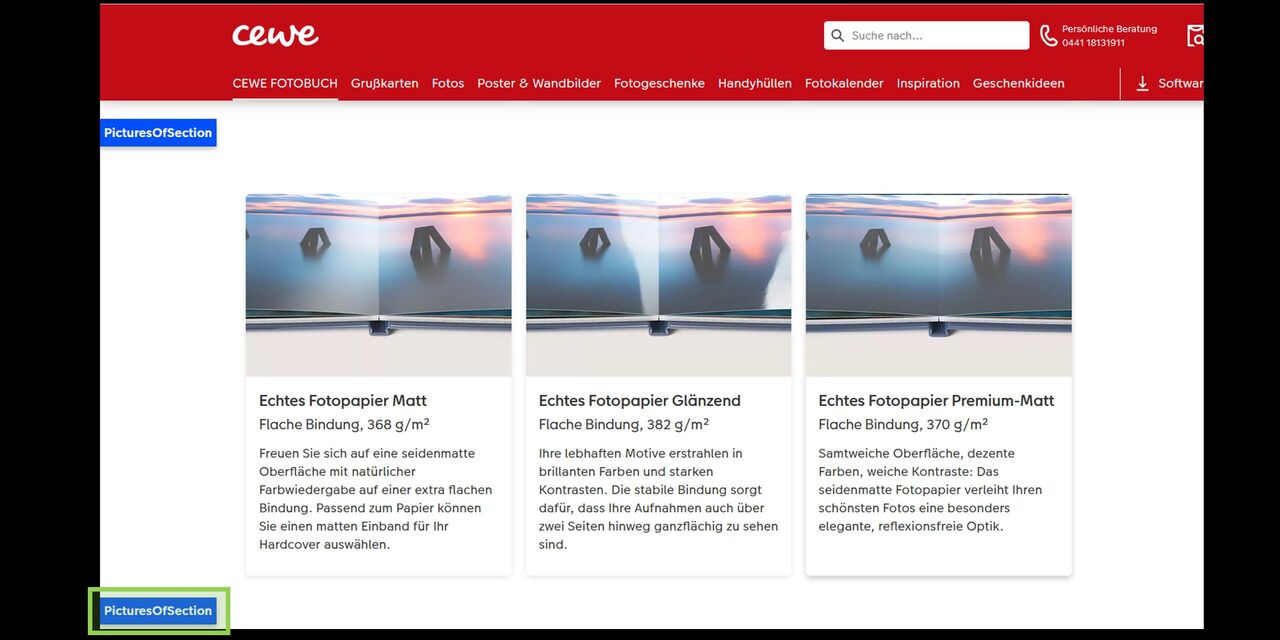
Step 3
At the end of each section, you will see a blue button. Clicking on it will automatically redirect you to Media Asset. Log in as usual to view the image files.
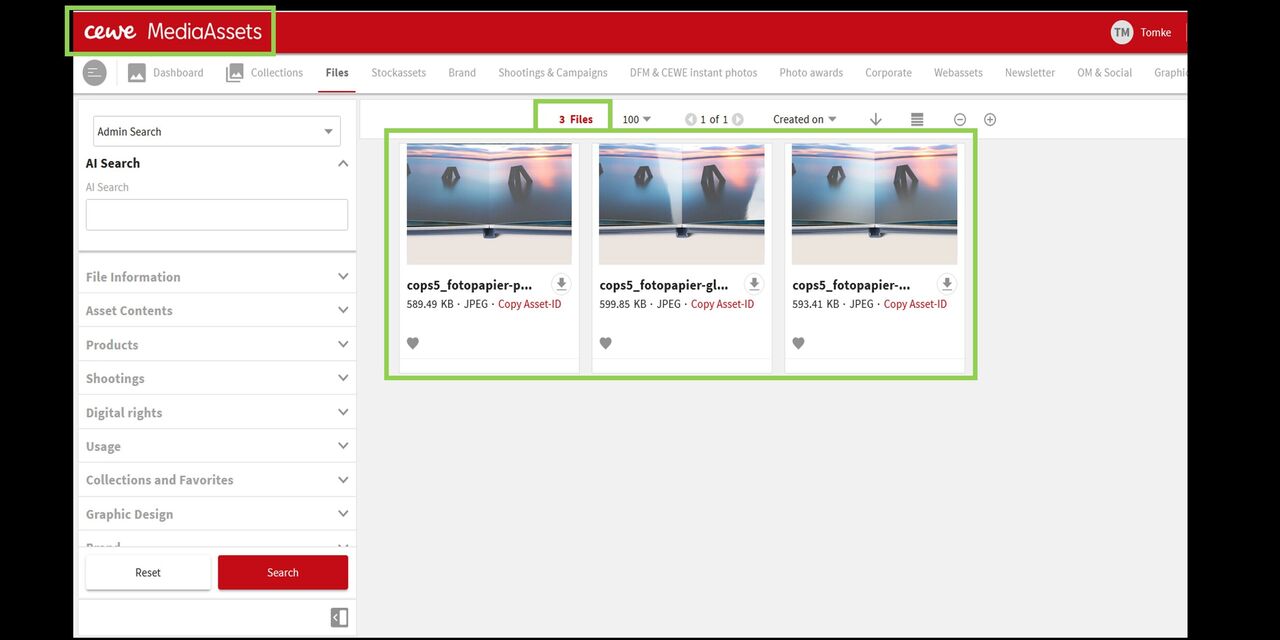
Step 4
Under Files in Media Assets, you will now see all the images displayed in the section on the website. From there, you can copy the asset ID or create a new collection with the images.
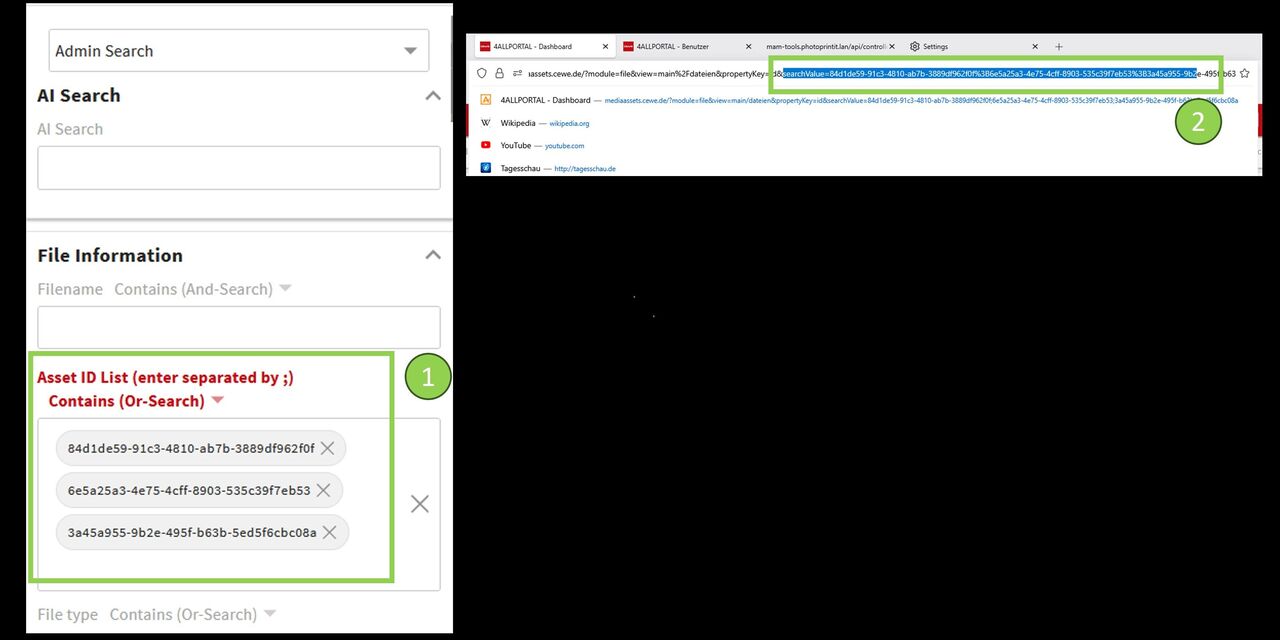
Step 5
The asset IDs for the images you are searching for are now listed in the filter area under "File Information." To search for other images in Media Asset, first remove them from the filter settings.
All asset IDs for the images you are searching for are also listed in the URL. First, click on a new area, then switch back to "Files" to obtain a link without an asset ID.