Downloads

Downloads
You have different options to download assets depending on the amount of assets and their status.
They vary from quick downloads of individual assets to collecting them in the shopping cart and sharing them with internal and external colleagues or to request files with restricted usage.
Quick download
How to quickly download individual assets
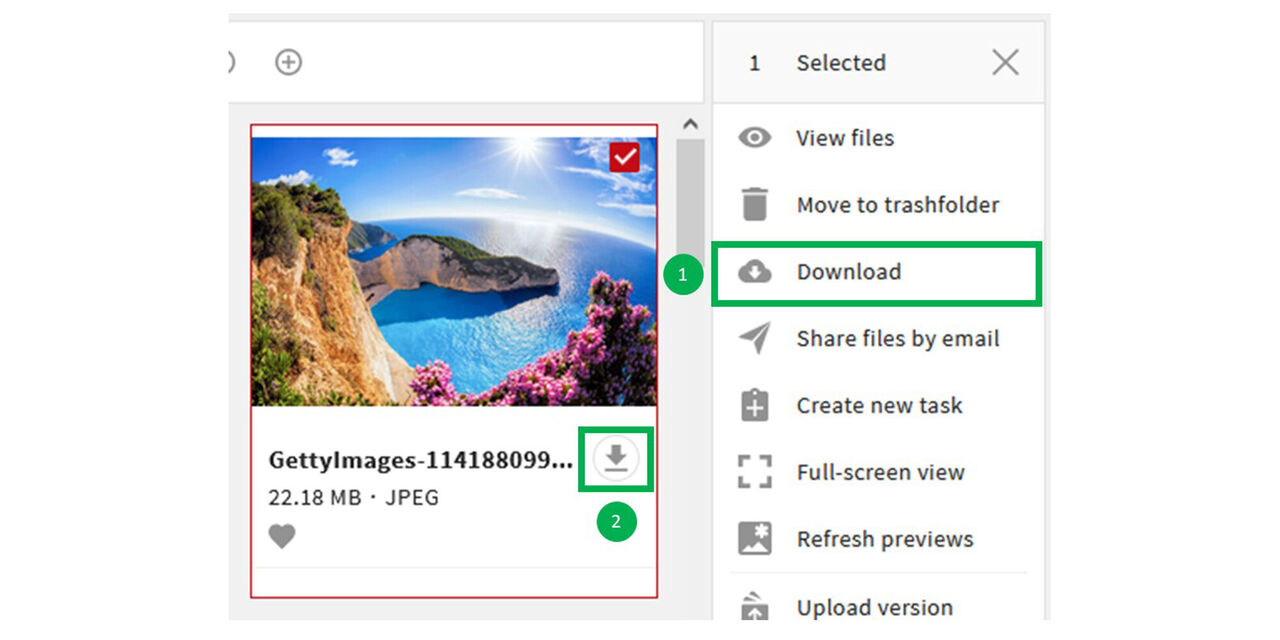
Option 1
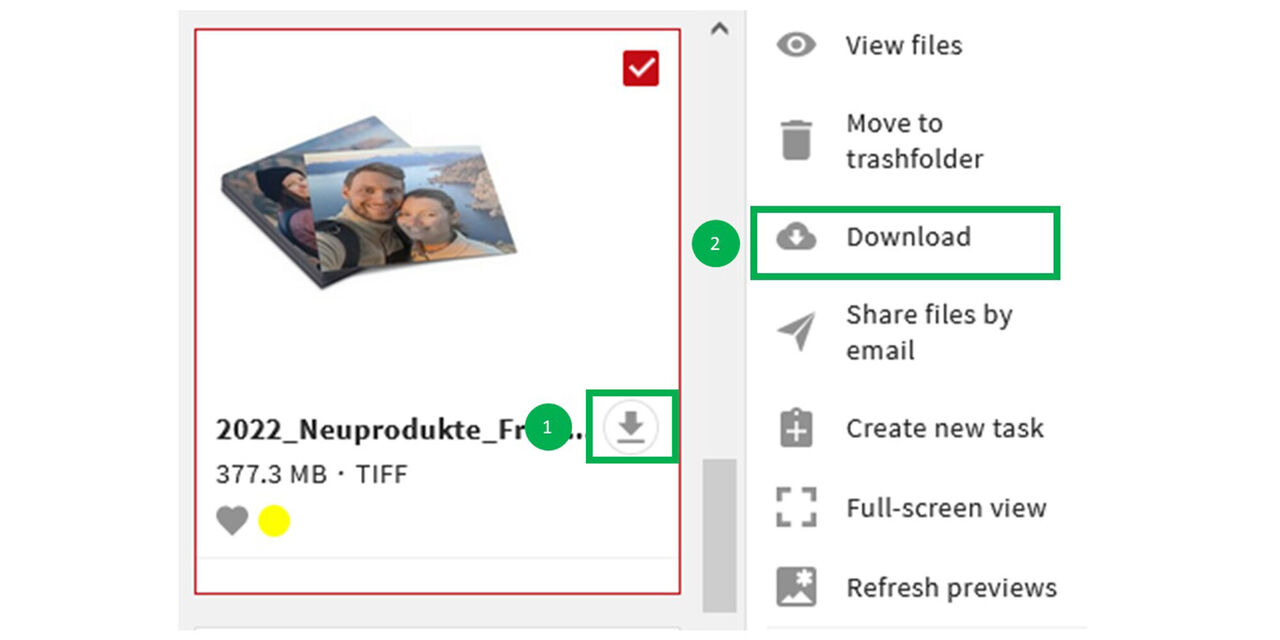
Quick download: The asset is downloaded via a click on the arrow directly on the asset.
Alternatively, “Download” can be clicked in the action area. This option is also used if you select several assets to download.
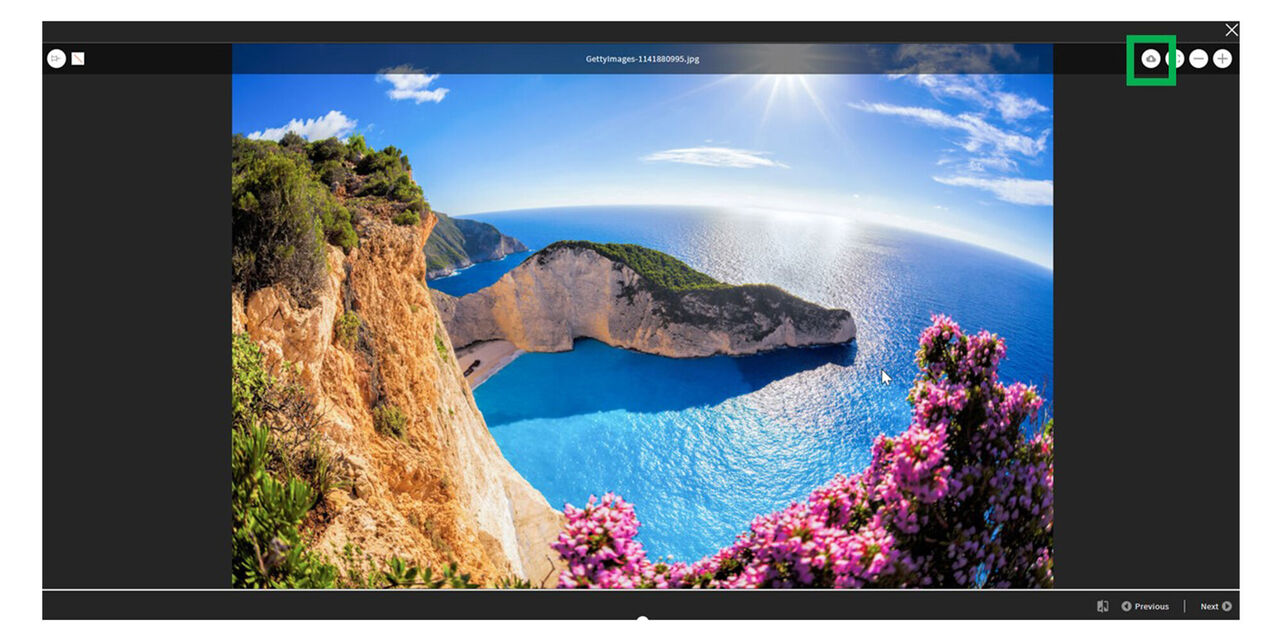
Option 2
If you are in the full screen view of one or more assets, you can download the files by clicking on the cloud symbol.
Custom download (“Cropping Tool” function)
With the custom download, images can be cropped directly during download... and more.
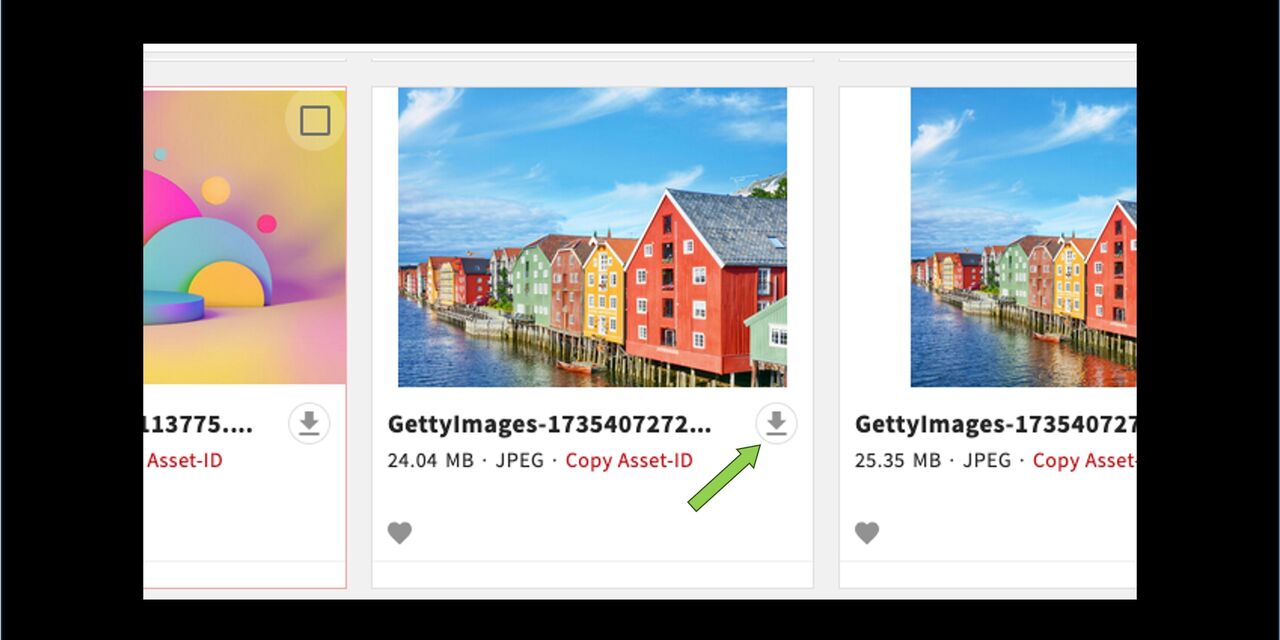
Custom download
The download now includes a function similar to the cropping tool. In just one step you can
- crop an image directly
- select the file format
- and download it
The cuts are automatically linked to the source file!
Click on the icon for download as usual.
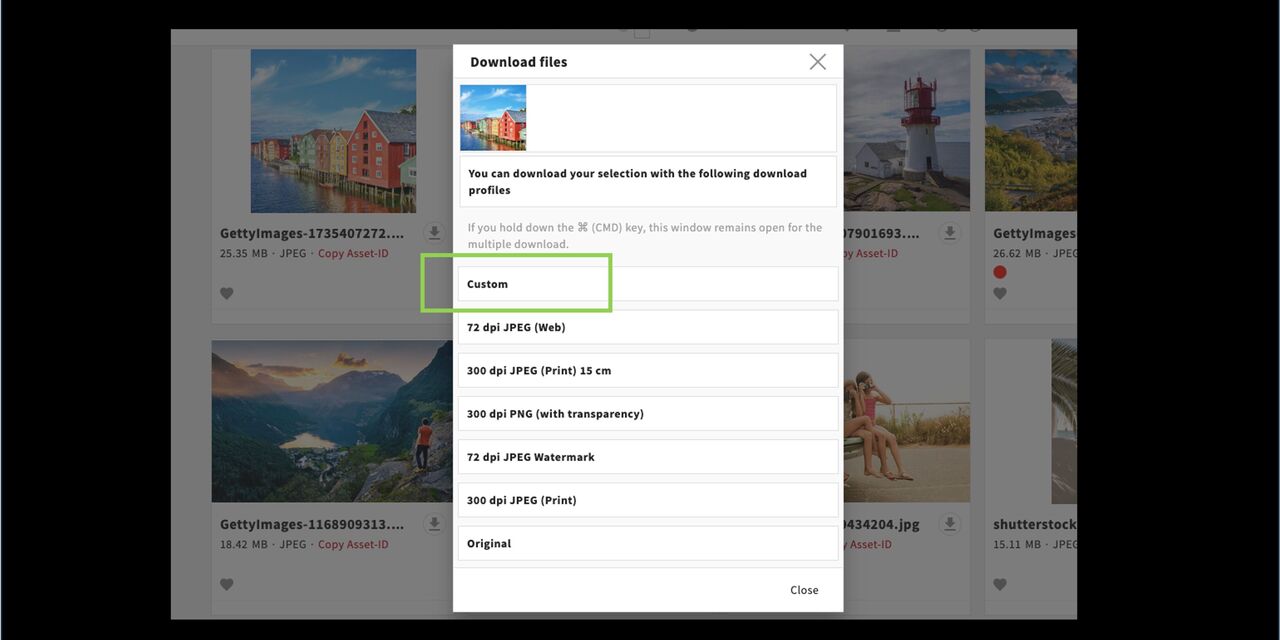
Custom
The first option in the list is now “Custom”.
Below this, you will find the known download profiles as usual.
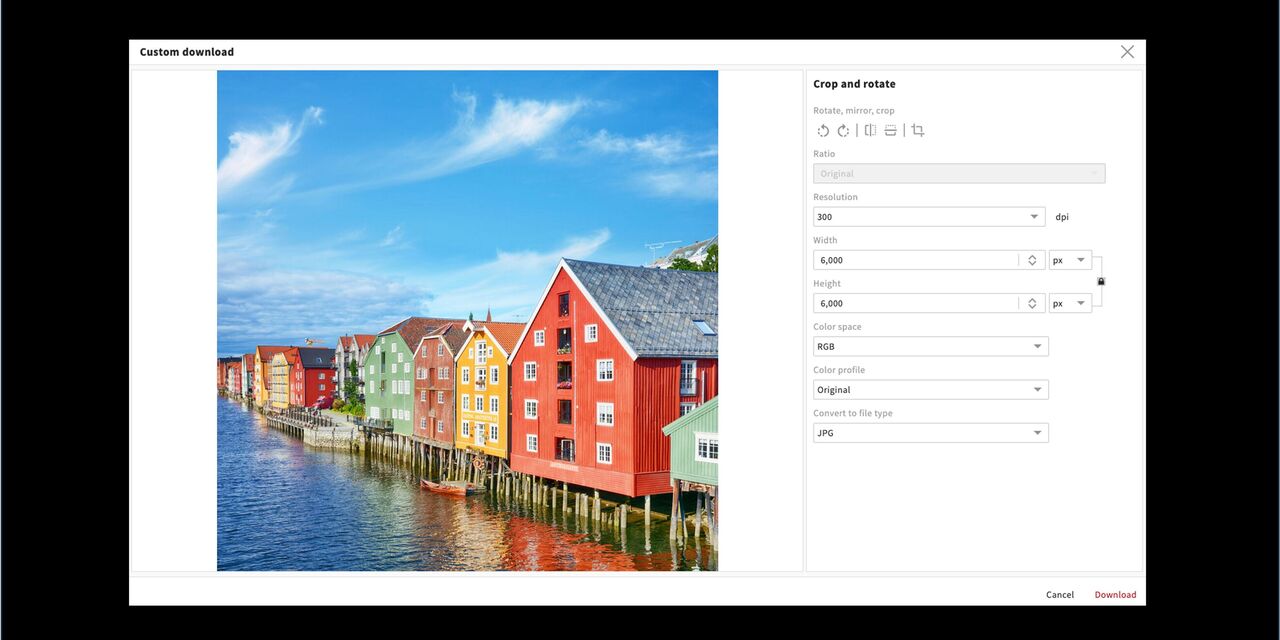
Crop and rotate
Here you can see a whole range of functions that are available to you.
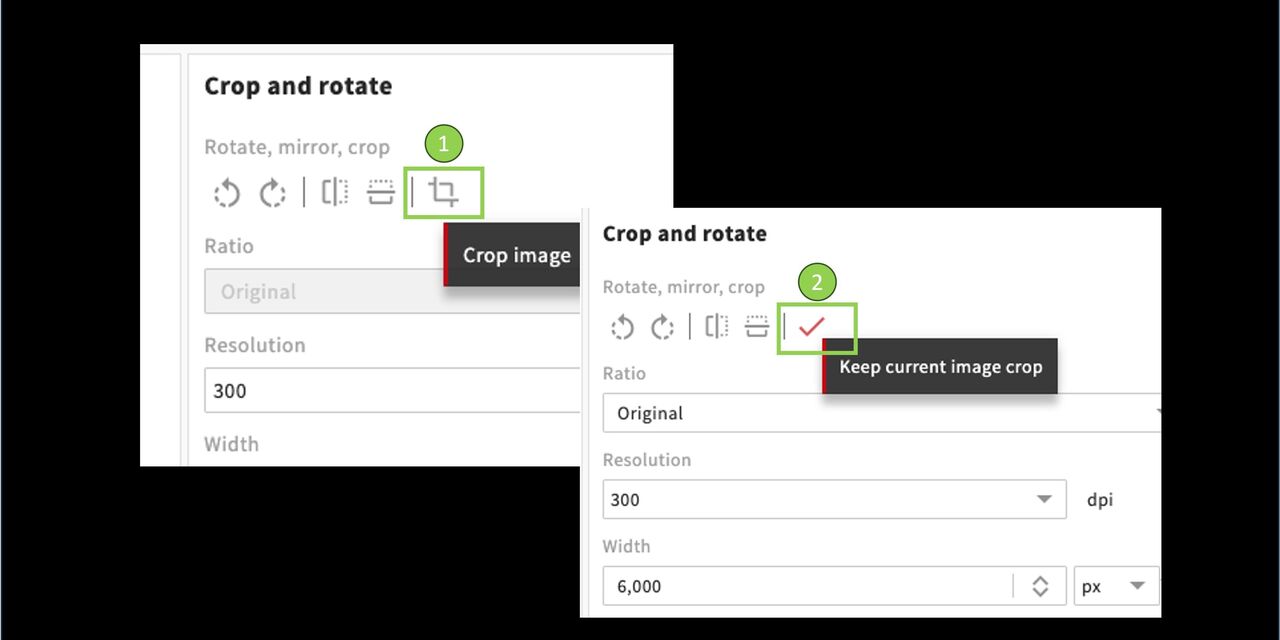
Crop and rotate
You can rotate, flip and crop.
- Click on the symbol to crop.
- The red tick appears and activates the “Ratio” field
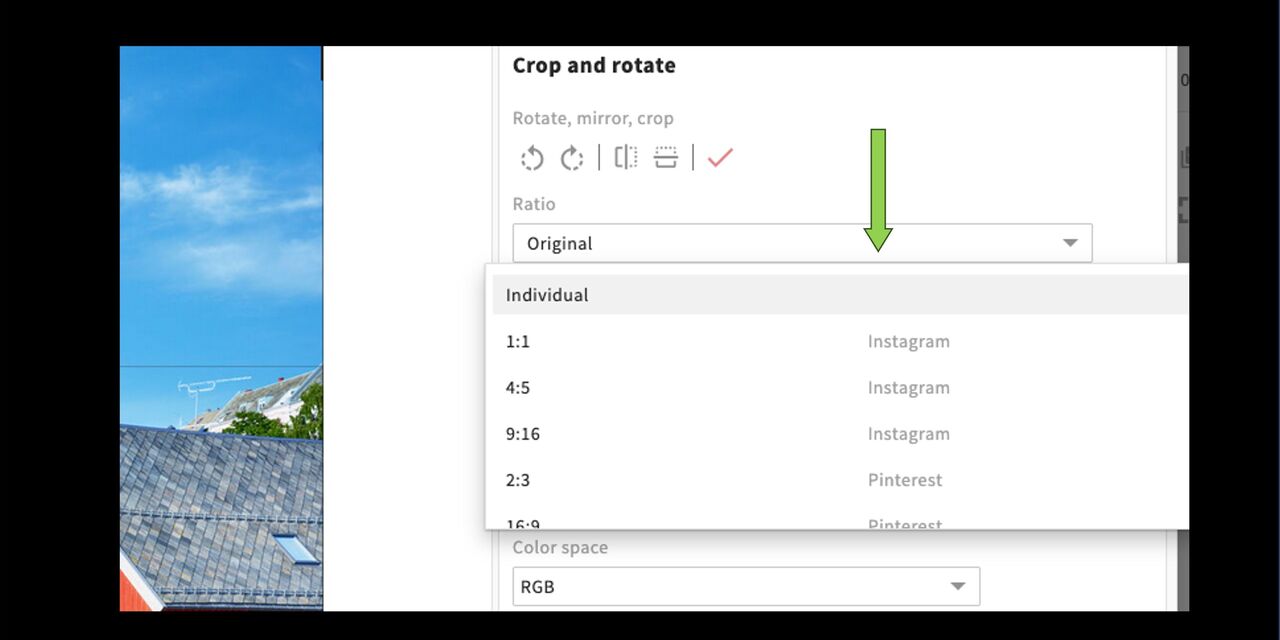
Crop
In the drop-down menu, you will find all stored aspect ratios for social media or web cropping.
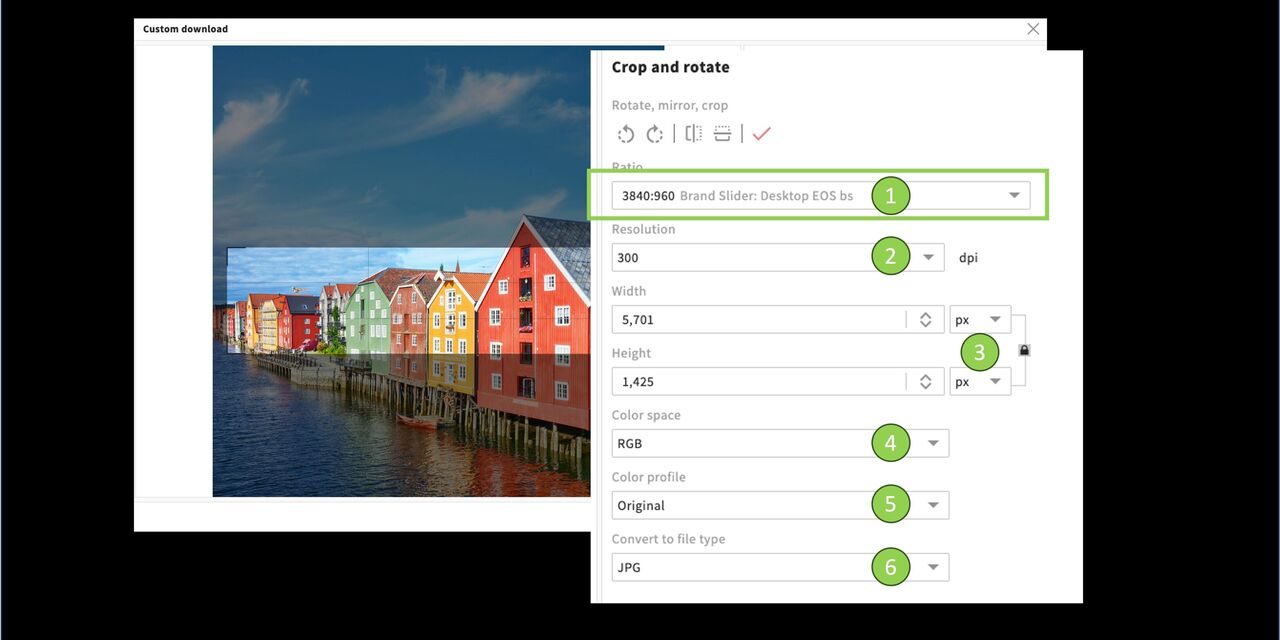
All options
- in the “Ratio” field, select a module or leave the selection Original if you want to create a free cut. Further options can then be used.
- resolution
- width and height (pixels or millimeters)
- color space
- color profile
- file type
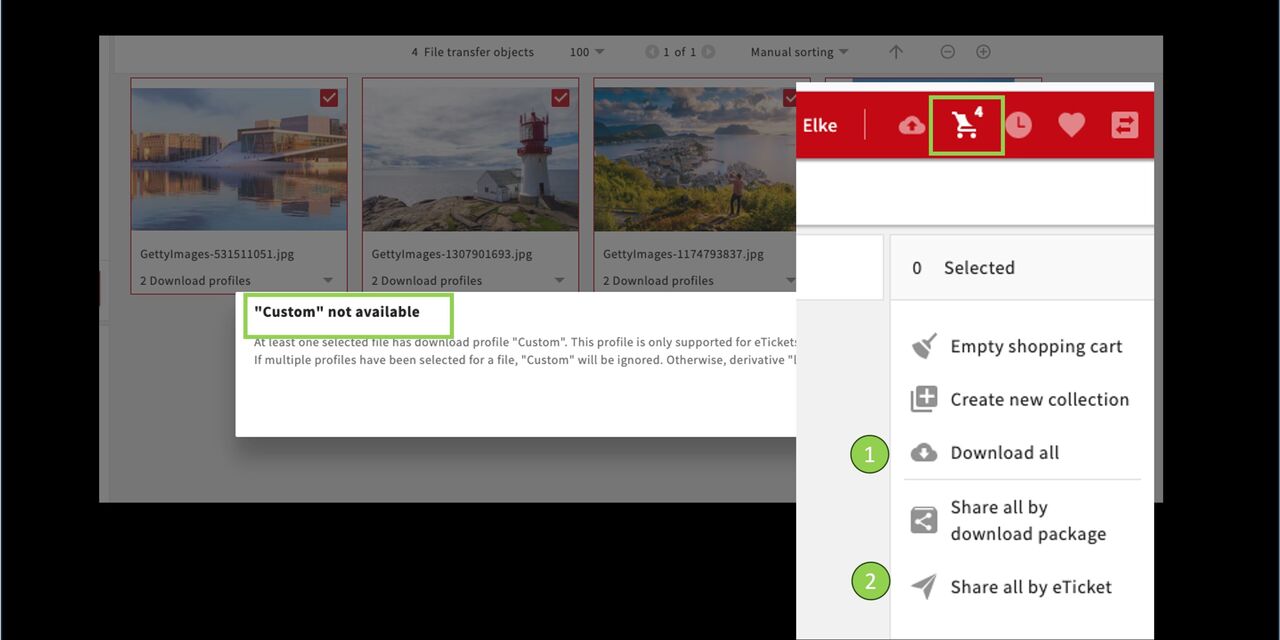
Options for downloads from the shopping cart
The shopping cart offers the option of downloading various assets (also with different profiles) at the same time.
The “custom” function is NOT available when using "download all".
However, it is possible to use this function with the “Share all by eTicket”. The recipient of the link can then download each image from the gallery in a customized way and thus also crop it.
Download via shopping cart / e-ticket / download package
You can use the shopping cart to download assets in different profiles and also to share them with other users via E-ticket (external) or via Download package (internal).
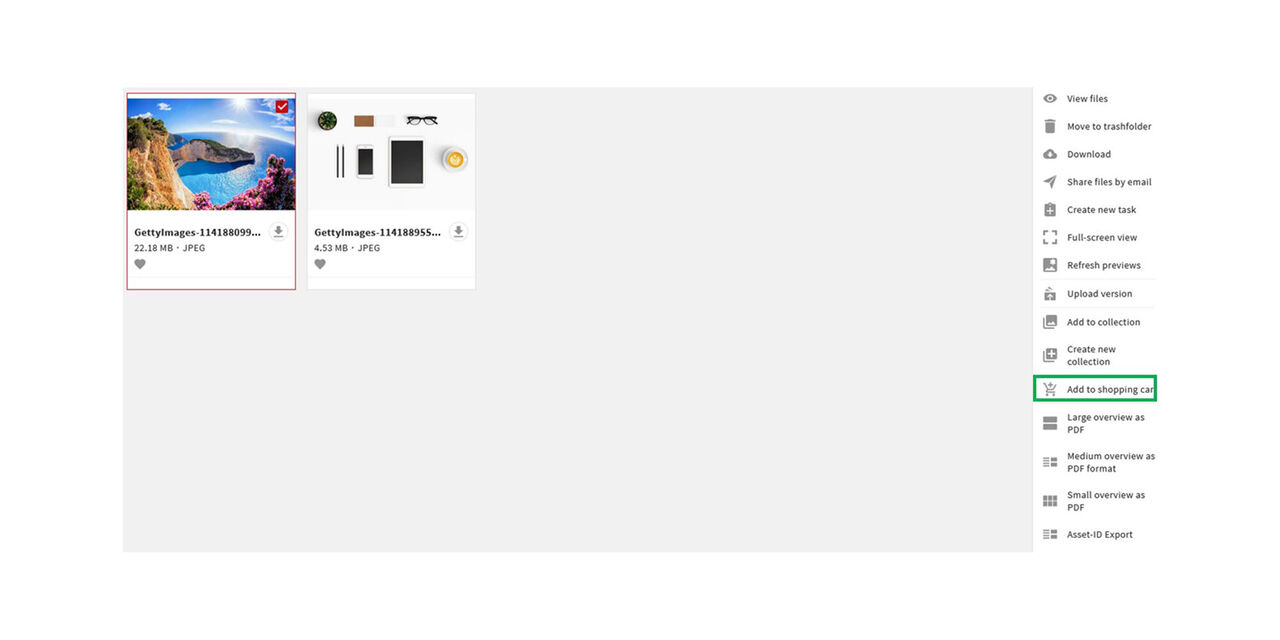
Shopping cart
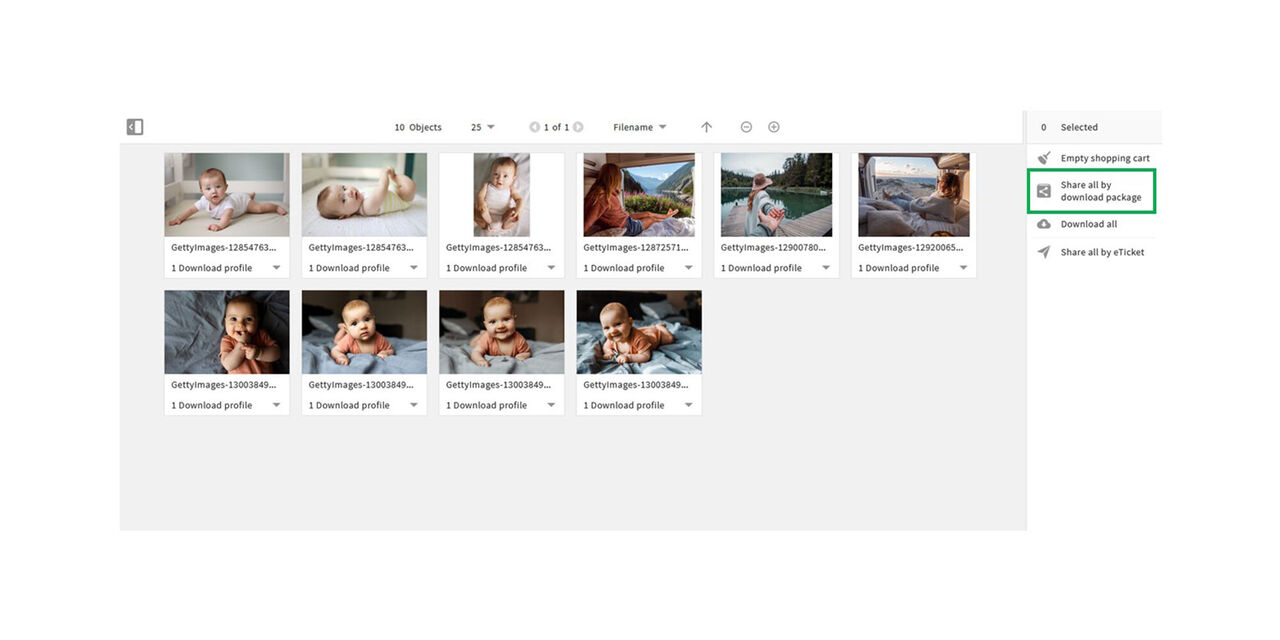
To download assets in different download profiles, put them into the shopping cart.
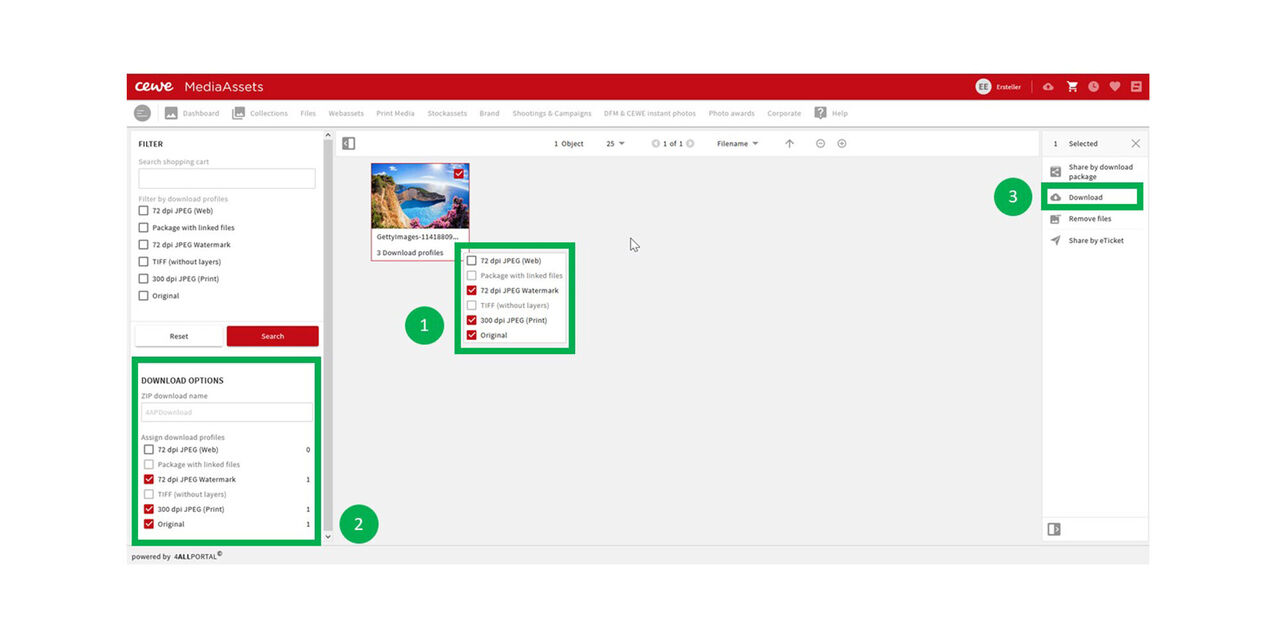
Download profile
Download profiles can be selected by clicking the down arrow for each individual asset. These may differ from each other.
Alternatively, you can mark several assets in the shopping cart and select one or more options under "Download options". These will be applied to all selected assets.
Then click "Download All".
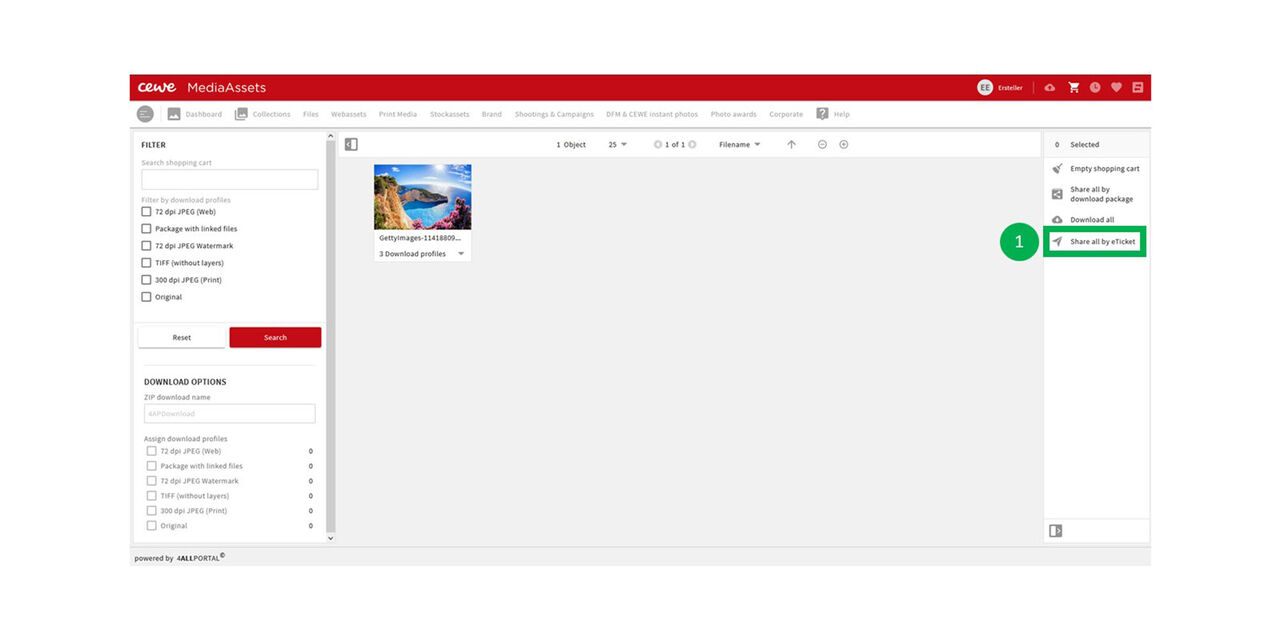
E-Ticket
If you want to release a download of assets (internal or external users), you can do this by sending a so-called e-ticket.
This is also a feature of the shopping cart.
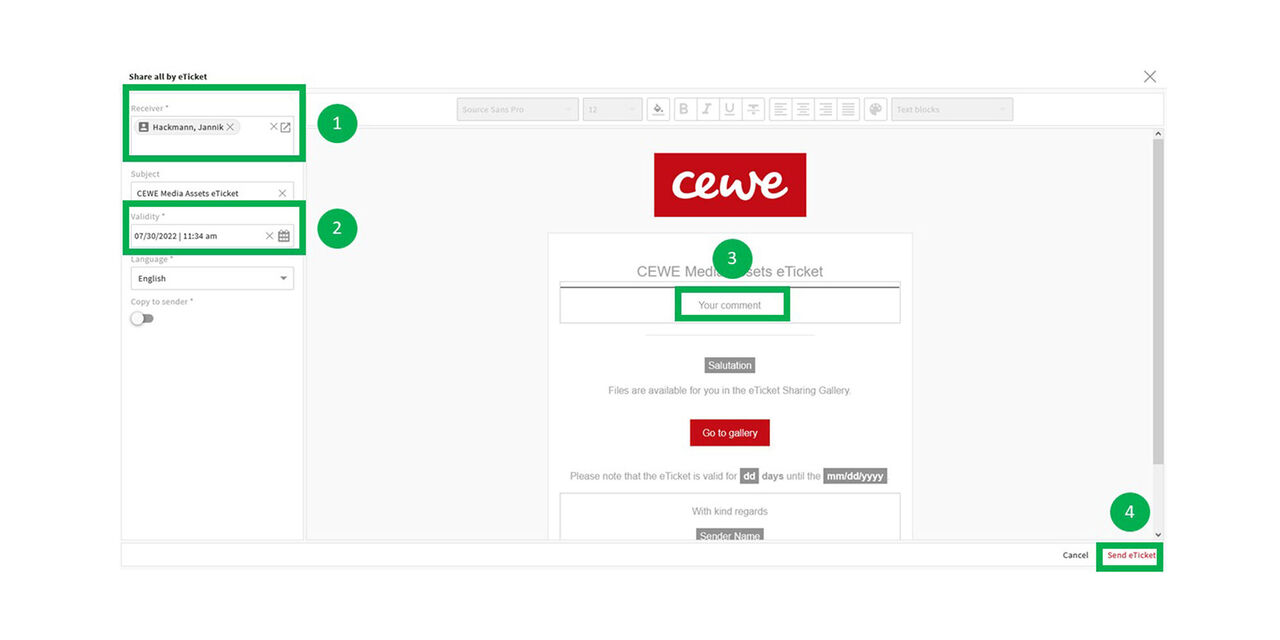
- Click on "Share all by E-tickets"
Send
Select a user or enter the email address of an external user who should receive the assets for download via e-ticket.
Define a time period in which the assets can be downloaded.
Write a message for the receiver.
Click on “Send e-ticket” to generate an e-mail with a download link.
Now the receiver can view and download the assets via the gallery.
Download package
If you want to download a larger number of assets and share them with other users (internal or external , you can do this via download package"
With this option, the assets are automatically packed as a ZIP file, which increases download speed.
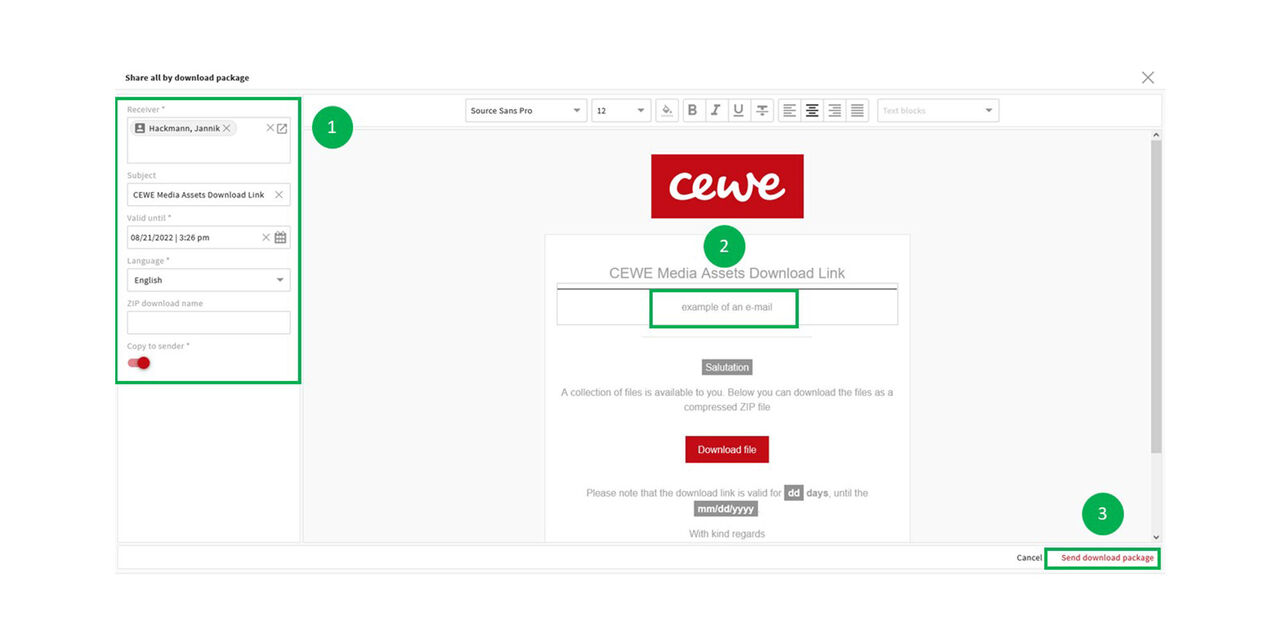
Click on "Share all by download package"
Send package
Quite similar to the e-ticket:
Select a receiver for your download package.
Write your message to the receiver.
Click on "send download package" to generate the email including a download link.
Request download
Request download if assets show the traffic light status "On Request" (yellow)
Step 1
Need an asset that can only be downloaded "On Request"?
Click on the download arrow
or on “Download” in the action area.
Both options will start the request process.
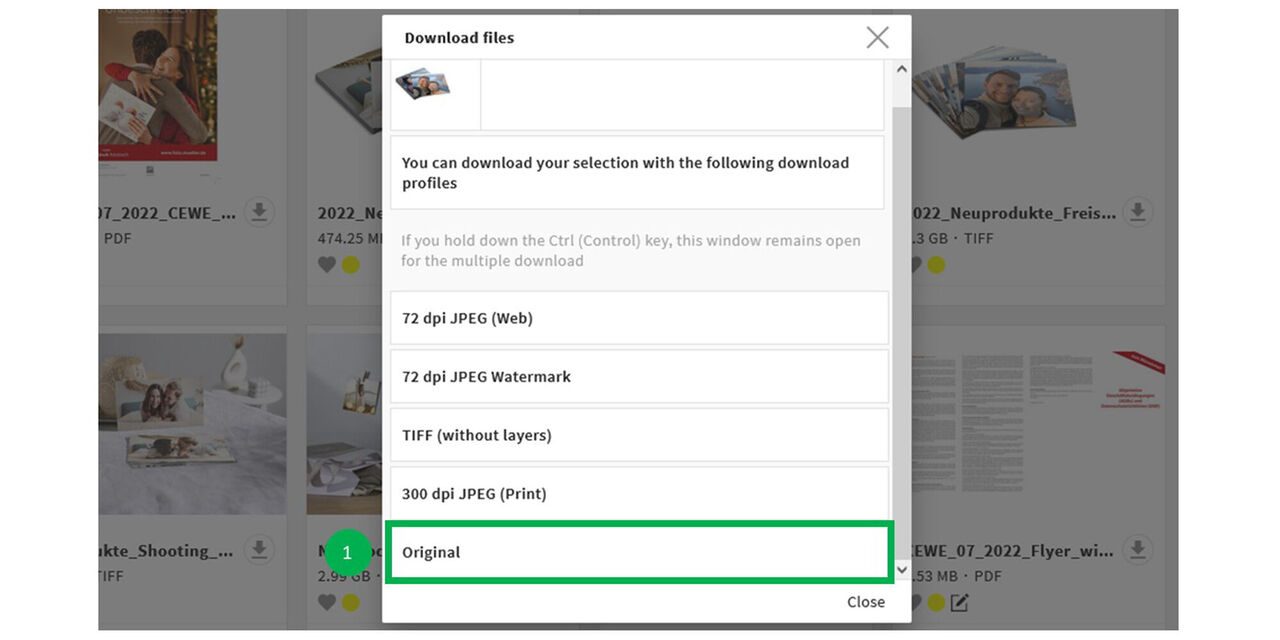
Step 2
Select a download profile.
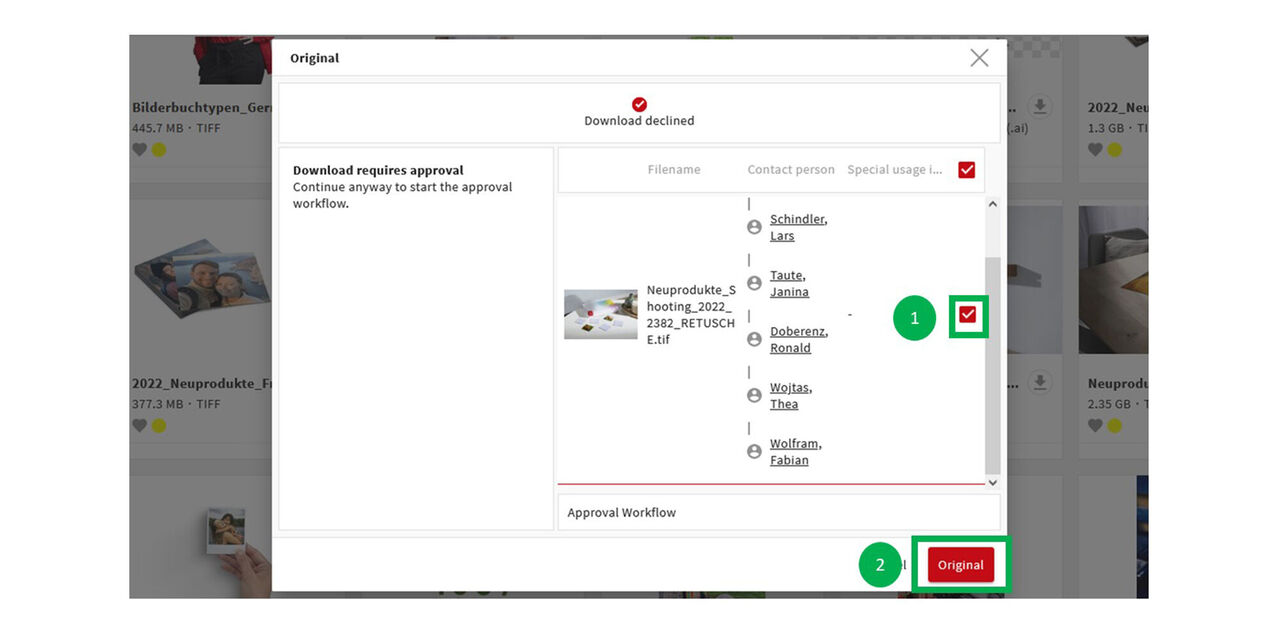
Step 3
Click on the asset again.
Click on the download profile with a red background
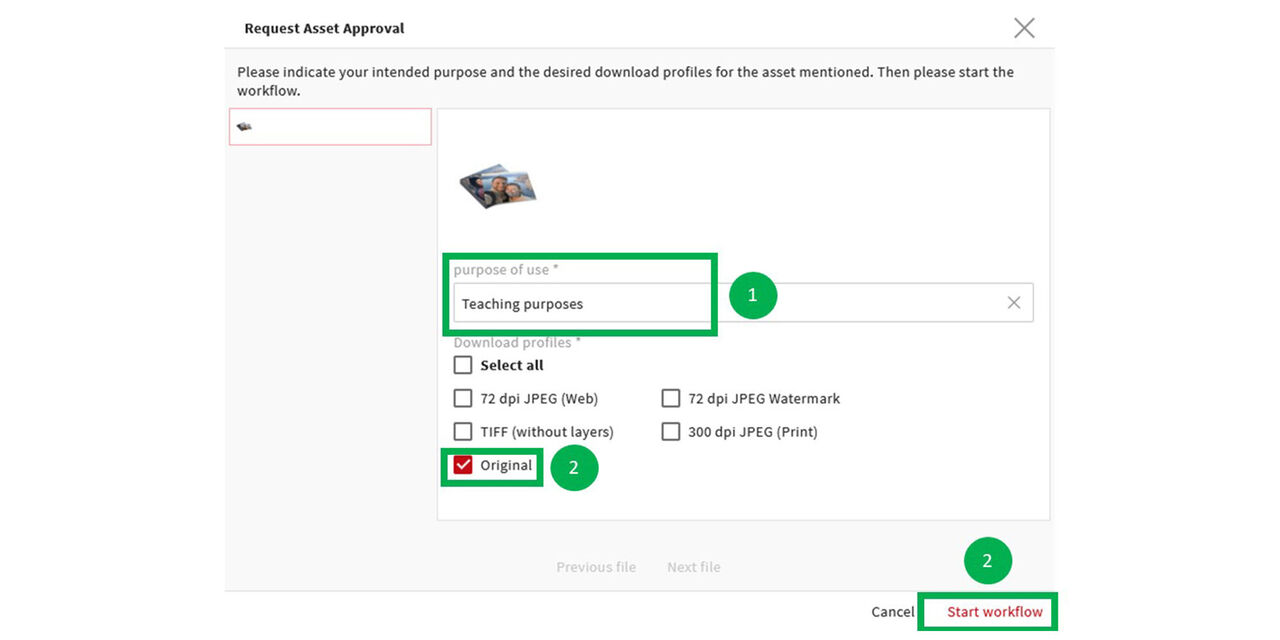
Step 4
Enter the purpose of use. This will be visible to the contact person in the e-mail.
Select the download profile again.
Click on “Start Workflow”. This will generate an automated email where the request can be accepted or denied.
You will then receive an email with a download link or an information in case the asset cannot be released.
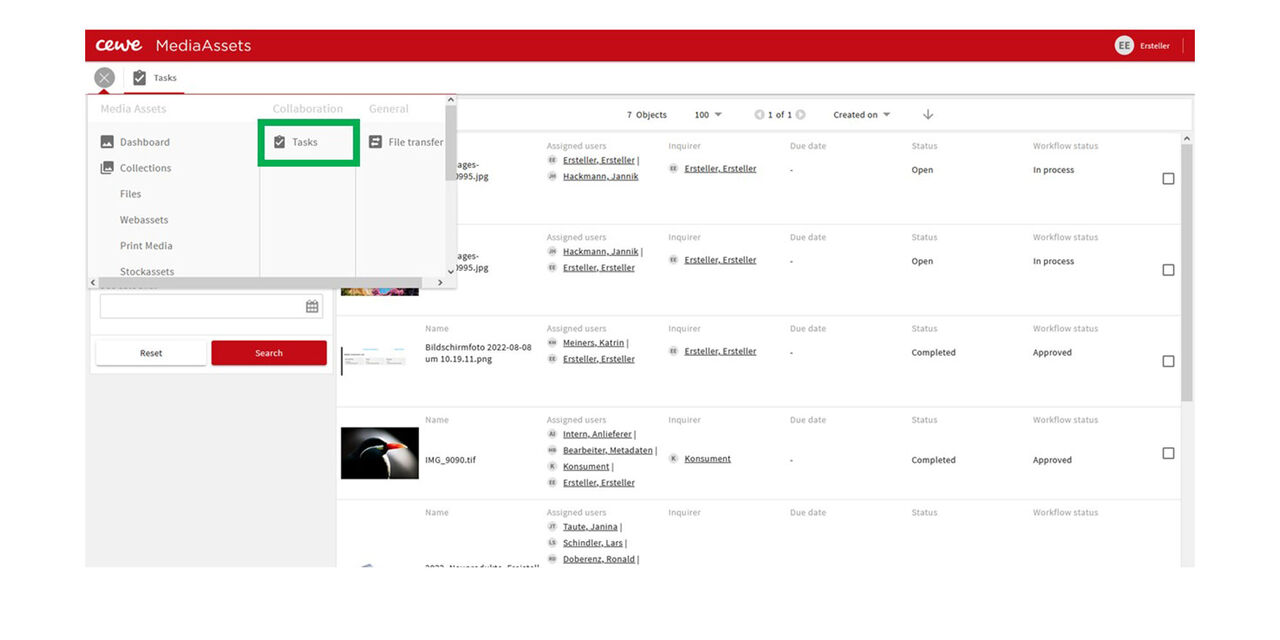
Step 5
You can also check the status of your request in the so-called mega menu under Tasks.