Exports und Web cuts (CEWE Export Plug-in and Cropping Tool)
If other formats are exported from an original Photoshop file, e.g. for web cropping, the CEWE Export Plug-in must be used to ensure that the files are linked.
For simple crops that require no further retouching, we recommend using the cropping tool. Here the linking is done automatically.
Below please find instruction for both scenarios.
CEWE Export Plug-in for Photoshop
Our new feature to save metadata during export to other formats
Why?
The CEWE Export Plug-in enables us to transfer the ID of the original file to the exported file, when exporting Photoshop files into the formats JPEG, PNG and WebP. If you use the normal Photoshop Export function, this ID is lost in the process.
Using this ID, the photoshop file and the files exported from it can then be linked in CEWE MediaAssets, which enables us to find them when necessary.
This is import for any licensing issues but will also help you in your daily work. You can then for example easily find the photoshop file that has been used to create a certain webfile.

Download
This is your link to download:
CEWE Export Plugin Version 0.4.0
Installation:
- Download and open the file
- Install Plug-in
Plug-in
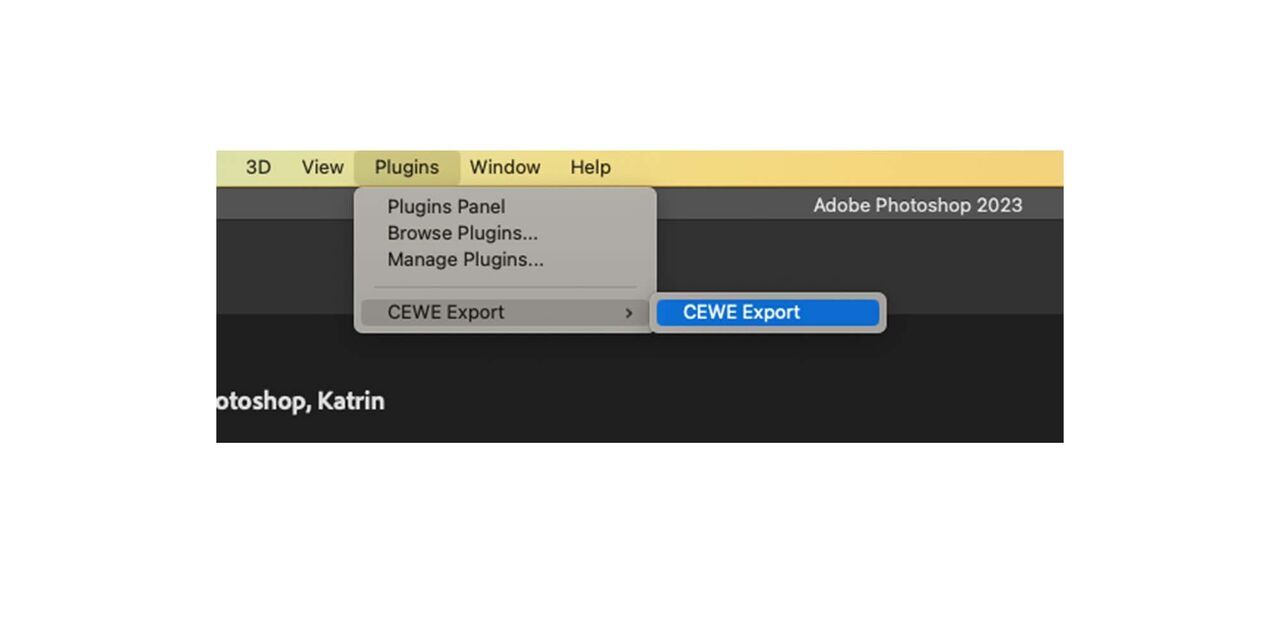
After the download the Plug-in appears in Photoshop with the name:
CEWE Export
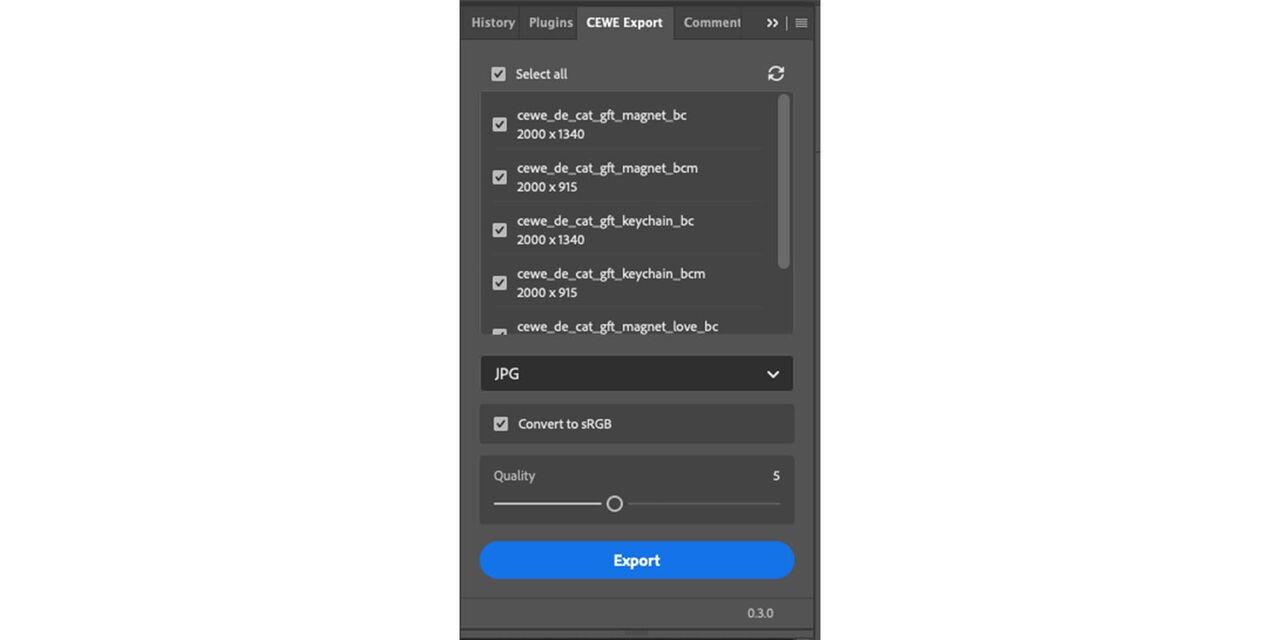
Details
When you open it you can drag it to the bar on the right and use it from there.
Further functions:
You can select all or individual artboards and export as JPG or PNG
For JPGs, the desired quality can be selected
You can choose to convert to sRGB or not
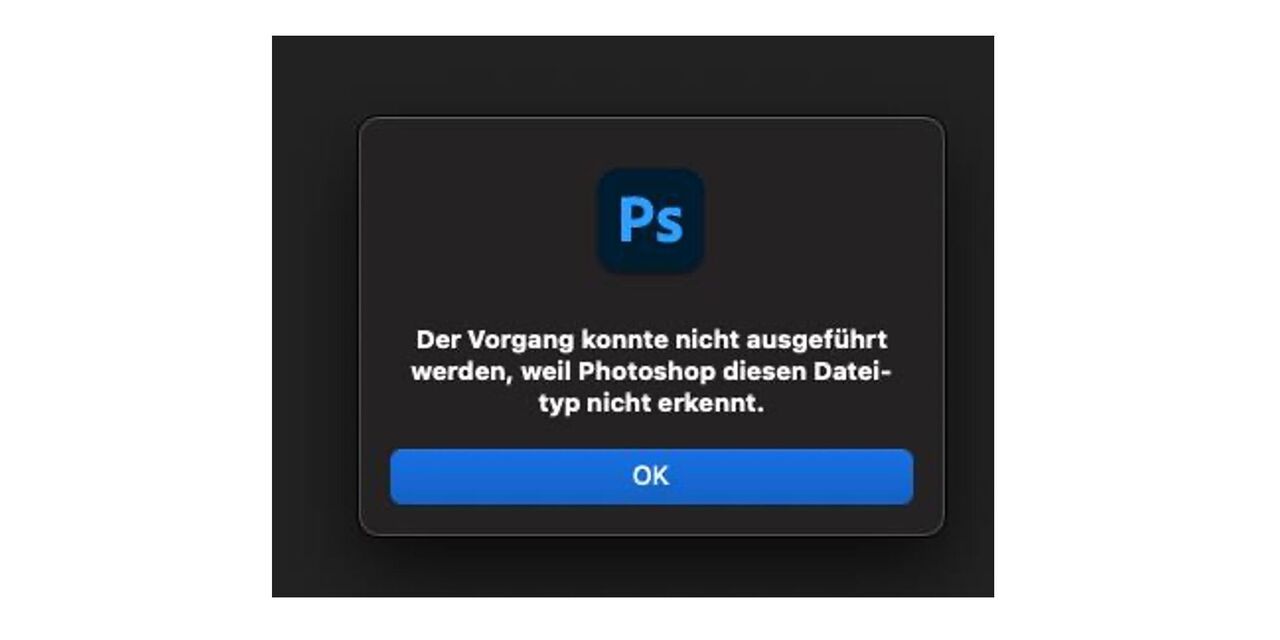
If you try to open the CEWE Export Plugin installation file and get an error that this cannot be opened because Photoshop does not recognise the file type or if you are asked to select a suitable program to open the file please use the process in the following tabs.
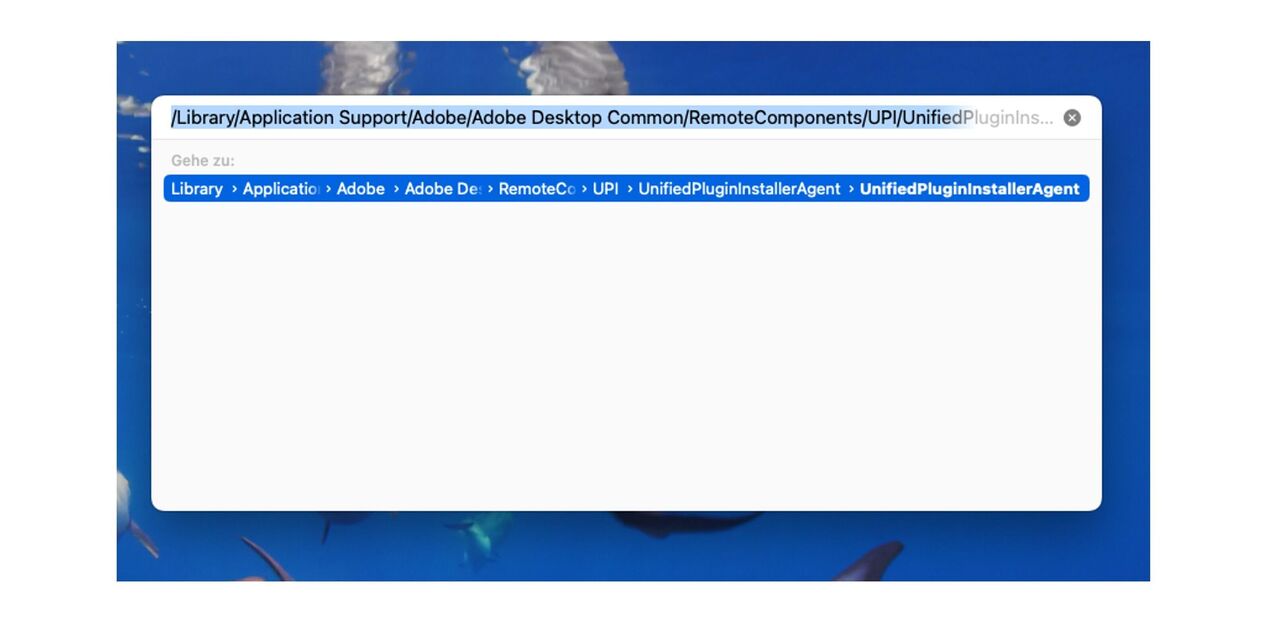
Open "Go to" + "Go to folder" and open the following path:
/Library/Application Support/Adobe/Adobe Desktop Common/RemoteComponents/UPI/UnifiedPluginInstallerAgent/UnifiedPluginInstallerAgent
If nothing is shown you might have to show hidden files by entering Command+Shift+.
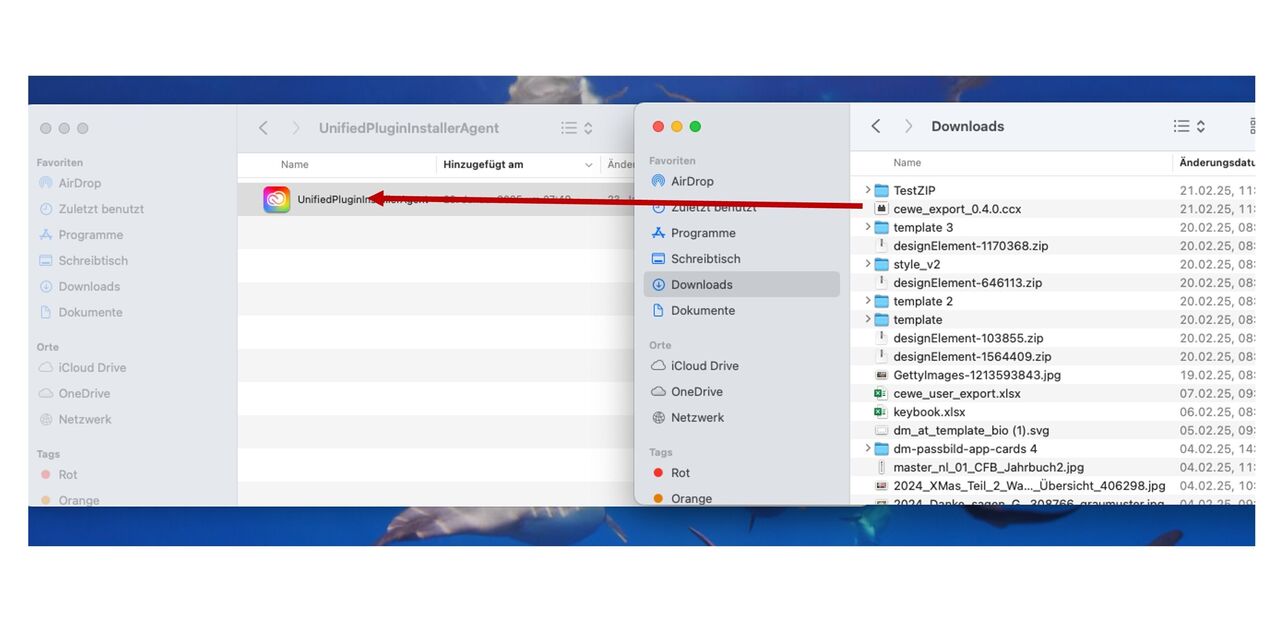
Now open your downloads in a separate finder window (right mouseclick on finder + new window) and drag the installation file on the Unified Installer Icon. This should open the Creative Cloud and it should ask you if you want to install or update the plugin.
More infos can be found on this Adobe page: https://helpx.adobe.com/creative-cloud/kb/solve-external-plugin-installation-issues.html
Cropping tool
How to generate a web cut using the cropping tool

Our cropping tool enables the direct cuts of assets into all common CEWE web modules, as long as they do not require additional retouching.
All simple cuts can now be created by colleagues in content marketing, social media and similar departments themselves. This saves time and effort for all users and of course the graphic designers. These cuts are made exclusively from original files and and generate an automatic link to the source file.
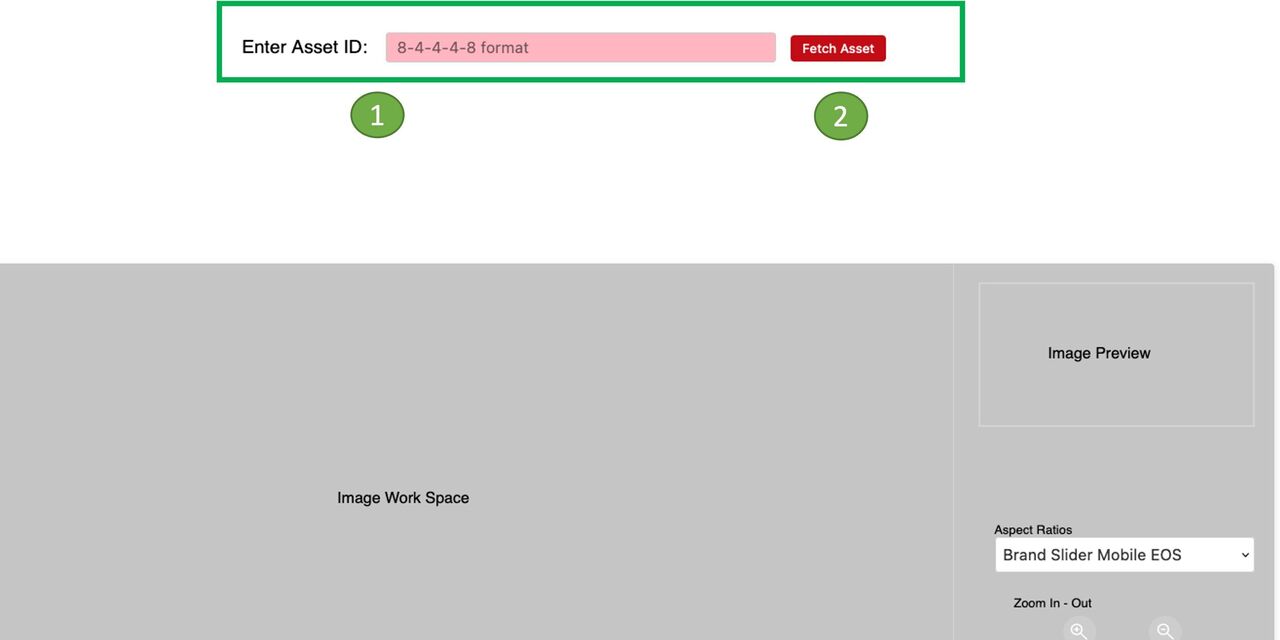
It is an external application that is directly linked to CEWE MediaAssets. We recommend saving the link to the cropping tool in your favorites. This way you can easily open the application from there at any time.
- enter the Asset ID of the image selected from CEWE MediaAssets.
- go to Fetch asset
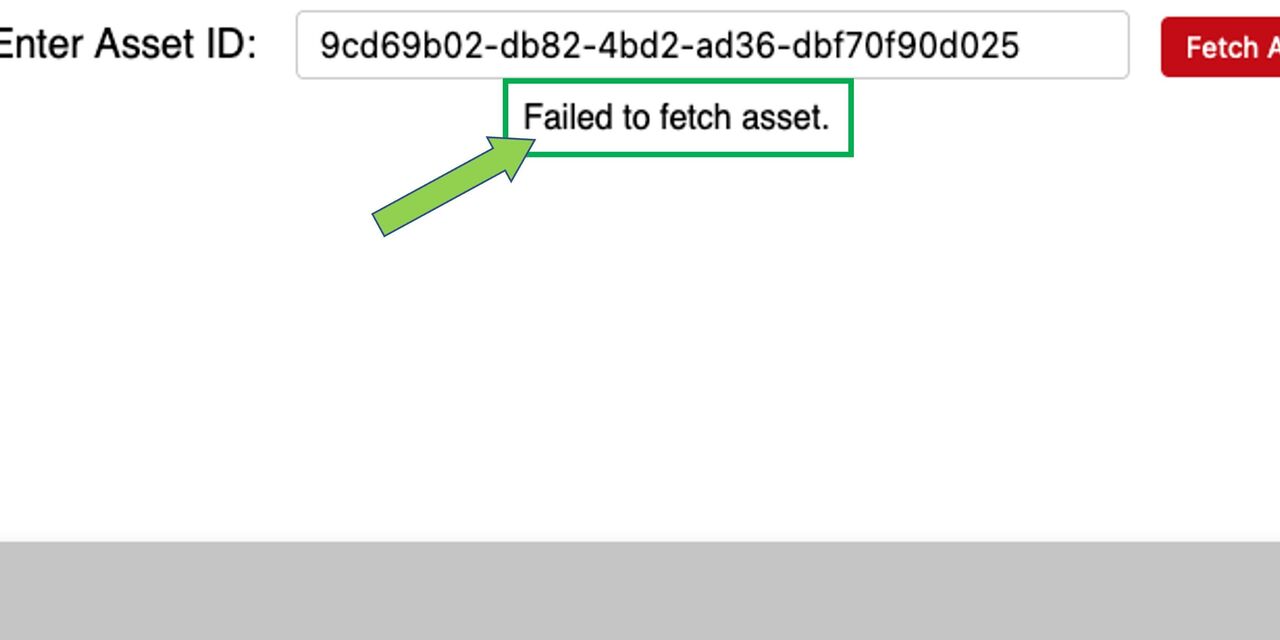
Assets meeting the following criteria can be edited:
- status is for public use and the traffic light is not blocked
- it is no web assets - crops should always be created from the original shooting or stock asset. The link to the source image is then created automatically when the crop is uploaded.
If you have selected a file that does not apply, the system will show you an error message
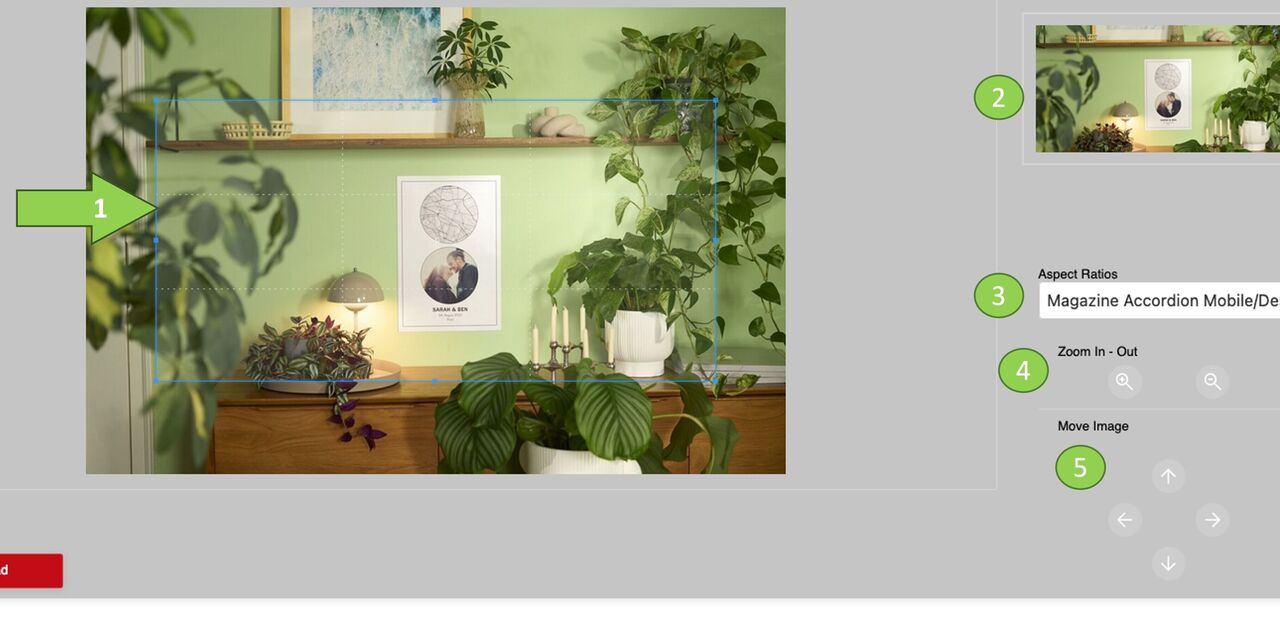
The selected image appears on the left in the original.
- you can now use the blue frame to select, move and resize the image section using the mouse.
- the selected image area appears at the top right.
- select the desired web module via "Aspect Ratios".
- the image section can be changed using "Zoom in - out".
- the arrow keys allow you to move the image.
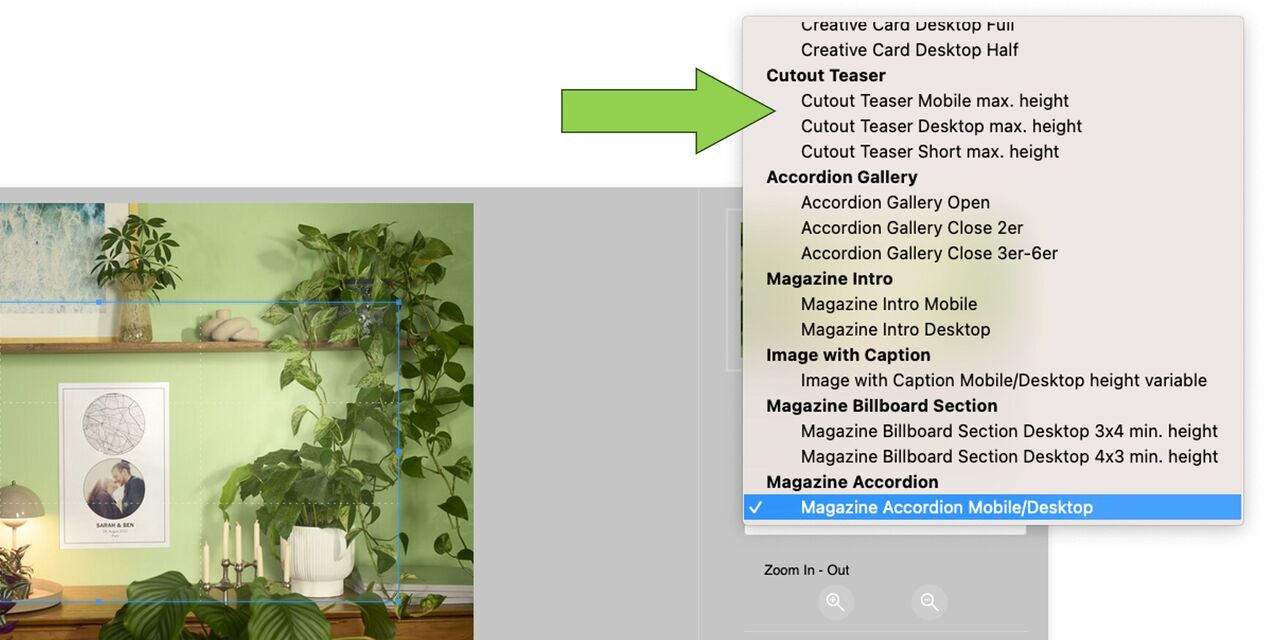
Here you can see the choice of webmoduls linked to the Aspect Ratios.
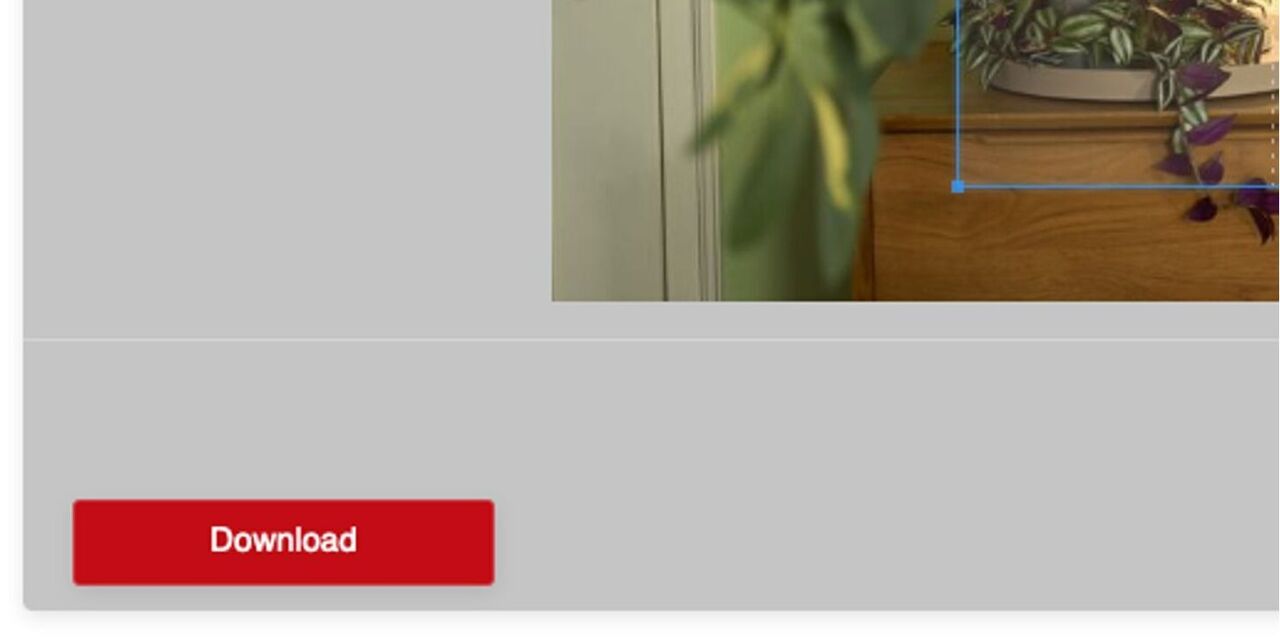
If you are satisfied with your choice, simply go to Download.
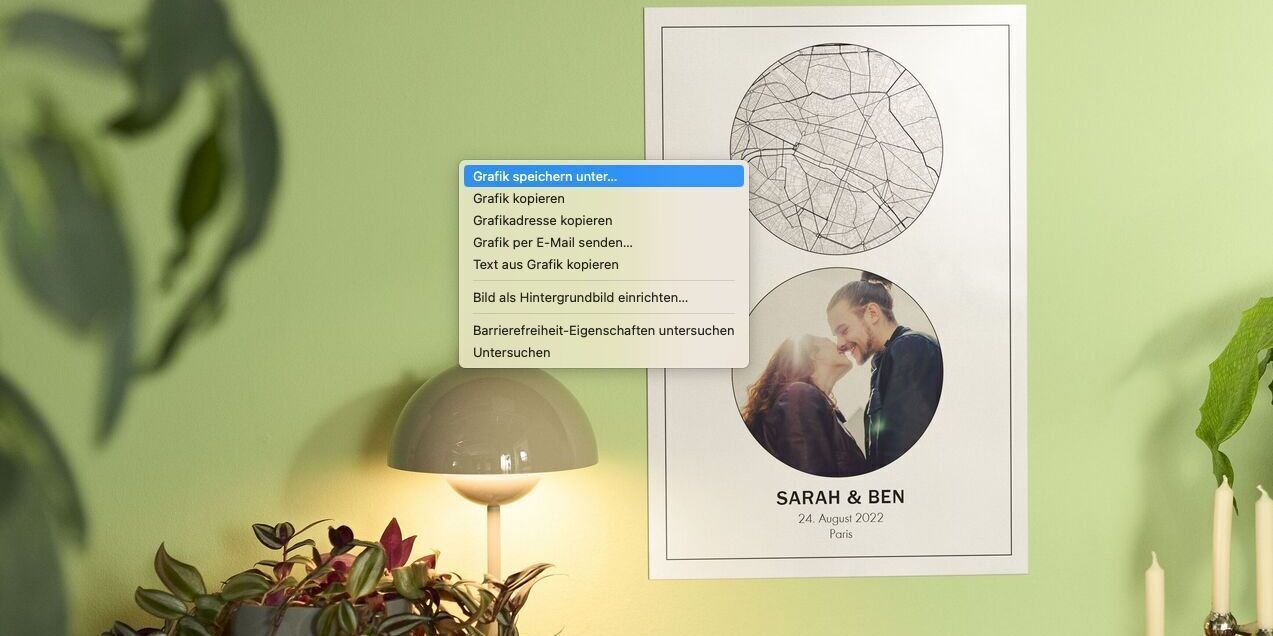
The image will now be displayes in full view. With a right mouse click go to
- save as
- add a file name
- and store the image on your PC.
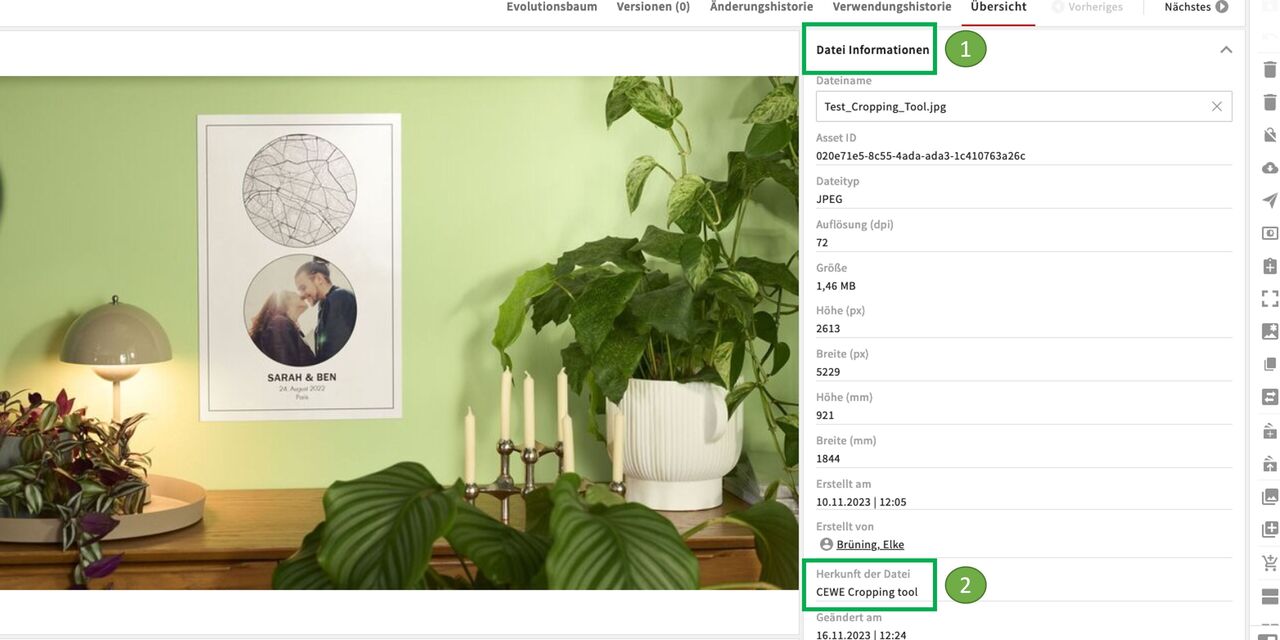
Now upload the newly cropped image to CEWE MediaAssets **.
- Open the file information in the metadata.
- It is noted there that this file was created with the cropping tool.
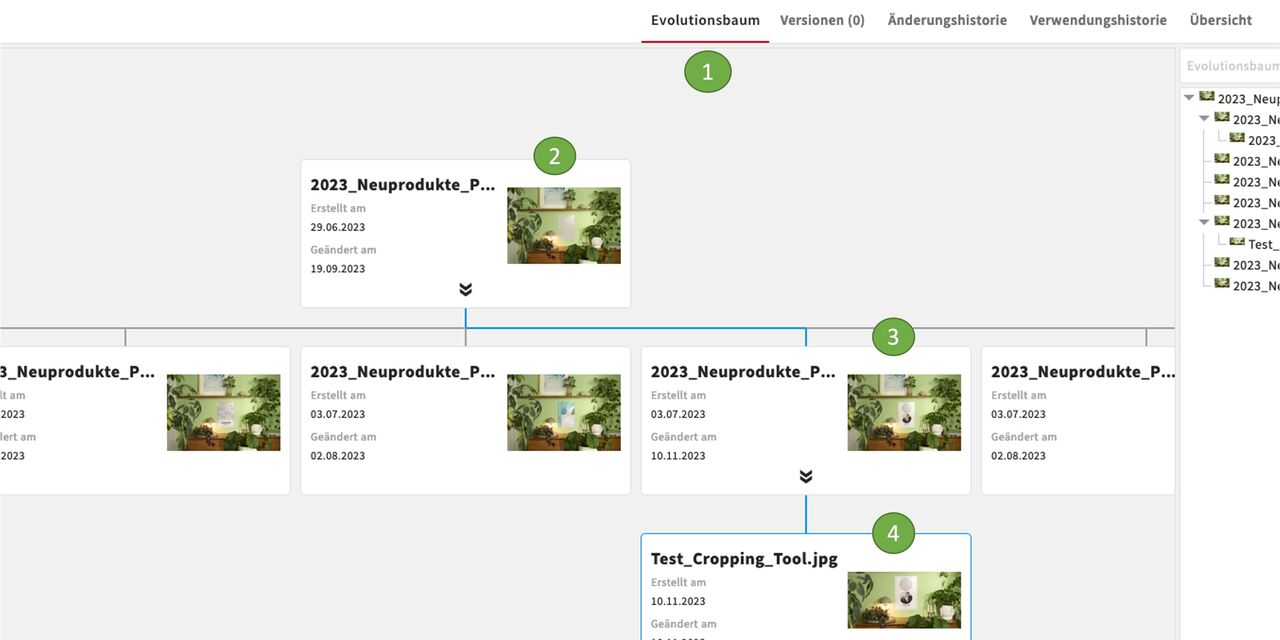
- Click on the evolution tree. Here you can see the resulting links to the source files.
- and 3. show the original files
- shows the new file