Campaigns
What does a campaign look like in CEWE MediaAssets, and how do we make assets visible there?
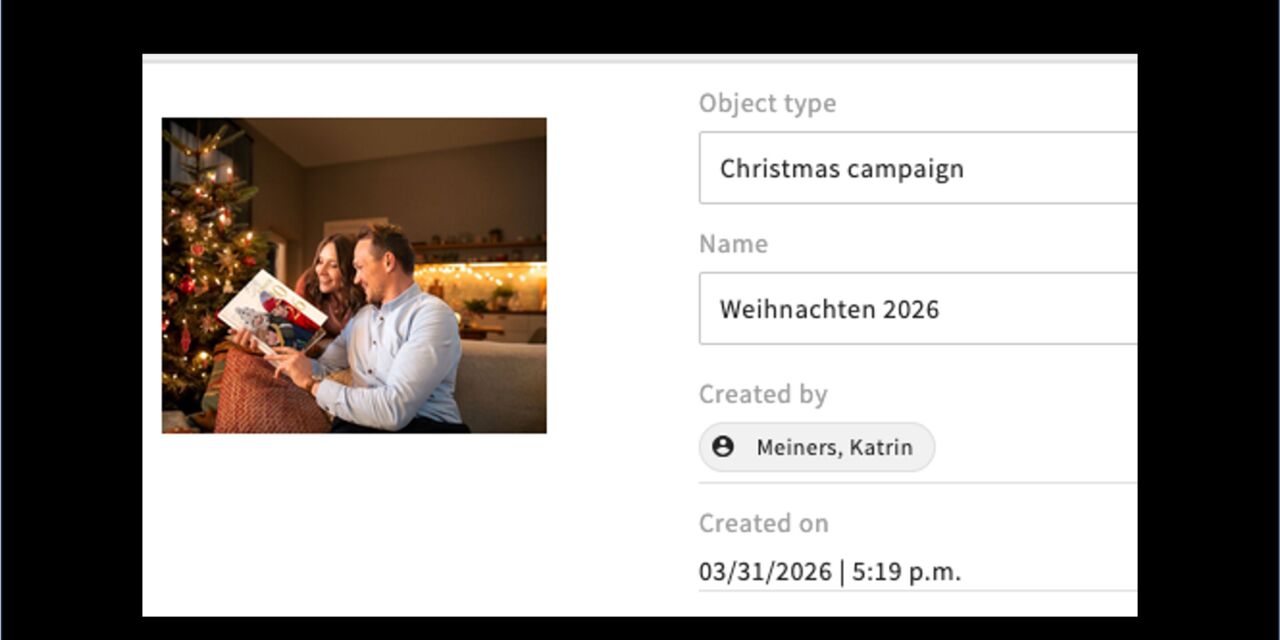
What is represented by “Campaign”:
We can now link relevant files to a campaign. We distinguish between:
- Campaign = all campaigns except Christmas
- Christmas campaign = Christmas campaign
- Campaign content = various tabs/sections within a campaign
- Campaign content Christmas = various tabs/sections within a Christmas campaign
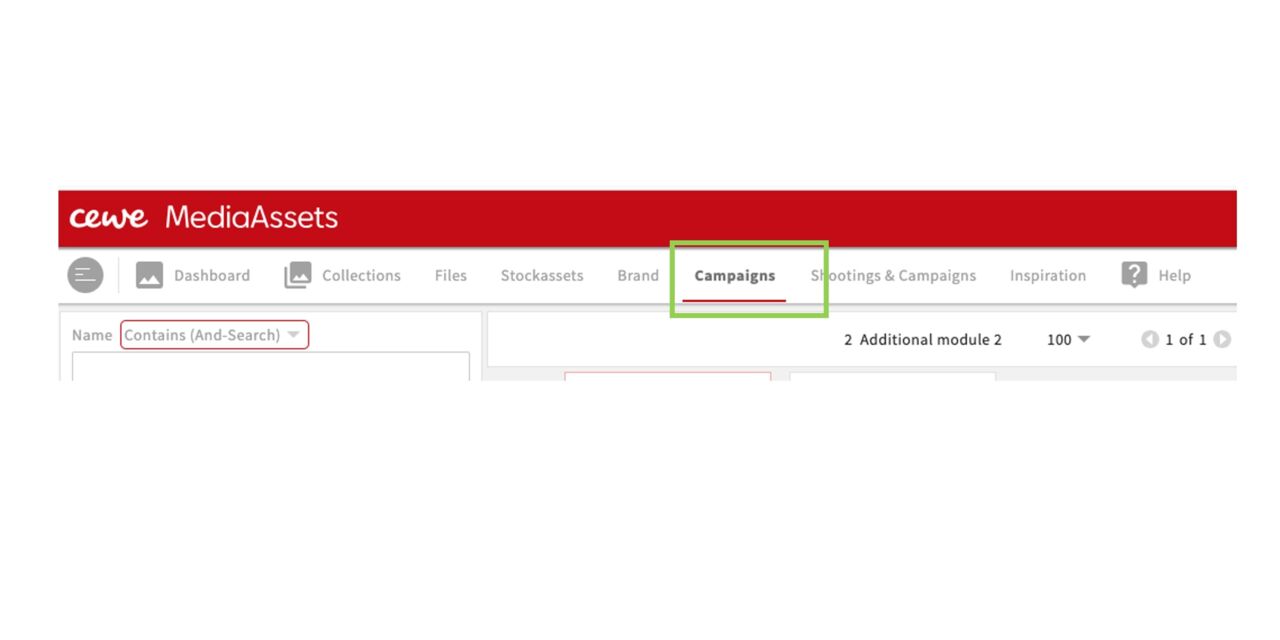
Where do I find campaigns?
The tab campaigns will appear on the first page of MediaAssets (next to the old tab Shootings & Campaigns which will be completely replaced by new modules eventually).
Overview
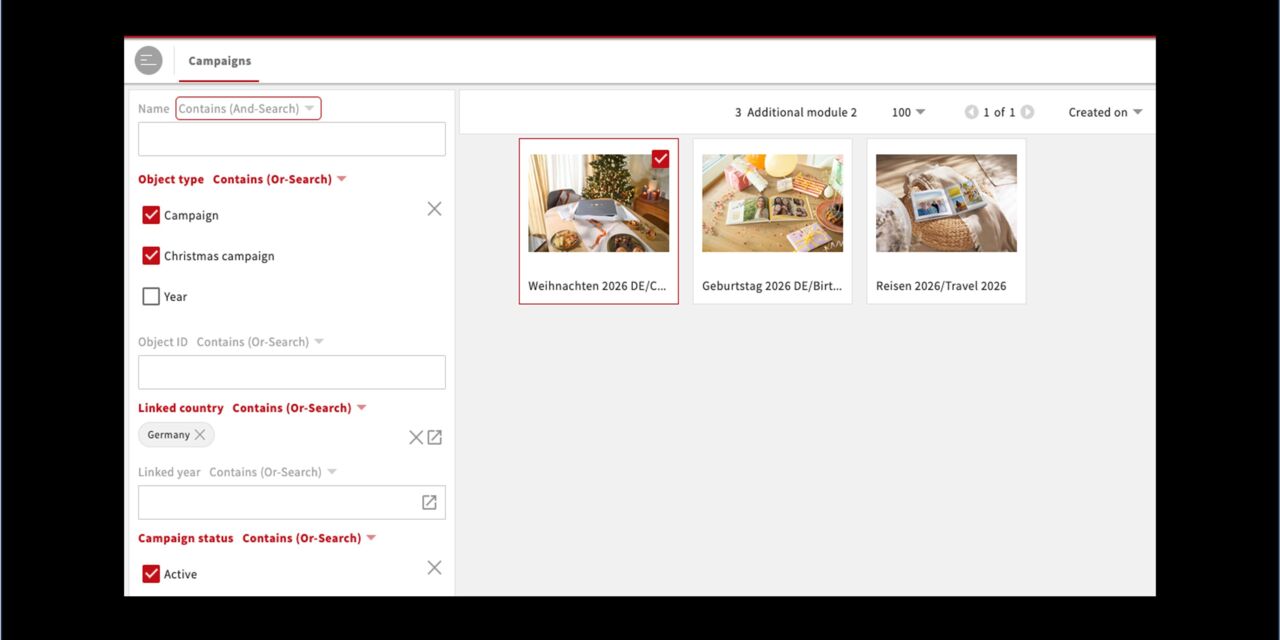
When you click on Campaigns, you are taken to this page, which provides an overview of the campaigns that are currently visible.
You can view all campaigns or filter by Campaign vs. Christmas campaign.
The year, the country and the status of a campaign are also displayed here. For now there is an automated filter for Germany, we will only create the German campaigns for the time being. However, the process will be rolled out for all sites eventually.
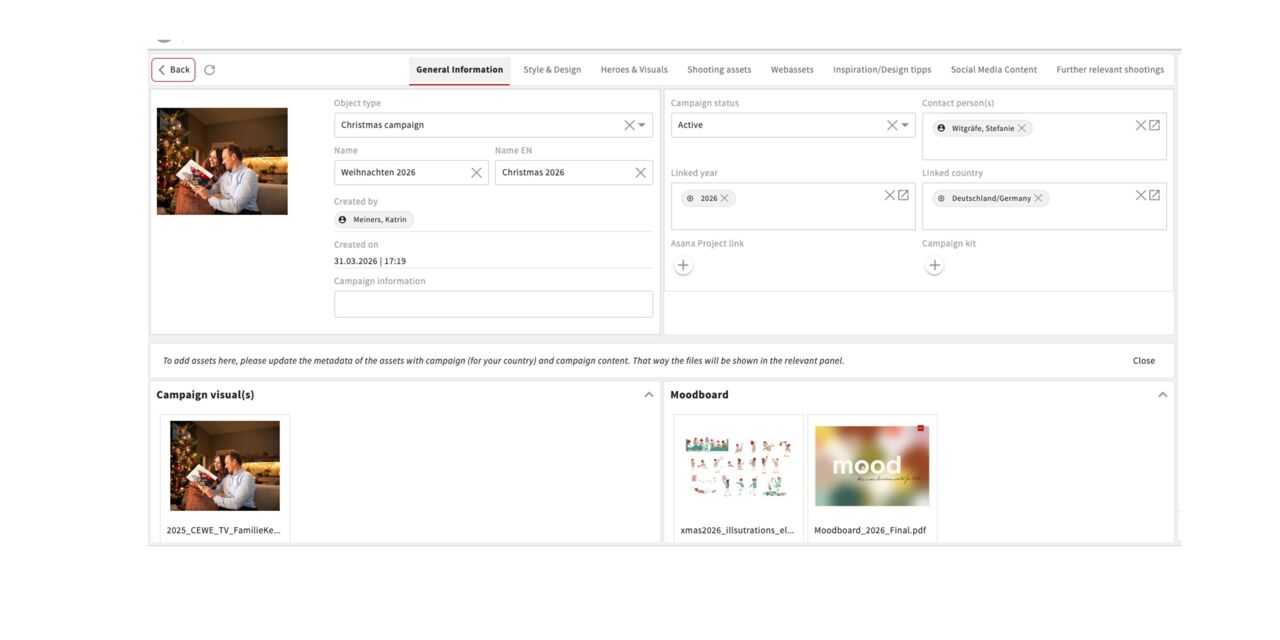
Campaign main page
Here is an example view of the Christmas campaign. At the top, you will find information about the campaign. Below that, you will find the main content — for Christmas, this includes the mood board and the campaign visual. In the additional tabs, you can find all content related to the campaign. Relevant inspiration objects such as creative tips, social media shoots, etc. are also linked there.
The year-round campaigns are structured a bit more simply. The structures may still change, as we are working to make them as optimal as possible for everyone. Feedback is very welcome.
How do I add files to a campaign?
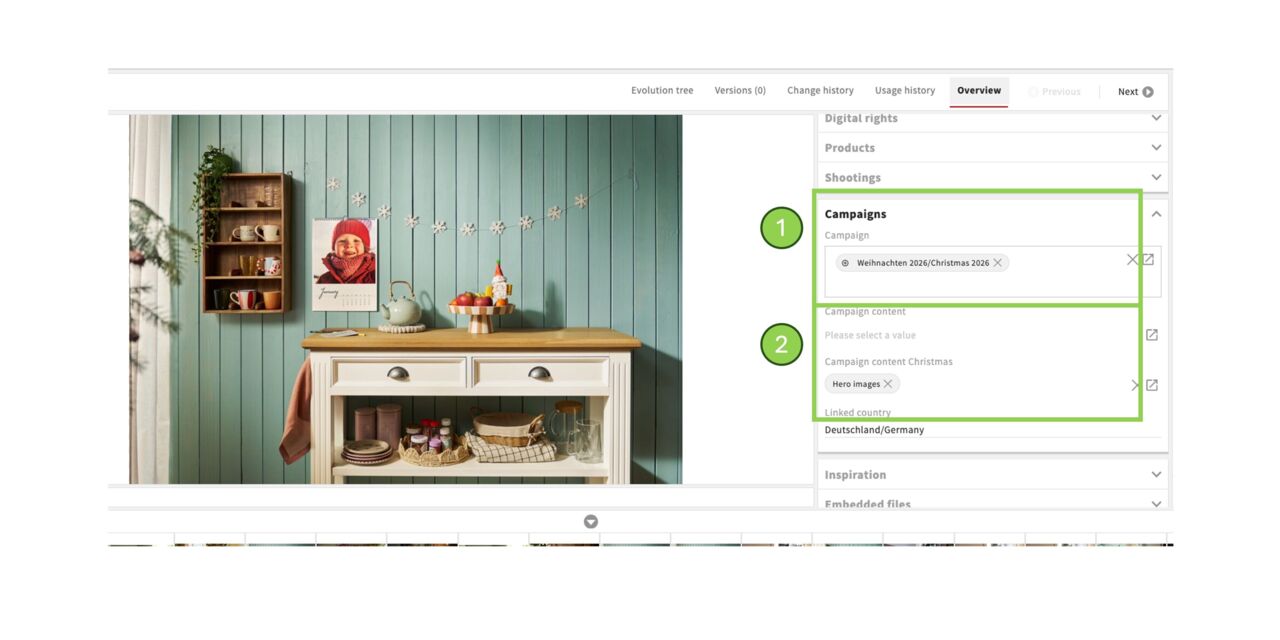
Assets are linked with the campaigns via metadata.
In the Campaign field, enter the respective campaign (at the moment, only German campaigns are available).
Then fill in either the Campaign content or Campaign content Christmas field so that the file is displayed in the corresponding section.
In this example, the image is displayed in “Hero images,” “Keybook Hero,” and “Lifestyle shooting”.
Important:
Campaign content does not work across campaign types. For example, if you select Campaign content – campaign visual and link the file to a Christmas campaign, it will not be displayed in the Christmas campaign.
In that case, you must select Campaign content Christmas – campaign visual instead!
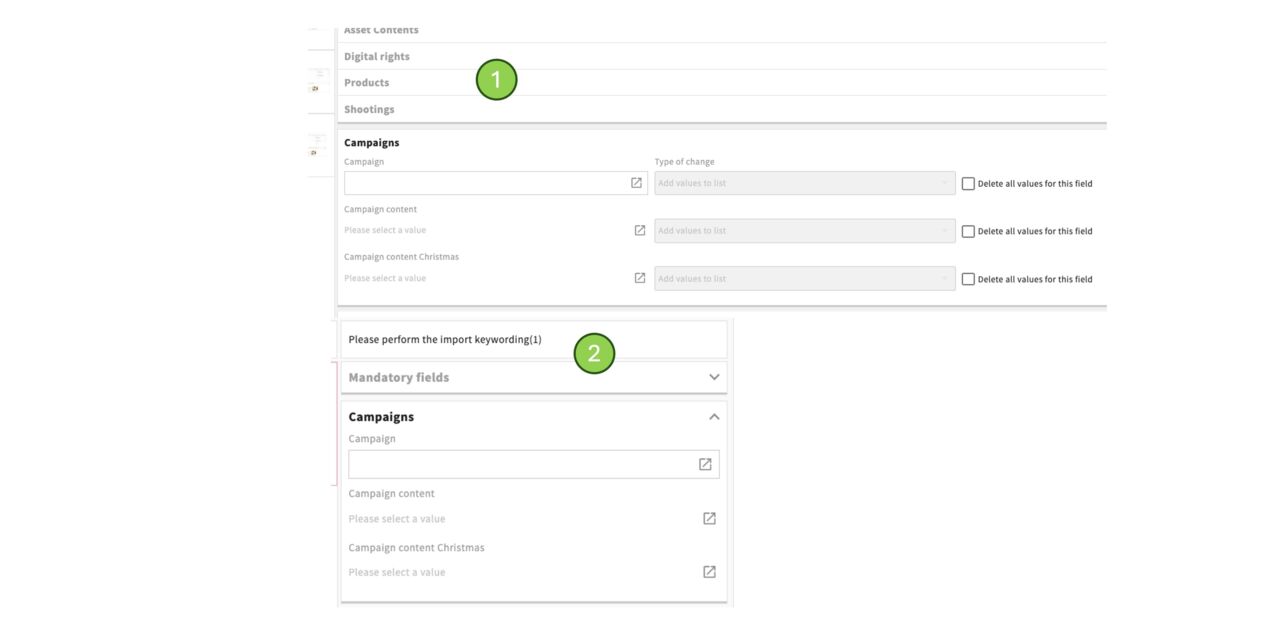
You can also link the files to the campaign and campaign content via:
- Mass change
- Upload (at the moment below the mandatory fields)