Navigation in CMA
Learn how to navigate easily in CEWE MediaAssets
System surface and icons
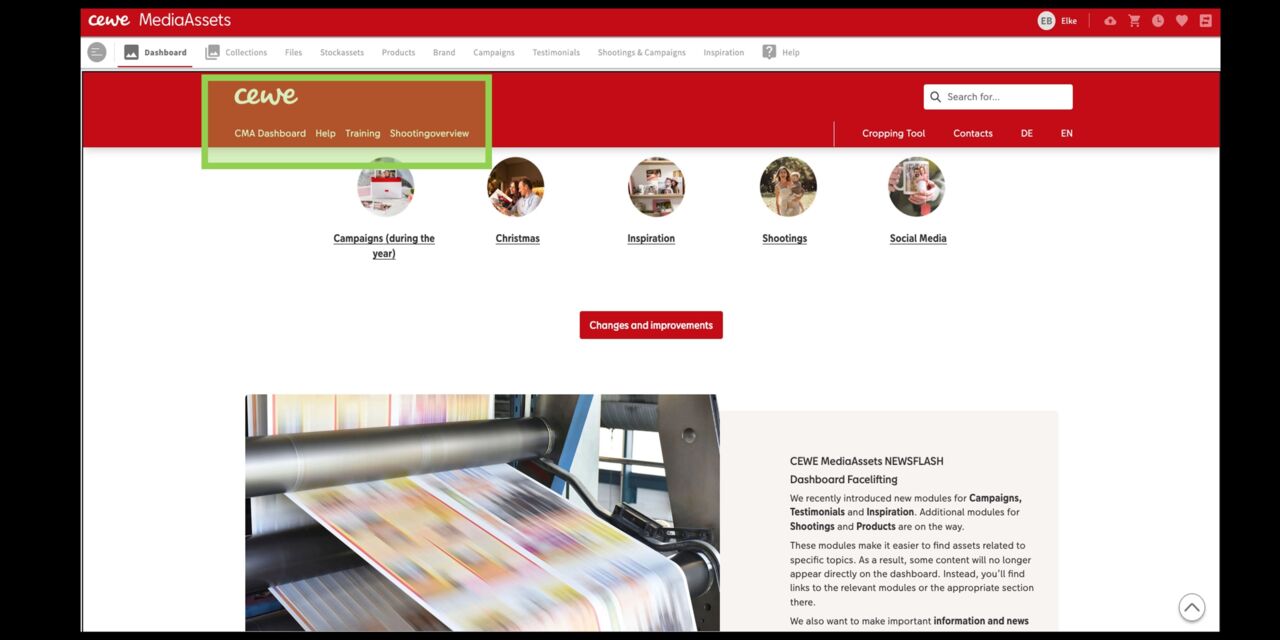
Dashboard
On the dashboard, the top navigation gives you links to:
- Special content like shootings
- Our help pages
- Our training courses and tutorials
You’ll also find:
- Links to content and modules like Campaigns, Inspiration, Testimonials, etc.
- A button linking to technical system updates
- Our CEWE MediaAssets Newsflash
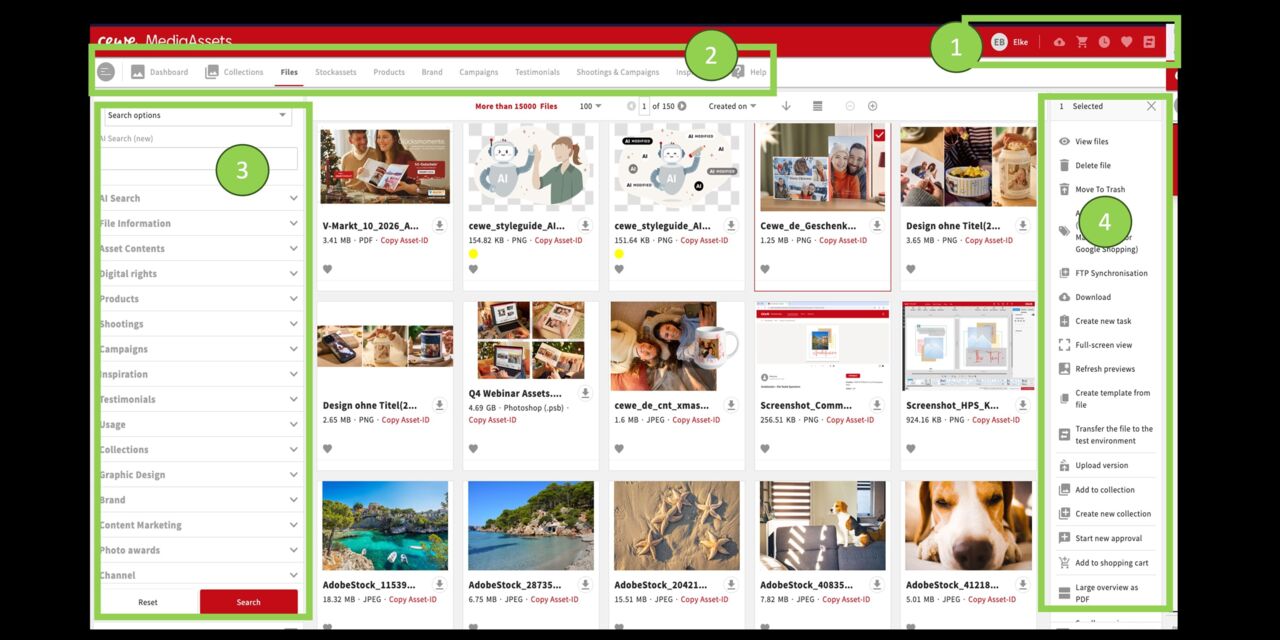
Overview
- The Navigation bar includes Profile, Upload, Shopping basket, History, Favorites and Data transfer.
- The Overview of modules/ areas shows the different areas, visible depending on the appropriate role and rights.
- The Filter area shows the different filter options to search with.
- The Display of results area shows selected assets or collections. (If unfiltered the system would show all available assets in a row)
- In the Action area you would execute all kind of actions that can be done with assets or collections.
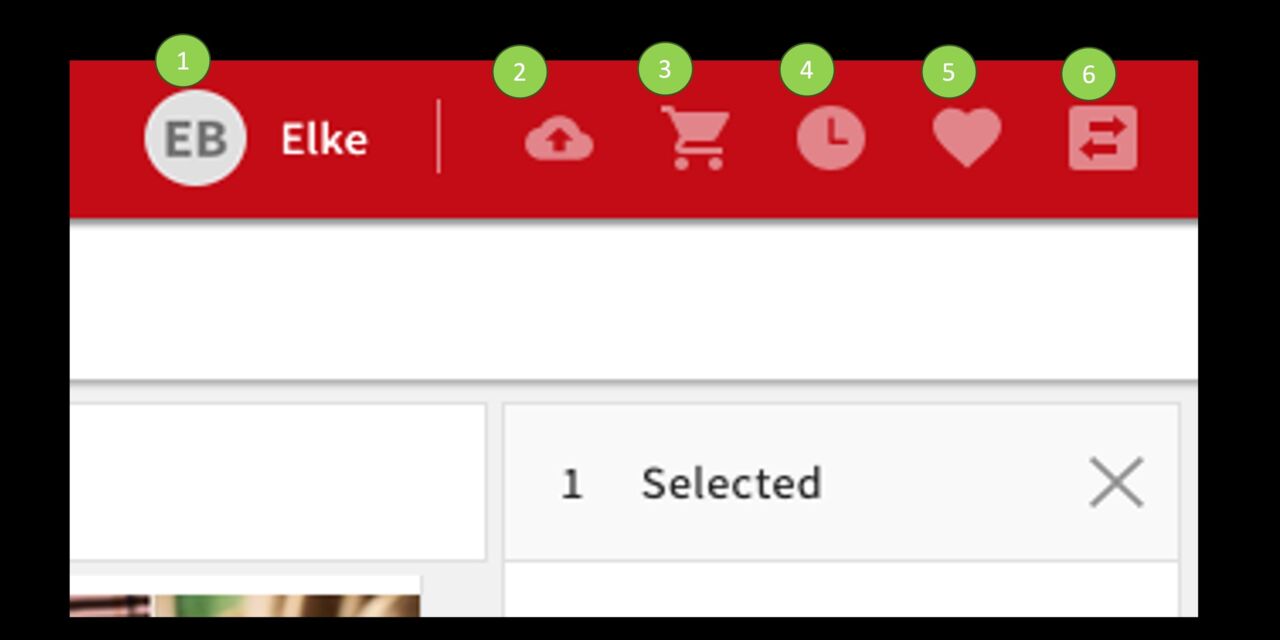
Icons
- Profile
- "Upload-Cloud"
- Shopping basket
- History
- Favourites
- Datatranfer
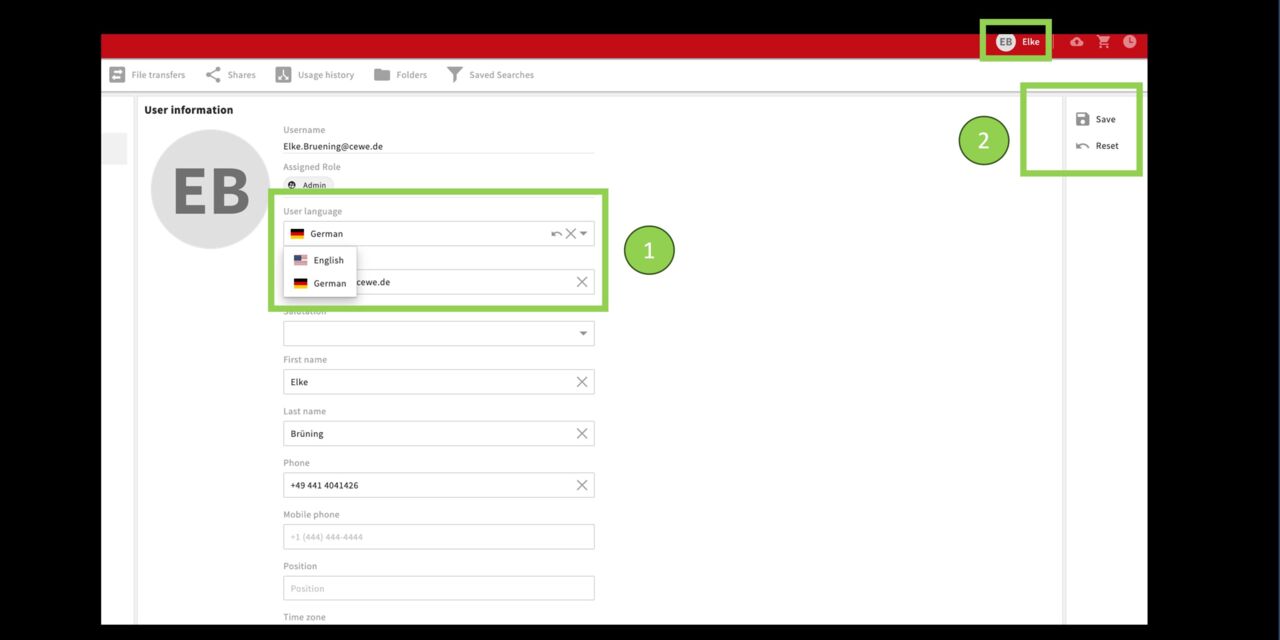
Profile
With a click on the name your own profile will open. Personal information like name, e-mail address , phone number and language can be administered here.
- Edit
- Save
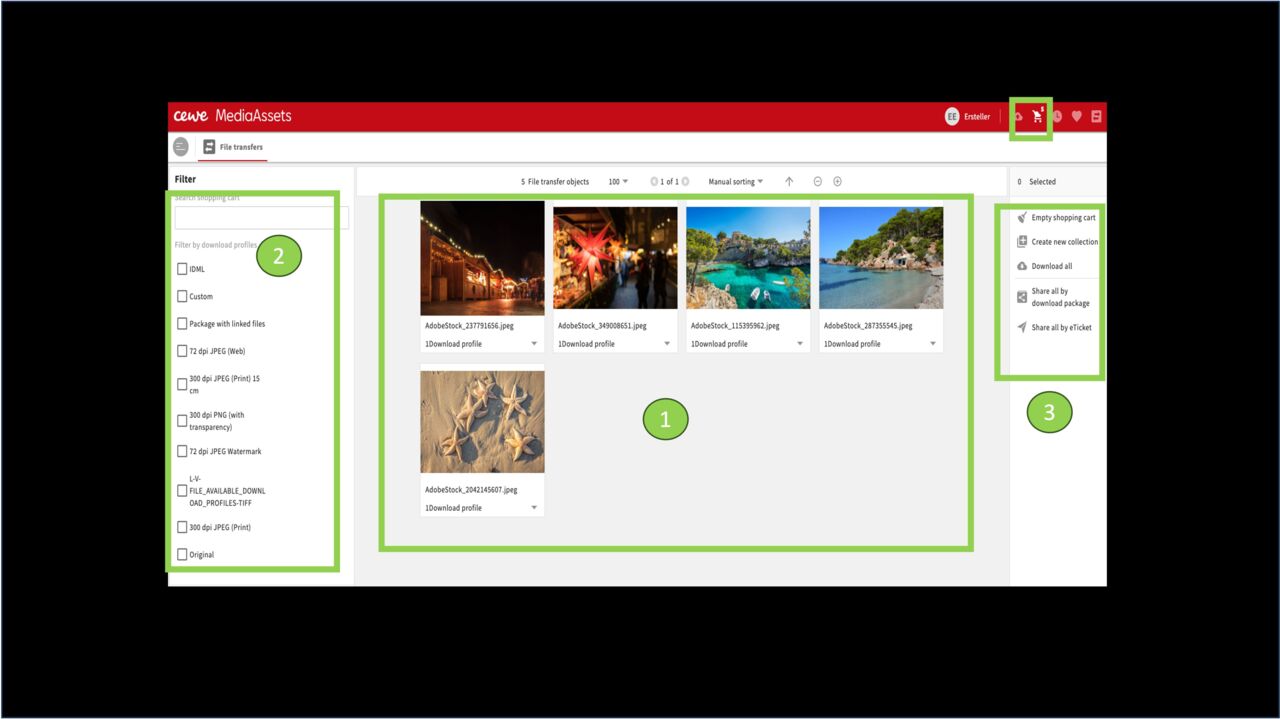
The shopping basket enables you to carry out actions for several assets at the same time such as downloading several assets in different download profiles or sending assets to external users (also see e-ticket)
- Filter area by download profile
- Display of assets in the shopping basket
- Action area
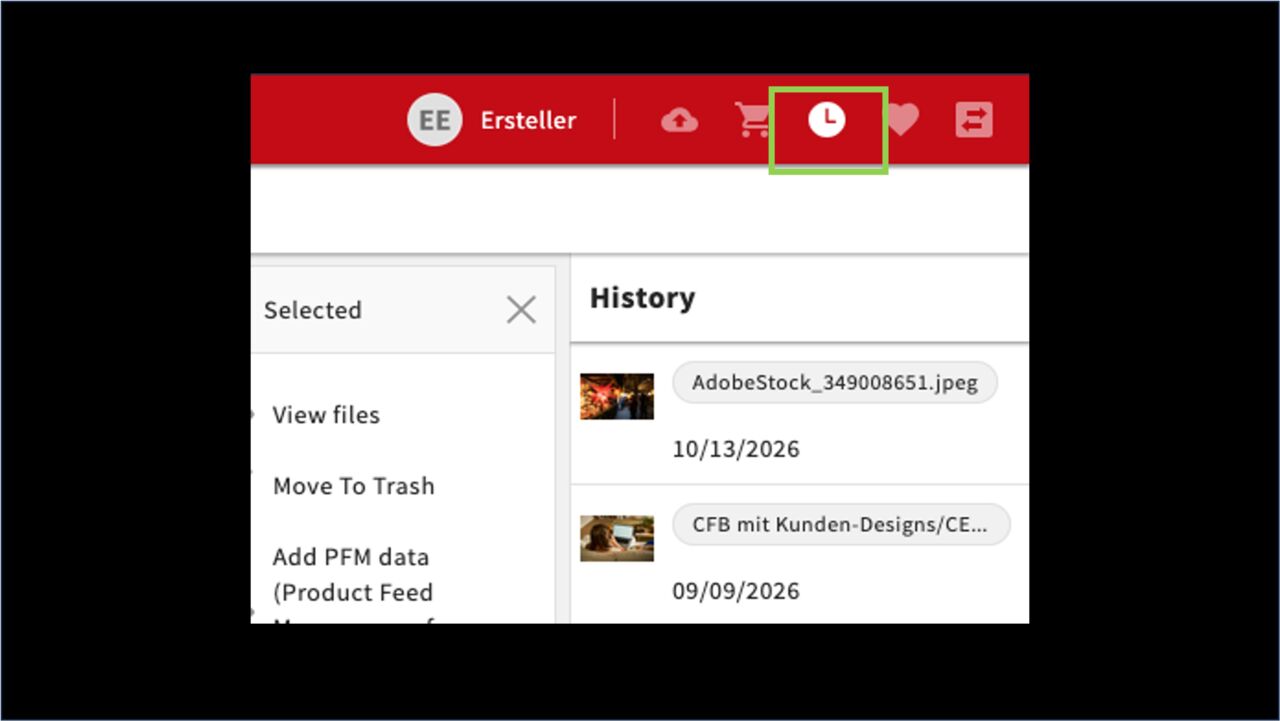
History
Click on history to re-display data or collections that you looked up recently.
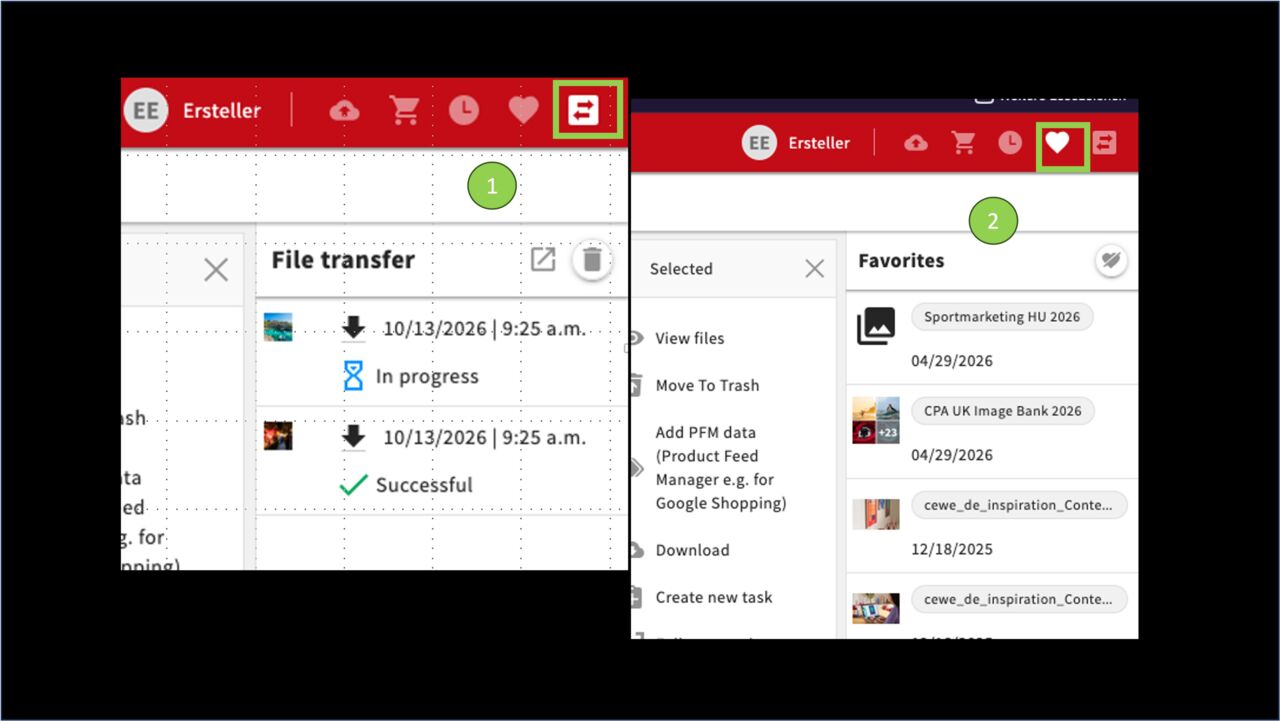
File transfer /Favorites
File Transfer shows the status of uploads, downloads, and the delivery of e-tickets or download packages.
Under Favorites, you can access assets you’ve previously marked as favorites.
Roles & Rights
Find the appropriate role and its rights for the work in your specialist division.
Consumer - your role if working in fields like Sales, Product Marketing, Human Ressources, etc.
- Searching for assets related to general topics and products
- Creating and editing collections
- Participating in selection processes
Editor - your role if working in fields like PR, Content Marketing, Online Marketing, Brand Marketing, etc.
- Search for assets related to general topics and products
- Creating and editing collections
- Participating in selection Processes
- Adding specific metadata
- Uploading new assets
Creator + Creator Graphic Design - the role for all Graphic Designers
- Search for assets related to general topics and products
- Creating and editing collections
- Participating in selection Processes
- Adding specific metadata
- Uploading new assets and asset versions or variants
- Working on assets via InDesign and Photoshop
Deliverer - your role if working in fields like Photo studio, Agencies, Retouching, etc.
- Creating and editing collections
- Initiating selection processes
- Adding specific metadata
- Uploading huge amounts of assets
Language settings
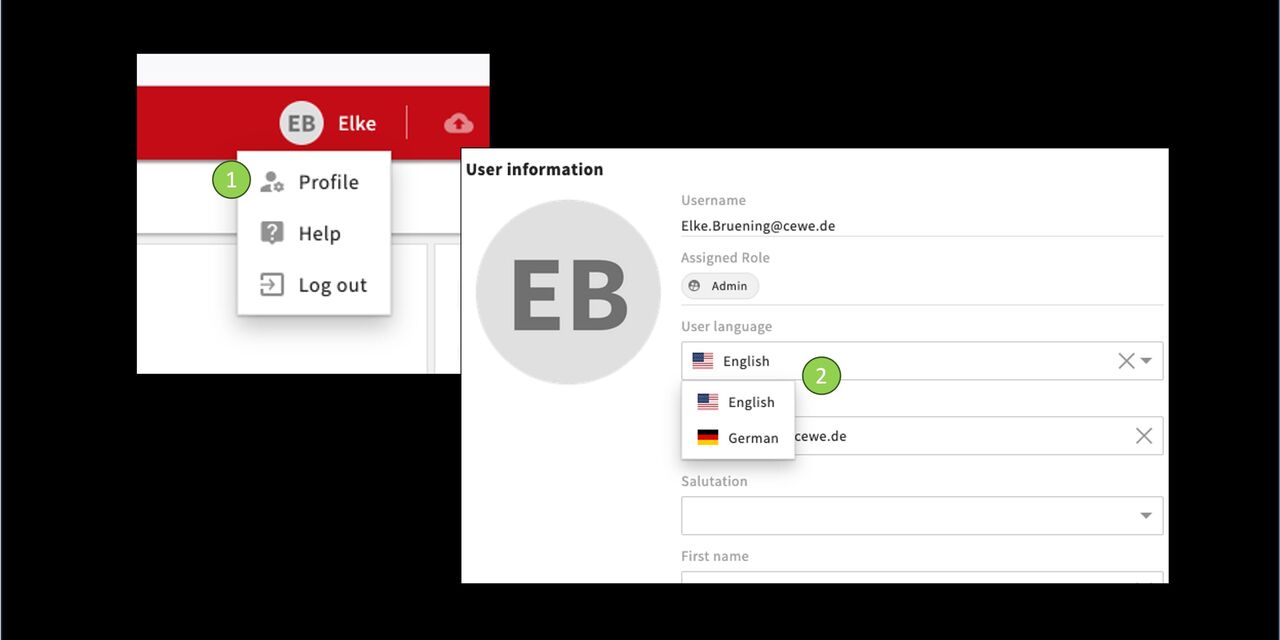
Amending the language of the work surface
Got to your user profile
Amend language in the
drop down.
Then save (top right corner)
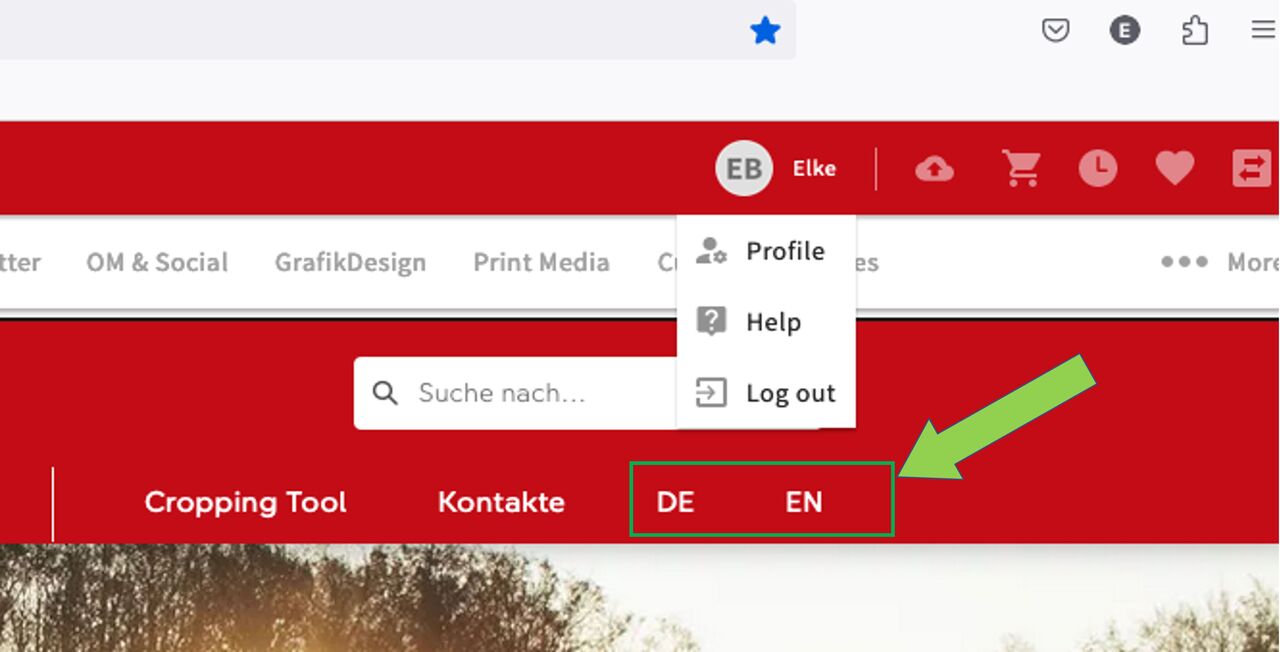
Dashboard language setting
The language for the Dashboard
is set independently of the language
for the work surface as it is a separate
page.
Simply click DE or EN.
Access for external user
We can also grant access to CEWE MediaAssets for external users. This is primarily used for agencies with whom we work.
Please note: Before requesting access, it should be clarified whether the respective user really needs full access to all image material or whether access to selected material for further processing would be sufficient. In that case, system access is not necessary; you can provide the material to the user via the so-called e-ticket. You can find detailed instructions on how this works here under “Download via Shopping Cart / E-Ticket / Download Package.”
If you decide for the full access, this is granted for 6 months and extended if necessary. To check the need, an email will be sent to the **contact person **at CEWE named in the ticket in good time before the deadline expires. This allows an uncomplicated extension.
Please note: If the email remains unanswered, the external user loses their access right and a new request must be made.
The IT department requires the following for the access request:
- Name
- Email address
- Company name
- Signed IT security policy
- Contact person at CEWE
You can choose to submit the ticket yourself - then use this link to the OL IT Ticket desk. The link to the security policy is also integrated there.
Or send us the signed guideline and the required data and we will be happy to take care of it.