Inspiration
Your access to inspiration content - design tips, photo tips and more
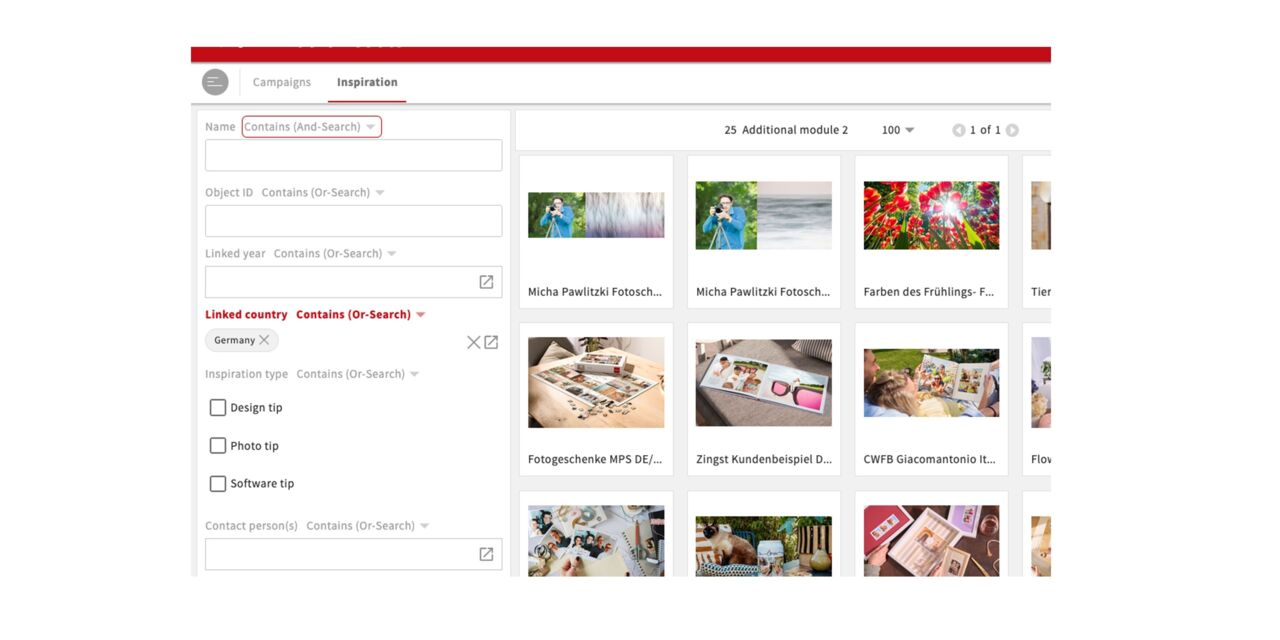
In the Inspiration section of CEWE MediaAssets, you will find image content for design tips, photo tips, and software tips. You can search for specific content there or get inspired by the latest additions. At the moment, only German content is available; content from the different sites will be integrated there at a later stage.
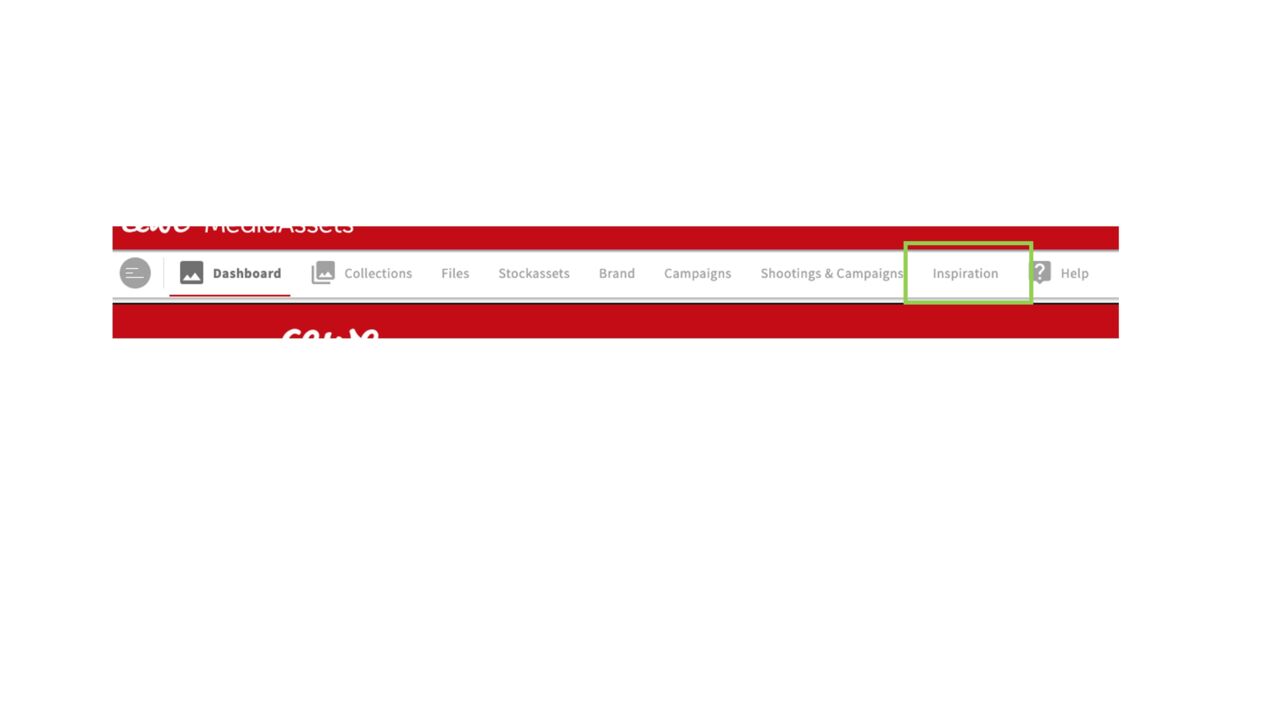
The tab inspiration will appear on the first page of MediaAssets (next to the old tab Shootings & Campaigns which will be completely replaced by new modules eventually).
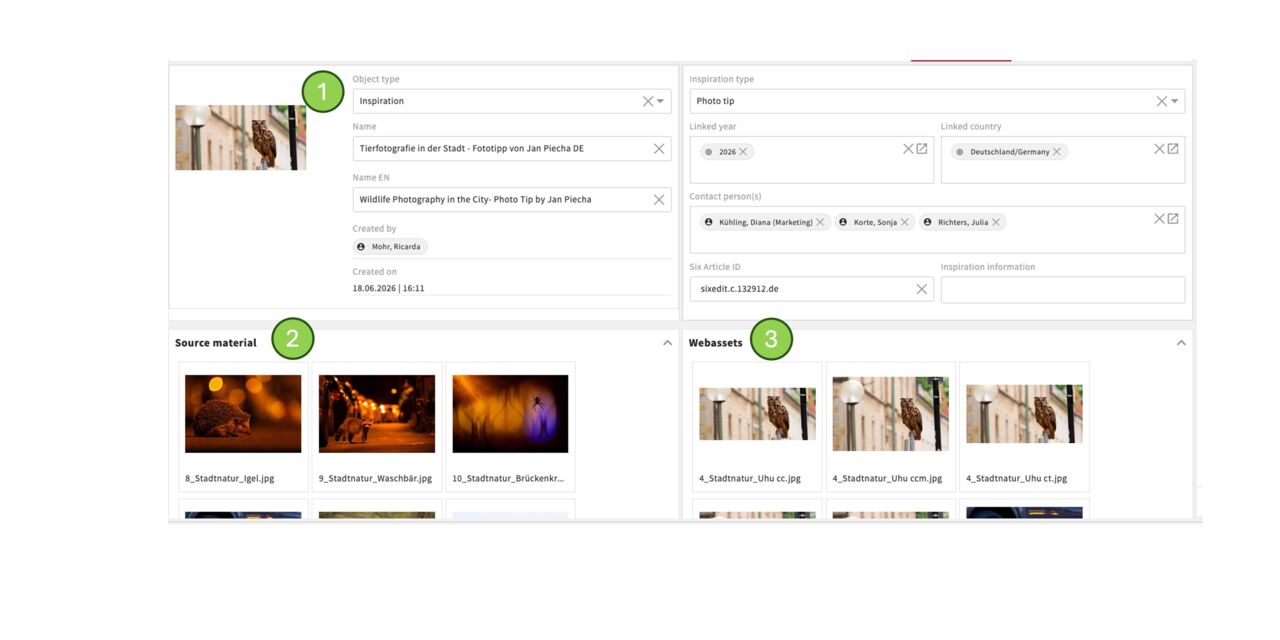
At the top, you will find all information about the inspiration object, such as the name, type, contact persons or contact email addresses, Six article ID, etc.
At the bottom left, you will find the source images, i.e. images from photo shootings, stock images, or graphic assets. These are the contents you can use, for example, for retouching, translations, or new crops.
At the bottom right, you will find the already created web assets for the German web content. If useful, you can insert the asset IDs into corresponding new web pages.
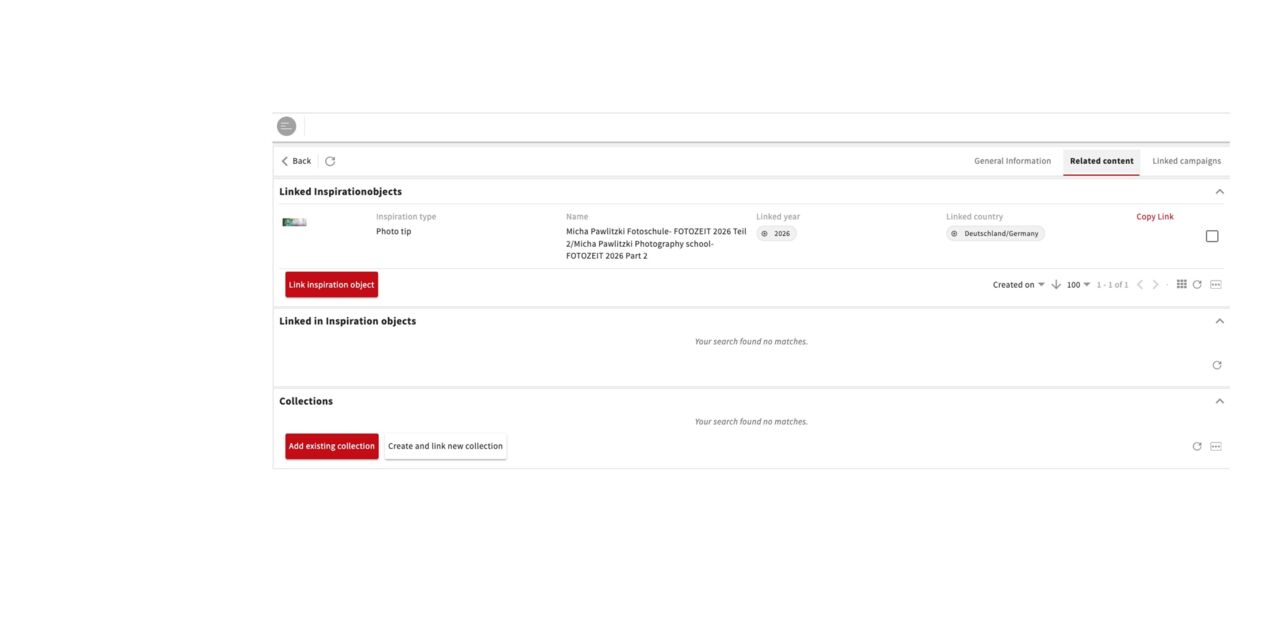
Using the additional tabs, you can access further or related content. For example, other inspiration objects or relevant collections can be linked here. There is also a tab where the associated campaigns will be linked in the future.
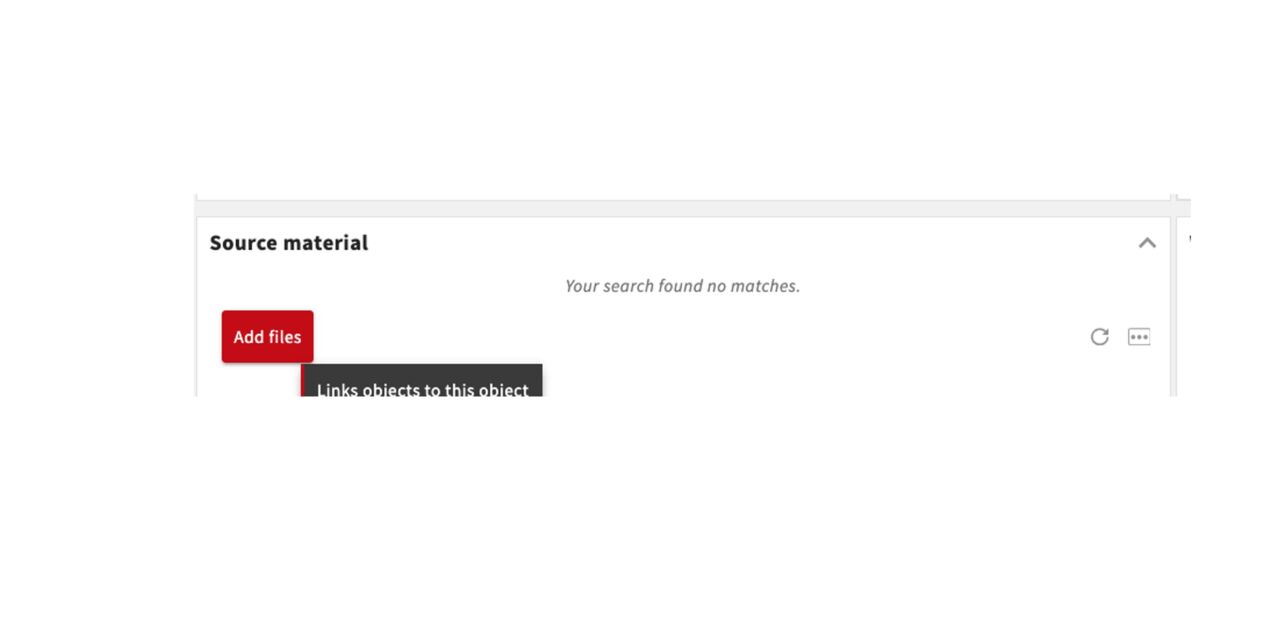
Files can be added directly within the inspiration object. Please only do this, for example, if you are a designer working directly on behalf of Content Marketing or if you are personally responsible for the object.
It does not actually matter whether you add the files under Source Images or Web Assets—the left side will automatically display only shooting, stock, and graphic assets, while the right side will only show web assets.
Therefore, it is important that you upload the corresponding assets with the correct asset type, i.e. into the correct folder.
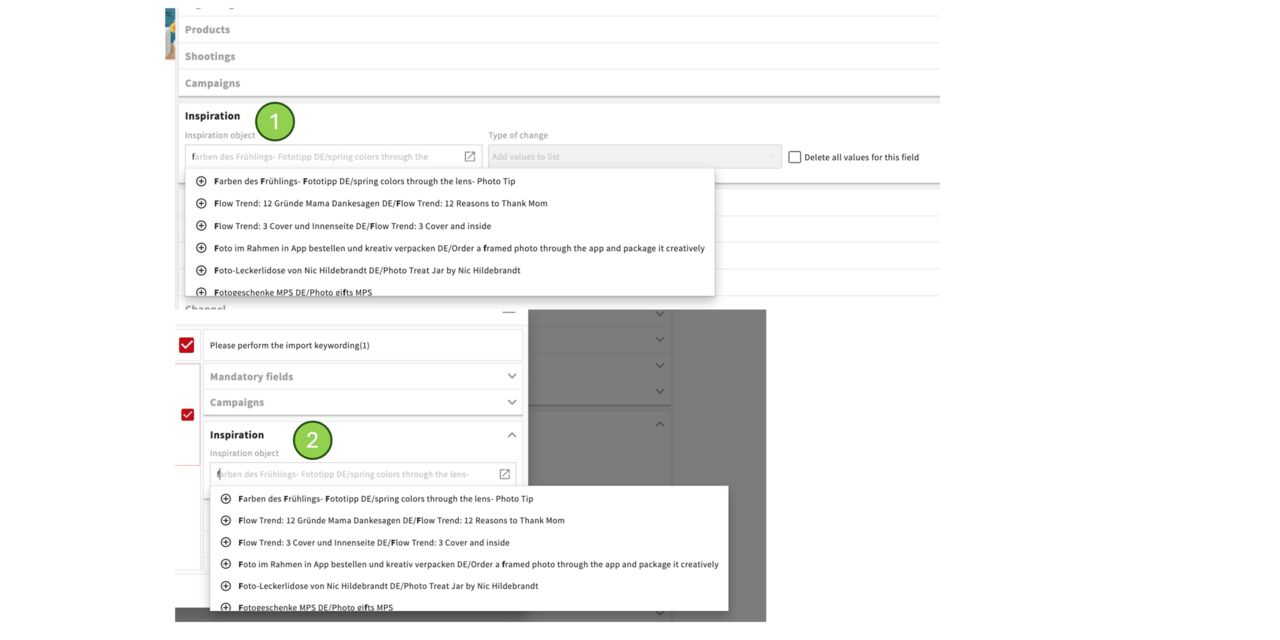
In addition you can add files by updating the metadata of the files.
This is possible via mass change under Inspiration
or also when uploading, there you can find the Inspiration tab under the mandatory fields and campaigns.
Create new Inspiration topic
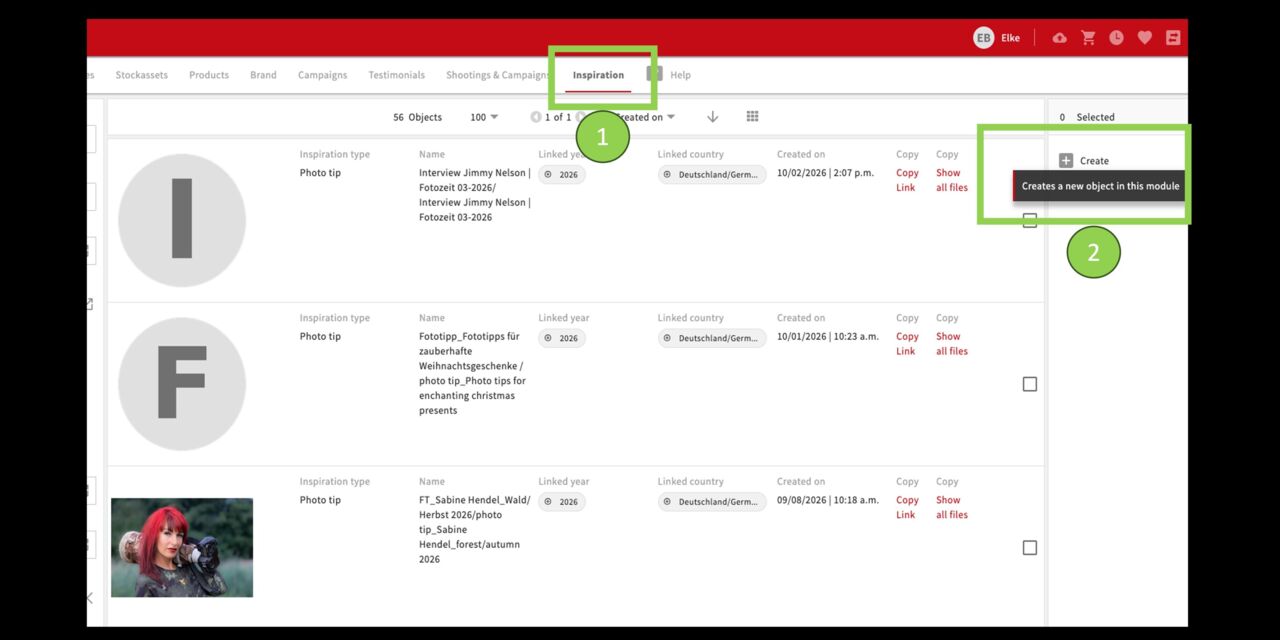
Create object
You can (necessary permissions provided) create new Inspiration topics like Creative tipps on your own.
Go to:
Inspiration
Create
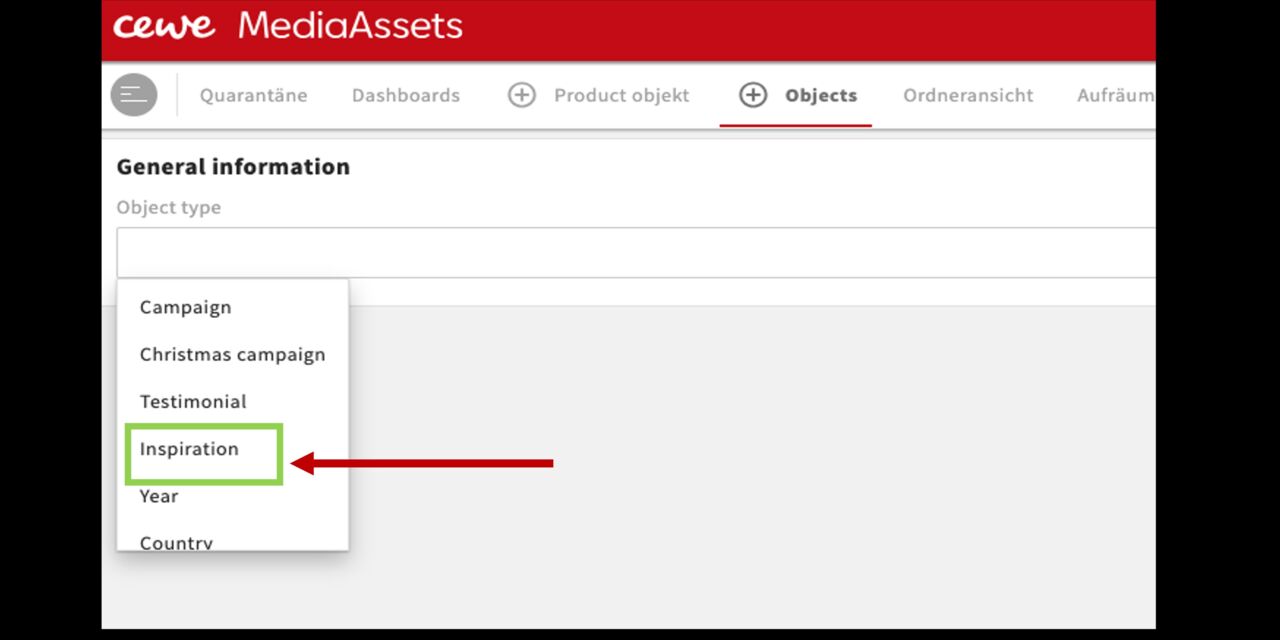
Object type
Define the object type - for example "Inspiration"
"Save" it at the top right.
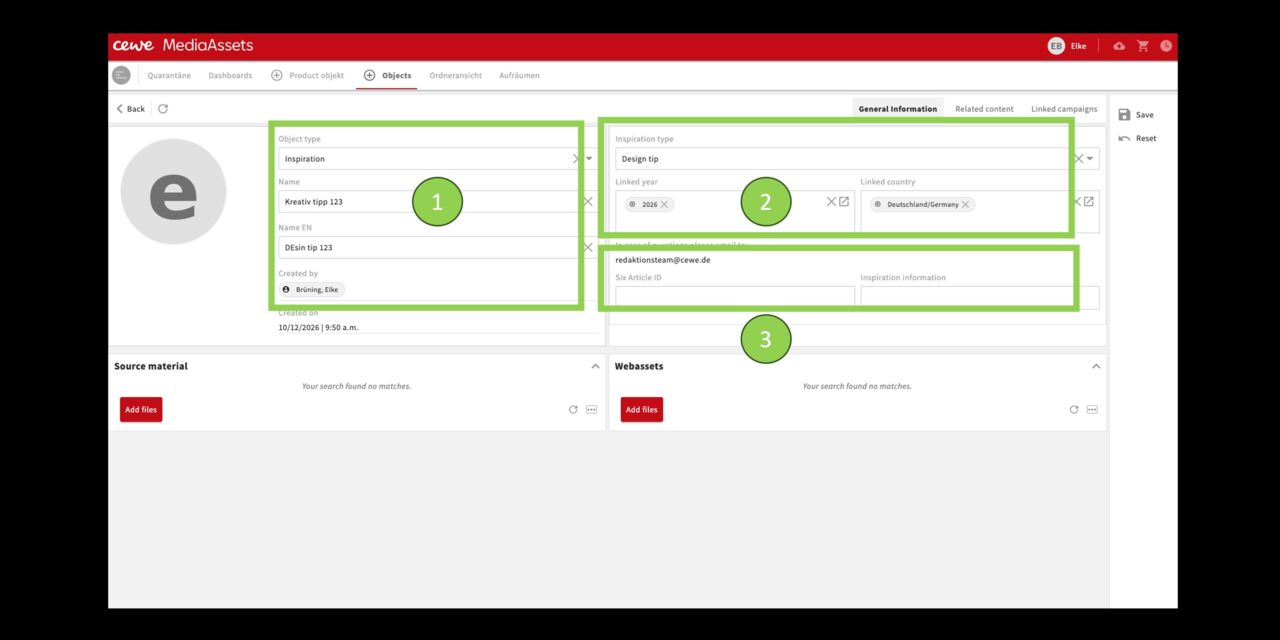
Fill Information
Now fill in the generell information:
Object type, name, and English name
Select the inspiration type from the dropdown menu, and choose the year and country using the selection boxes.
You can also enter SIX IDs and other relevant information.
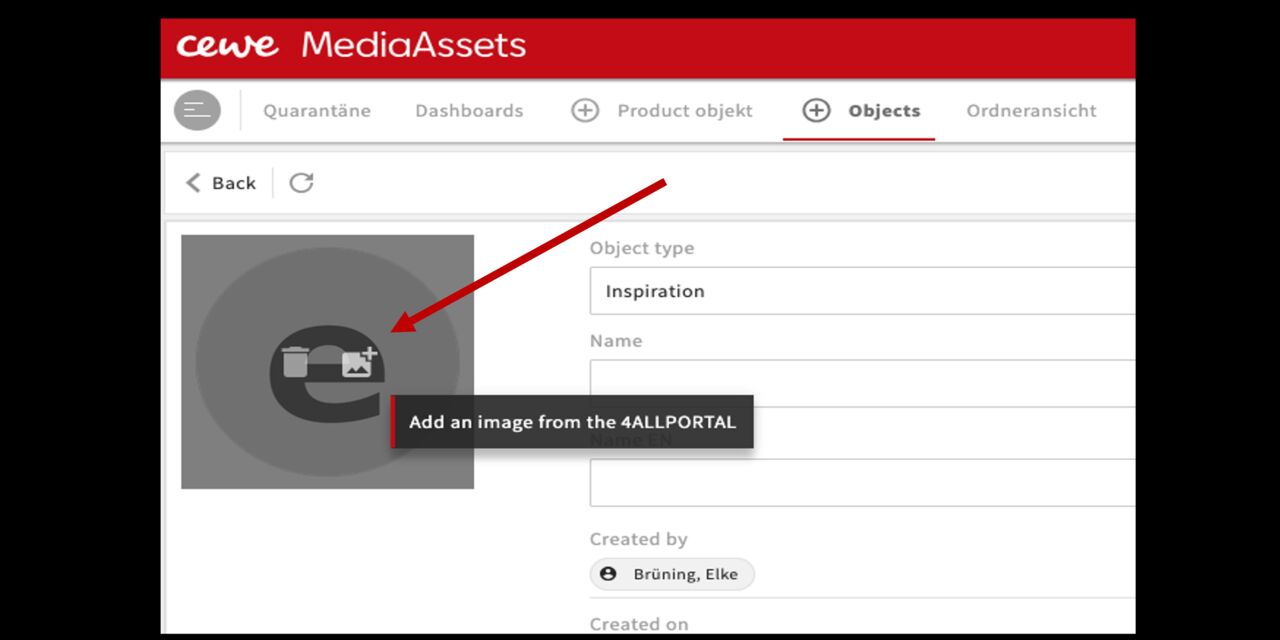
Image
Click the placeholder and add a suitable image to your object.
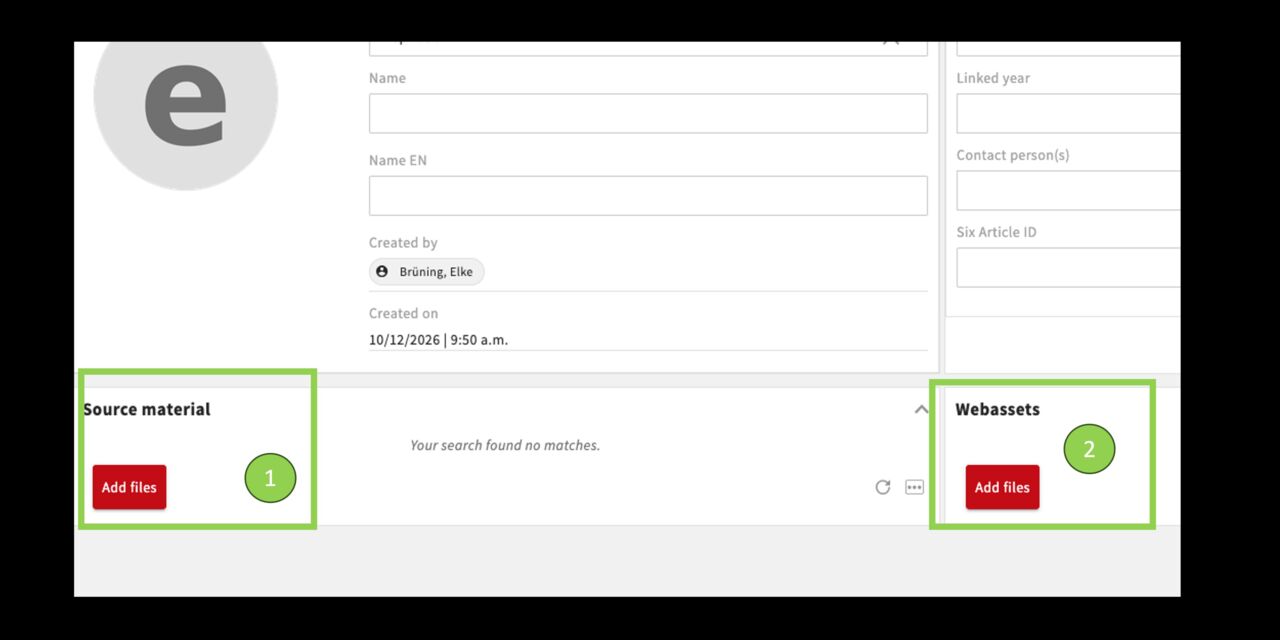
Files
Use the “Add files” option to make the desired files visible in the object.
Source images = Shooting assets assets or stock assets
Web assets = finished web cuts
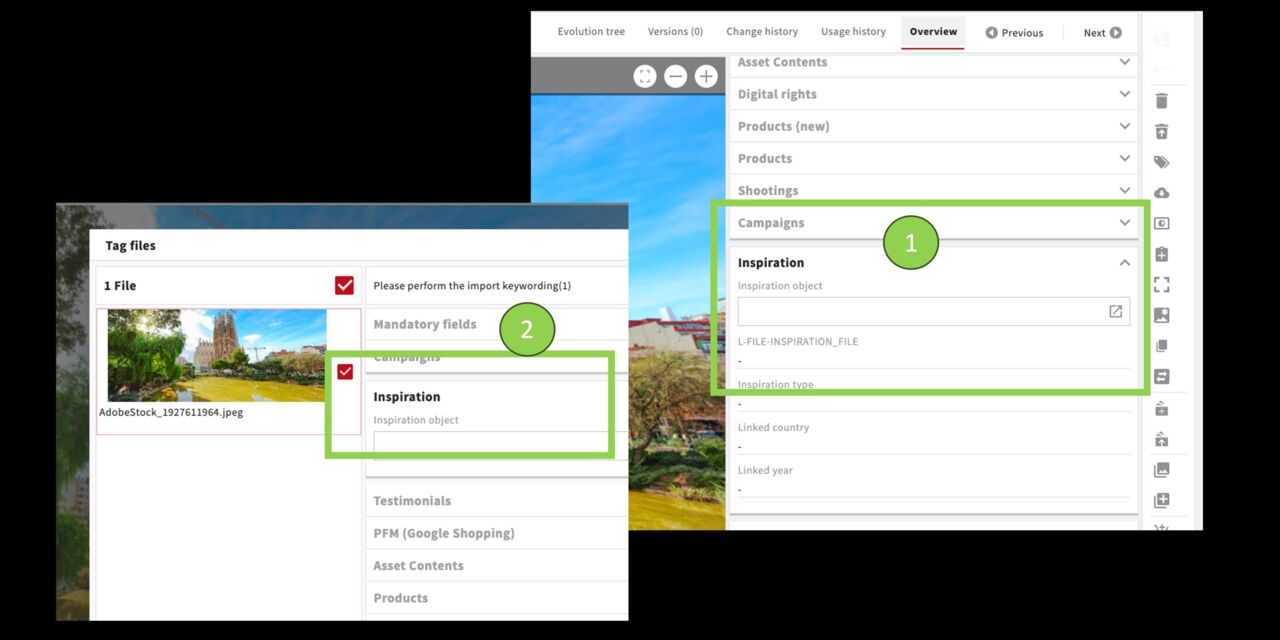
More options for linking files with the object
Files can also be linked to the inspiration object through their metadata. You can do this for individual files or use mass changes for several files at the same time. Simply enter the inspiration object you created in the Inspiration field in the files metadata.
You can also use the same metadata field to link files during the upload process. The field is located below the mandatory fields.
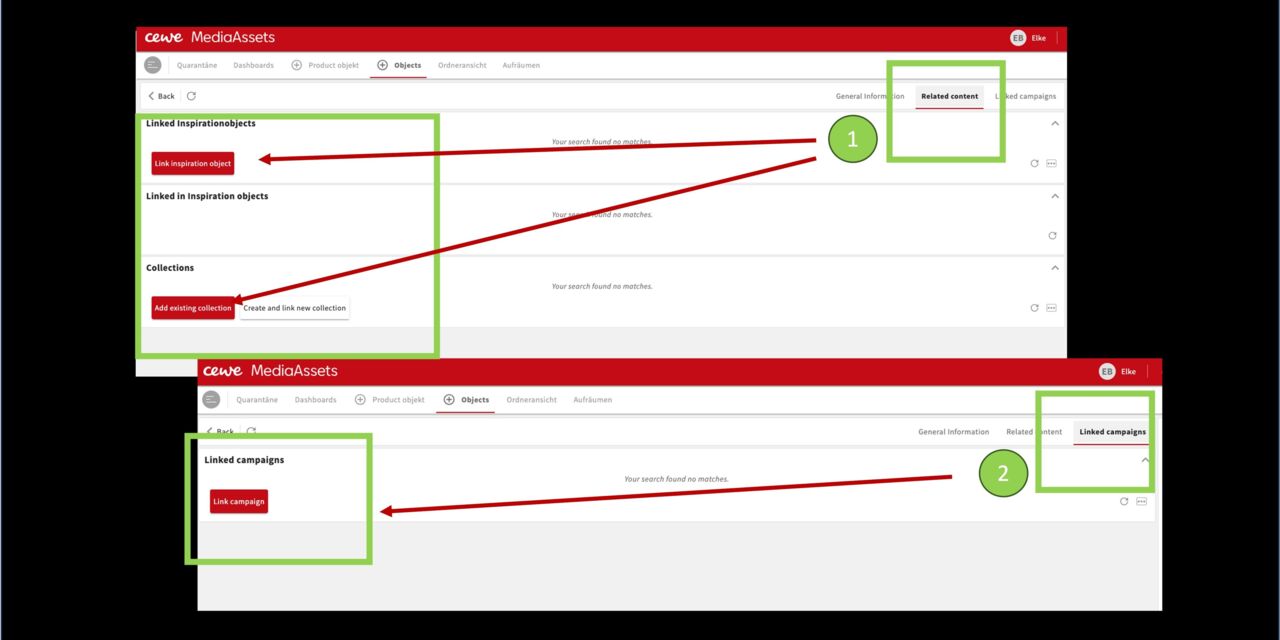
Link objects
Use Related content to link your inspiration object to other inspiration objects or collections.
Use Linked campaigns to link it to campaigns—for example, you can link an inspiration theme to the Christmas campaign.